
Contents
Set gPanel Admin
In the Set gPanel Admin section, you will be able to change the install admin for gPanel. The install admin must be a Super Admin in your Google Workspace domain.
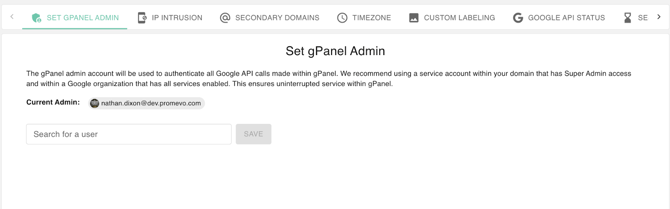
- Enter the email address of the user that you want to make the new admin in the Admin Email field.
- Click Save.
IP Intrusion
The IP Intrusion Settings feature allows you fine-grained control over who can sign in to gPanel and from what network(s).
With this module, you can restrict access to gPanel by the following:
- Single IP Address
- IP Address Range (e.g. 75.42.232.1 - 75.42.232.255)
- User
To enable this feature of gPanel, you must first set the IP Restricting toggle to Enabled. This will prevent all other IP addresses and/or users from gaining access to gPanel except for the ones you whitelist.
Add address or user to whitelist
-
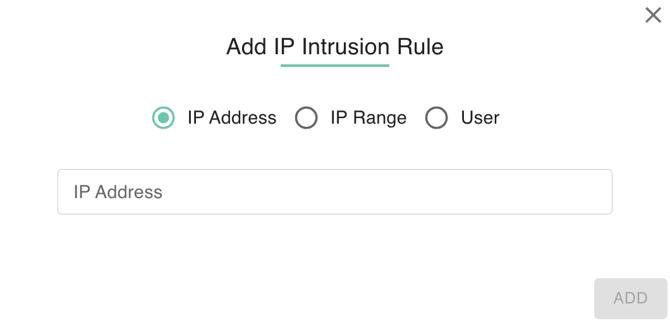
Select whether you wish to allow access to a single IP address, a range of IP addresses, or a specific user account from the Add Address drop-down menu.

-
Enter the corresponding IP address, IP range, or user email address in the popup. Click Add when this is complete.
-
Once you've added the desired address(es) or user(s), click Add to finalize the changes.
Remove address or user from whitelist
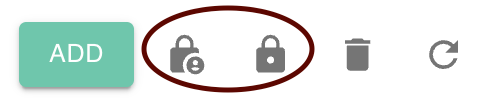
- Select the address or user you would like to remove using the checkbox next to the name. You can select multiple addresses or users by selecting more than one checkbox.

- Click the trashcan icon in the top right corner.
Enable IP Intrusion/ Enable API IP Intrusion
- Enable IP Intrusion (UI Security): Acts as a gatekeeper for the gPanel web dashboard, allowing only administrators on approved IP addresses (like your office network or VPN) to log in. This protects the domain even if an admin's password is compromised.
- Enable API IP Intrusion (Programmatic Security): Extends this protection to the gPanel API, restricting access to authorized servers or scripts. It ensures that only trusted external systems, such as HRIS integrations, can execute automated bulk changes.
Secondary Domains
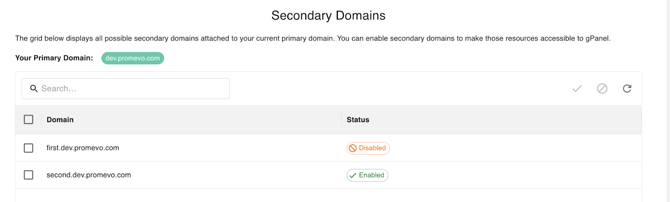
The Secondary Domain section of the Administration module allows you to include and manage additional domains you own under your primary Google Workspace domain. While you first add and verify these domains in the Google Admin Console, you must explicitly enable them within gPanel to make their specific users, groups, and resources accessible for administration.
Note: Your primary domain will always be listed here by default and is not removable.
Domain Enable and Disable
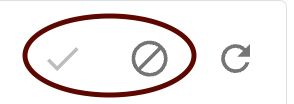
Select a Domain, you can Enable and Disable a domain by clicking the check and disable button.
-
Enable (Checkmark): Activates a selected disabled domain so gPanel can begin indexing its data.
-
Disable (Prohibition Sign): Deactivates a domain to stop gPanel from administrating its specific users or groups.
Set Timezone
The amount of time an active gPanel session can be idle (without user input) before the session is automatically disconnected or ended.

Custom Labeling
Add a company logo for both dark mode and light mode to be displayed within the User Portal. The logo will have a 200px width and keep its aspect ratio, as shown in the preview below.
Include a Image URL for Light or Dark Mode.
Important: Max resolution for the Header Image is 500 x 95 pixels. If the image exceeds this, it will be shrunk to fit.

Google API Status
The Google API Status check page is a useful tool to quickly check if an API for your domain is failing. This is important as gPanel utilizes APIs to read and make the calls necessary for the actions within.
For example, when creating a calendar, gPanel utilizes the Calendar API in some form to successfully create the calendar.
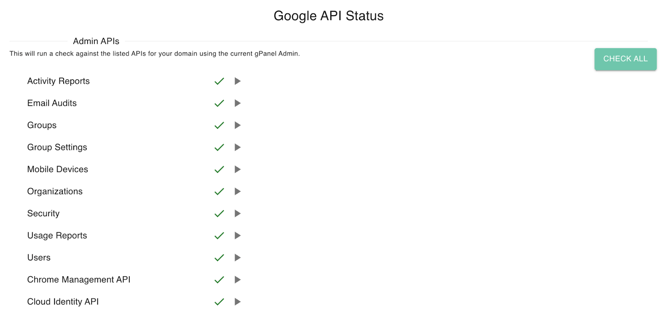
Admin APIs
Admin APIs allow the administration of domain resources. Below is a brief description of what each API is utilized for within gPanel.
- Activity Reports: Primarily used for the indexing within gPanel to pull in any newly created users, groups, organizational units and their changes.
- Email Audit: Primarily utilized for our Auditing option located within a Users Profile in gPanel, which creates an email monitor.
- Groups: Primarily utilized for the creation, deletion and updating the names of Groups. Which can be found within "Groups" under the Directory module.
- Group Settings: Primarily used to get, update, read the settings of Groups, such as who can post or view membership. Also located within the Groups portion of the Directory module.
- Mobile Devices: Primarily used in our "Mobile Management" module to approve, wipe and delete devices from your organizations Mobile Management.
- Organizations: Primarily used within Directory, to create, modify and delete organizational units within your domain.
- Security: Primarily used for reading the 3 partied applications a user has authorized access to. Which is located under their User Profile.
- Usage Reports: Primarily utilized to get User account usage info. Such as the "Last Login" report.
- Users: Primarily used for User Management. The creation, updating and deletion of users and user profile information.
- Chrome Management API: provides a suite of services that allow gPanel to programmatically view, manage, and gain insights into the ChromeOS devices and Chrome browsers within your organization
- Cloud Identity API: is the programmatic interface to the directory service that underpins Google Workspace and Google Cloud. It serves as the single source of truth for user information.
User APIs
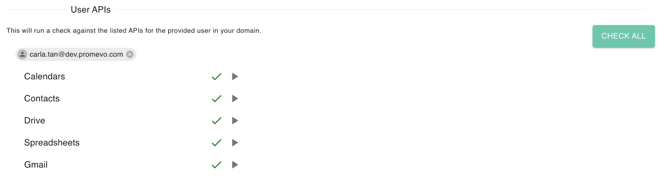
Now for the User APIs, these checks are if the API or service is "reachable" for your Users. This can be checked quickly against a user of your choosing by entering the user address in the dynamic field. Below is a brief description of what each API is utilized for within gPanel.
- Calendars: Primarily used for getting, updating, creating Calendars/Resources. Which is the Calendar module within gPanel then as well a users calendars listed under their User Profile.
- Contacts: Primarily used for the syncing of User or Directory contacts with our "Contact Sync" tool within the Directory module in gPanel.
- Drive: Primarily used to view, edit, create/delete Drive files & folders. Which is the Drive module within gPanel and its features within. Then as well the Drive view under an Users profile.
- Spreadsheets: Primarily used for creating, editing & formatting Google Sheets. Such as when a custom report is ran from the "Reports" module of gPanel.
- Gmail: Primarily used for Gmail export, which the Gmail export function is under the "Tools" module. Allows for an export of an Users mailbox.
Check API
The Google API Status page allows administrators to verify that gPanel has the necessary permissions to communicate with various Google Workspace services. By clicking the Check All button, the system initiates a comprehensive health check across all Admin and User API categories simultaneously.
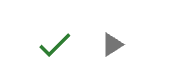
Alternatively, clicking the Play button next to a specific entry, such as the Chrome Management API, runs a targeted test for just that individual service. Successful connections are indicated by a green checkmark, confirming that gPanel can perform automated tasks like user provisioning or device management.
Monitoring these statuses is essential for ensuring that security features like Cloud Identity remain active and authorized within your domain. If Cross Red mark meaning is API check Failed. User must re-run the checking.
Session Timeout
The amount of time an active gPanel session can be idle (without user input) before the session is automatically disconnected or ended.

Welcome Templates
Whenever you’re onboarding a new user/employee, you’ll go through the account creation process in gPanel. When you create a new user, you can send their personal email a welcome letter with their new business email address’ login information.
You can send the default welcome letter, which will provide the user with a basic welcome message and their new accounts login information. Or, you can use this tool to customize that welcome message.
If you have any information that is specific to your company, you’ll be able to add that to the welcome letter for your new user(s).
Create Template
-
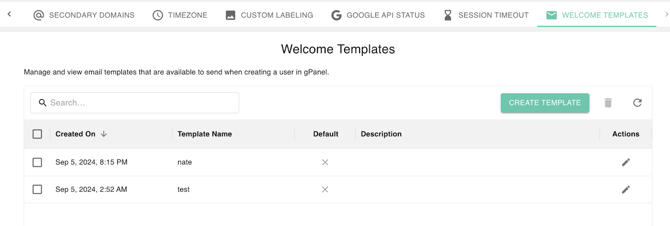
To create a new welcome letter template, you’ll need to access the Administration Module. Then click Create template.
-
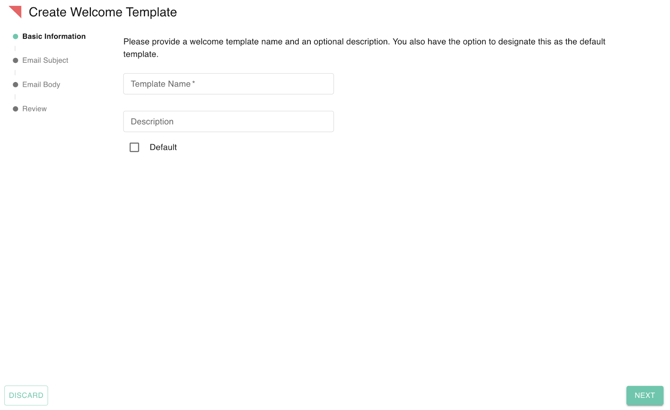
Fill out the Basic Information section.
-
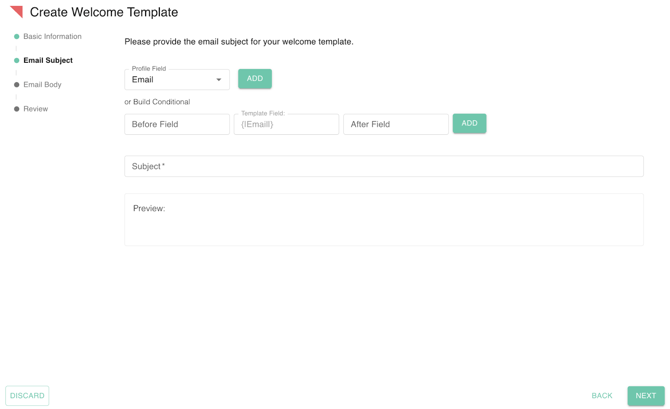
Fill out Email Subject, where you can add profile fields or build conditional fields.
-
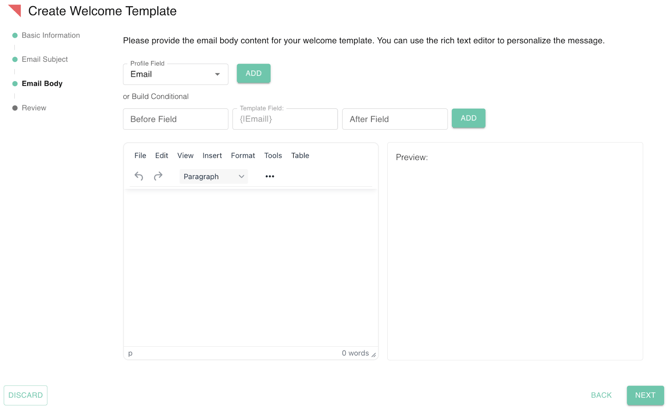
Fill out the Email Body.
-
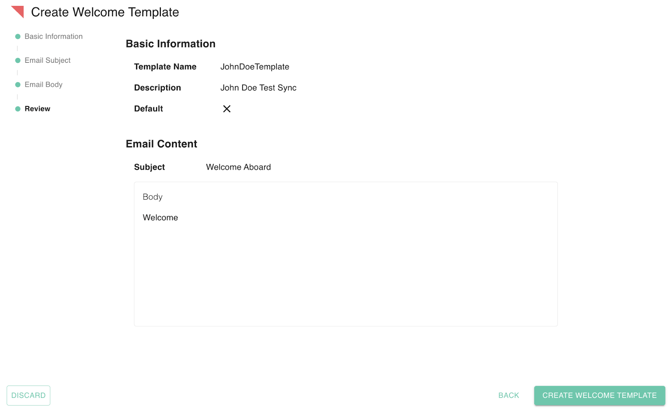
Review and Save. Once you’re in your administration settings, the very last option will allow you to create or edit your welcome templates.
Delete Template
- Select the Template you would like to delete. It will be highlighted when selected.
- Click Delete in the top right corner.

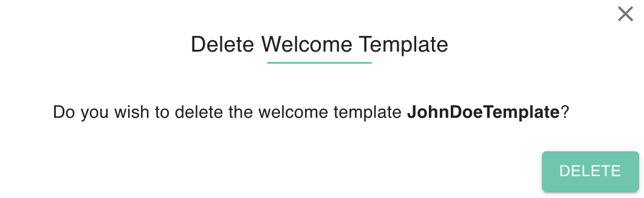
- A confirmation popup will appear. Confirm that you want to delete the Template and click Delete.
Edit Template
- Select the template from your list of templates, then click Edit.
- Go through each section and make any desired changes. All fields can be edited.
- Once you've made your desired changes, click Update Template.