Contents
Edit a role
- Hover over the role you would like to edit.
- Double Tap the role or Click Rename for Renaming details or role name.

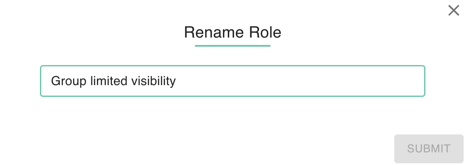
This is where you can edit the role name.
Permissions
This is where you can edit the permissions for the role. Look through the different permission sets, and decide what permissions your users need. The permissions that have check marks next to them are permissions that role currently has, permissions without check marks are permissions that role currently does not have.
To remove a permission that a role currently has click on the check mark next to the permission, and the check mark will be removed.
To add a permission to a role click on the empty box next to the permission you want to enable and a check mark will appear in it.
Once you have made your changes be sure to click Save or your work will be lost.
Members
This is where you can quickly add and remove members of your domain to a role.
To add members to a role, type the user's name or email into the Add User field. Then click the Add button and the user will appear in the user list.

Role Settings
Change Description
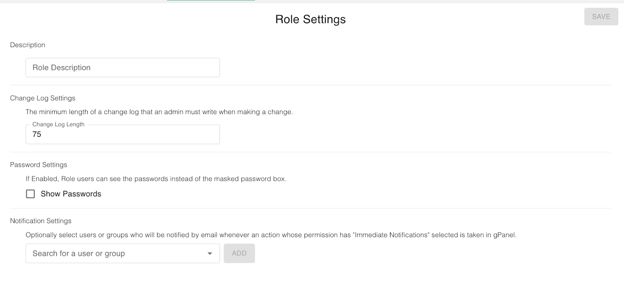
This is where you change the Role Description.
Change Log Settings
This is where you can change the minimum length of a change log that an admin must write when making a change. To change the "Change Log Length", click inside the change log length field and enter the number of characters the administrator is required to enter after making a change.
Change Password Settings
This is where you can change if users can see the passwords instead of the masked password box. To make it so users can see passwords, switch the toggle to enabled.
Change Notification Settings
These users will receive the notifications for the role permissions that were configured in the permissions tab.
To add a user, type the email of the user in the search users field, then select the desired user from the dropdown, and finally click the Add button. The user you selected will appear in the Users to Notify list.
To remove a user that you have added, simply click the X next to the user's email.
Limited User Visibility
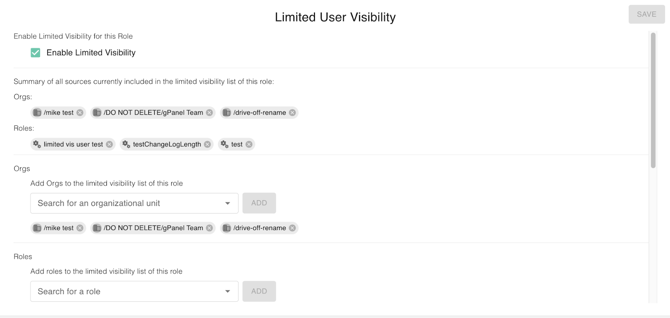
This is where you can limit visibility and management of roles over other users/orgs.
For example, an organization has a Support Team role that they wish to have admin privileges in gPanel. However, they do not wish the Support Team role to have admin privileges over the Management role.
With this module, you can exclude the Management role from visibility by the Support Team role. They will not be able to see nor modify users in the Management role.
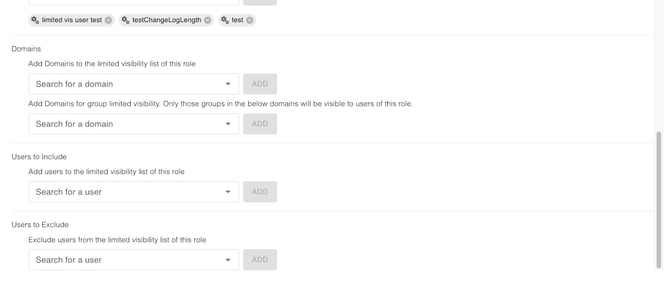
Turn the toggle to Enabled to enable limited user visibility for the role. You can add users that will be visible to the role. You can Include/Exclude the following:
- Organizational Unit
- Roles
- Domains
- Users
User Portal Directory Search
The User Portal Directory Search is a security and visibility setting within the Administration module that allows administrators to control which users are searchable in the gPanel User Portal.
The primary use of this feature is to restrict the internal directory's visibility for specific groups of people. By managing these settings, you ensure that employees only see the contact information for colleagues they are authorized to find, which is essential for maintaining privacy and organizational security.

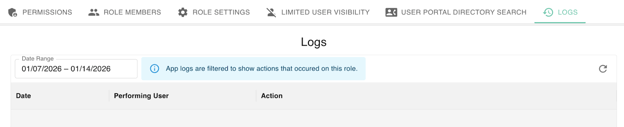
Logs
In gPanel, Logs within the Administration module provide a detailed audit trail of every administrative action taken within the platform. This feature is essential for security, troubleshooting, and ensuring accountability across your IT team.