Contents
The Google API Status check page is a useful tool to quickly check if an API for your domain is failing. This is important as gPanel utilizes APIs to read and make the calls necessary for the actions within. For example, when creating a calendar, gPanel utilizes the Calendar API in some form to successfully create the calendar.
Admin APIs
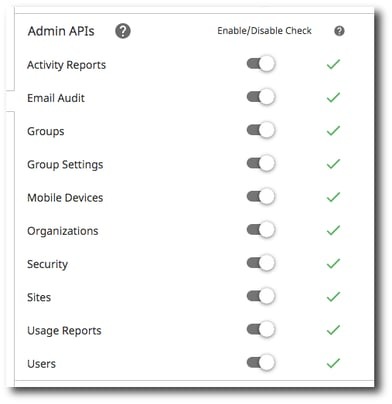
Admin APIs allow the administration of domain resources. Below is a brief description of what each API is utilized for within gPanel.
- Activity Reports: Primarily used for the indexing within gPanel to pull in any newly created users, groups, organizational units and their changes.
- Email Audit: Primarily utilized for our Auditing option located within a Users Profile in gPanel, which creates an email monitor.
- Groups: Primarily utilized for the creation, deletion and updating the names of Groups. Which can be found within "Groups" under the Directory module.
- Group Settings: Primarily used to get, update, read the settings of Groups, such as who can post or view membership. Also located within the Groups portion of the Directory module.
- Mobile Devices: Primarily used in our "Mobile Management" module to approve, wipe and delete devices from your organizations Mobile Management.
- Organizations: Primarily used within Directory, to create, modify and delete organizational units within your domain.
- Security: Primarily used for reading the 3 partied applications a user has authorized access to. Which is located under their User Profile.
- Sites: Primarily used for the "Sites" module within gPanel, as well as creation, share updating & deletion.
- Usage Reports: Primarily utilized to get User account usage info. Such as the "Last Login" report.
- Users: Primarily used for User Management. The creation, updating and deletion of users and user profile information.
User APIs
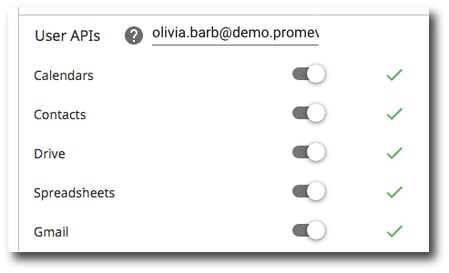
Now for the User APIs, these checks are if the API or service is "reachable" for your Users. This can be checked quickly against a user of your choosing by entering the user address in the dynamic field. Below is a brief description of what each API is utilized for within gPanel.
- Calendars: Primarily used for getting, updating, creating Calendars/Resources. Which is the Calendar module within gPanel then as well a users calendars listed under their User Profile.
- Contacts: Primarily used for the syncing of User or Directory contacts with our "Contact Sync" tool within the Directory module in gPanel.
- Drive: Primarily used to view, edit, create/delete Drive files & folders. Which is the Drive module within gPanel and its features within. Then as well the Drive view under an Users profile.
- Spreadsheets: Primarily used for creating, editing & formatting Google Sheets. Such as when a custom report is ran from the "Reports" module of gPanel.
- Gmail: Primarily used for Gmail export, which the Gmail export function is under the "Tools" module. Allows for an export of an Users mailbox.
Enable/disable API checks & notifications
At the top of the page you will see a slider to enable API check notifications. This will enable or disable the API check notification you receive if one of these checks fail on login.

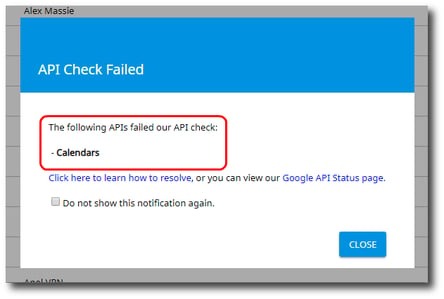
The failure prompt will look similar to this. You can click the Google API Status page link and it will bring you to the Google API Status section of gPanel. The "Click here to learn how to resolve" link takes you to our help page for ensuring data and API access is granted properly.
There are a lot of factors as to why an API may fail, the most common is the service is simply turned off for a user or for the domain. We understand that sometimes the access to that service may be required to be off, so to stop receiving these check the "Do not show this notification again" box in the window before closing.
Just keep in mind if you do choose this option, it will disable the prompt entirely, but can be easily re-enabled from the slider mentioned earlier at the top of the page.
Enable/disable individual API checks & notifications
You can enable or disable the individual checks for each API. This is usually in case a user may have a service off intentionally and no longer needs the application to verify the check.
Click the toggle next to the desired API. You will see it turn gray and the green check mark will disappear.

Check API status of a specific user
You can also check the API validation of a specific account. This will default to the listed application Super Admin. However any user account can be entered to check against in page, simply click the field and begin typing the desired user.

To run a manual check of the user, click the Check API button on the right side of your screen. You will know the manual API check has kicked off when the green check marks turn into a blue circle.
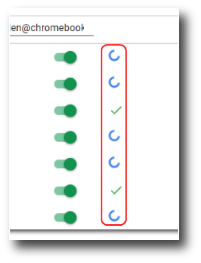
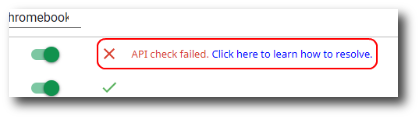
Once done, if successful, it will return back to a green check mark. If failed then you will see a red "X" with a "Click here to learn how to resolve" link.