Skip to content
  • There are no suggestions because the search field is empty.

How to Access the gPanel API

Access the gPanel API to connect, integrate, and extend automation capabilities across your organization.

Contents


Disclaimer: This is a gPanel Enterprise-exclusive feature. You must have an active Enterprise subscription in order to access the gPanel API. To learn more about gPanel Enterprise and speak with sales about demos/pricing, click here

Create an Account

Begin by navigating to the gPanel API developer portal

The image depicts a web portal for the gPanel API, featuring a modern design with a dark background and colorful geometric shapes. It includes prominent buttons labeled "Get Started" and "APIs," inviting users to launch their API programs and learn about available APIs.

2. Click on Sign In on the top right

3. Click the Create an account link

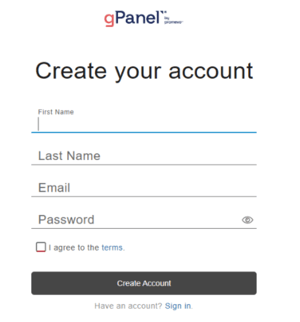
4. Follow prompts

The image displays a user registration form for creating an account on a website called "gPanel" by Promevo. The form includes fields for entering a first name, last name, email, and password, along with a checkbox to agree to the terms.

5. You will receive an email to the provided email address to validate your email address

The image displays an email notification from a no-reply email address, indicating a welcome message for a new account. It instructs the recipient to verify their identity by clicking a link within 10 minutes.

Once your account is validated, you will then have to wait for the Promevo Team to activate your account.  Until your account has been activated you will receive the following error on login attempts. 
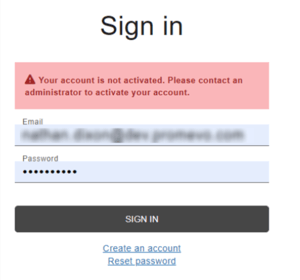
The image depicts a sign-in interface for an account. It includes a warning message indicating that the account is not activated and instructs the user to contact an administrator to activate it.

Register apps

To register an app:

Sign into your developer account on the gPanel API developer portal

The image depicts a web portal for the gPanel API, featuring a modern design with a dark background and colorful geometric shapes. It includes prominent buttons labeled "Get Started" and "APIs," inviting users to launch their API programs and learn about available APIs.

2. Select Apps from the user drop-down.

3. Click + New App to create a new app

4. Enter a name and description for the app in the New App dialog

5. Select the Enable button for the APIs applicable to the app
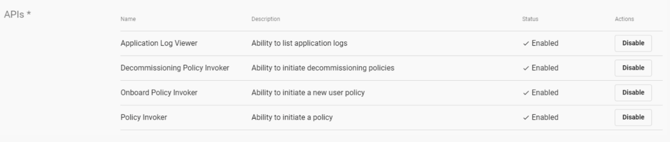
The image displays a table of APIs with their names, descriptions, statuses, and action options. Each API is listed with a brief description of its functionality, such as viewing application logs, initiating decommissioning policies, onboarding new user policies, and invoking policies.

6. Click Save

7. You will now see the API Key for the newly created app

The image displays a user interface for managing API keys. It includes a section labeled "API Keys" with a list showing a key, its secret status, current activity status (active), creation date, expiration information, and options for actions such as revealing the secret or revoking the key.

Register API key in gPanel

  1. Sign into the gPanel API developer portal

  2. Select Apps from the drop-down

  3. Select the app you wish to register in gPanel

  4. Copy the API key under the API Keys section

  5. Navigate to gPanel

  6. Navigate to API Settings

Click on the + in the header

The image displays a user interface for the gPanel API settings page. It features a list of API settings, including fields for API name, developer email, key, and last modified date.

8. Follow the prompts

9. Click Save

Make an API call

  1. Navigate to the gPanel API developer portal

  2. Click on the APIs box to view the API documentation

    The image displays a webpage for the gPanel API Portal, featuring a modern design with a dark background and colorful geometric shapes. It includes two main buttons: "Get Started," which prompts users to launch their API program quickly, and "APIs," which invites users to learn about and try the available APIs.

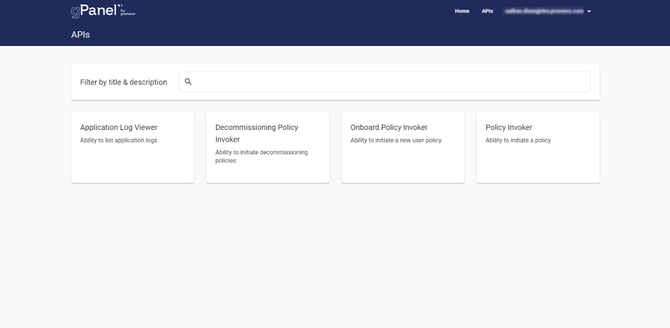
3. Click on the API you wish to call

The image displays a user interface for an API management panel titled "gPanel by Promevo." It features a search bar labeled "Filter by title & description" and lists several API functionalities, including "Application Log Viewer," "Decommissioning Policy Invoker," "Onboard Policy Invoker."

4. Capture the URL of the API you wish to call
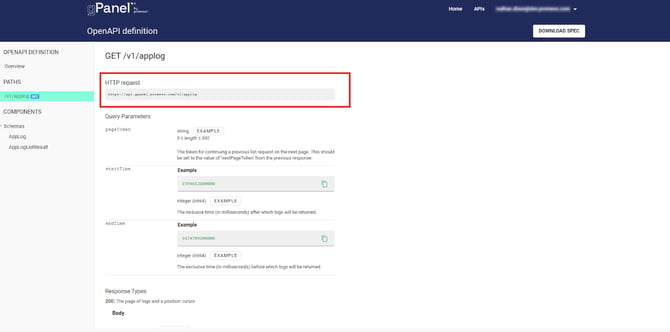
The image displays a section of an OpenAPI definition for an API endpoint. It specifically outlines the GET request for the path `/v1/applog`.

5. Now form your API endpoint by concatenating your api as a query parameter at the end of your endpoint, like so: 

https://api.gpanel.promevo.com/v1/applog?apikey=INSERT INFO HERE

Now let's use our endpoint to make an api request via HTTP GET. Easiest way is to paste it into a browser, like so: 
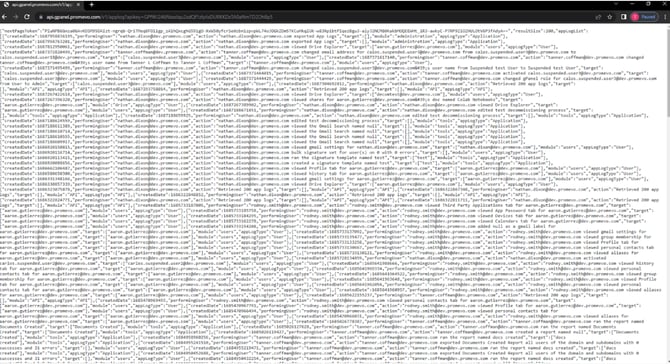
The image displays a large block of JSON data, likely representing logs or activity records from an API. The content includes timestamps, performing users, actions taken, and targets related to various user accounts and modules.

Summary

Let’s examine our request and point out a few things.  First, if we visit our api documentation on the developer portal, we’ll see that our api request can take parameters.
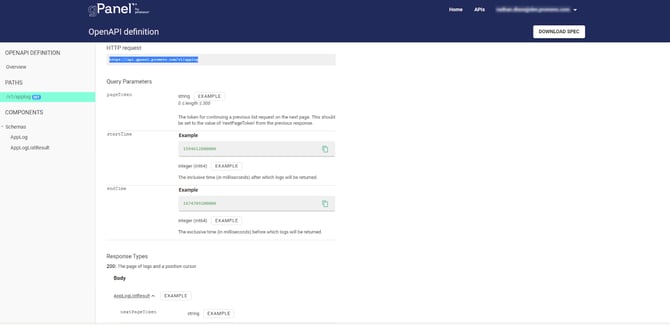
The image displays a section of an OpenAPI definition for an API endpoint related to application logs.

Specifically, we could pass a cursor, a startTime, or endTime.  We didn’t pass either startTime or endTime in our request, which means we want all logs.

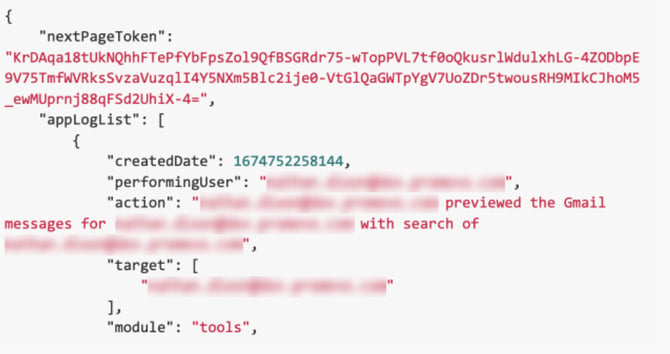
Let’s examine this json response, and take note of a few things.
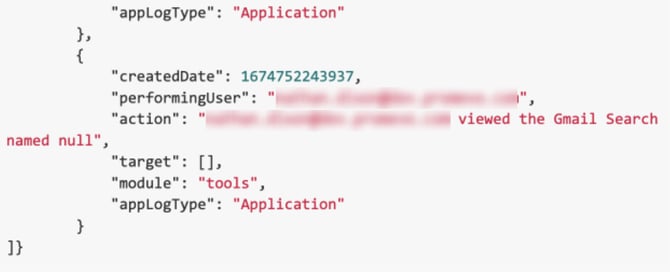
The image displays a snippet of JSON data representing an application log entry. It includes fields such as `createdDate`, `performingUser`, `action`, `target`, `module`, and `appLogType`.

The image displays a JSON-like structure, likely representing a log or data entry from an application. It includes fields such as a `nextPageToken`, `appLogList`, and information about a user action, which involves previewing Gmail messages associated with a specific email address

We’ll notice that the response contains a nextPageToken element. Because our request could potentially return thousands of logs, they do not all get returned in a single response.  This api returns a paged response.  This means that we get a subset of the response (200 items in this instance).  In order to get the rest, we use the nextPageToken to make subsequent calls.

If our next response contains a nextPageToken, then we use that one to make another call.  We continue making requests until the response no longer contains a nextPageToken.