
Skip to content
  • There are no suggestions because the search field is empty.

How to Edit a Policy in gPanel

Edit existing policies in gPanel to update automation workflows and keep your configurations aligned with your needs.

1. Select the policy from your list of policies, then click Edit.
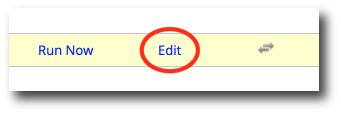
The image displays a user interface element featuring two buttons: "Run Now" in blue text and "Edit" highlighted in red within a yellow background.

2. Go through each section and make any desired changes.
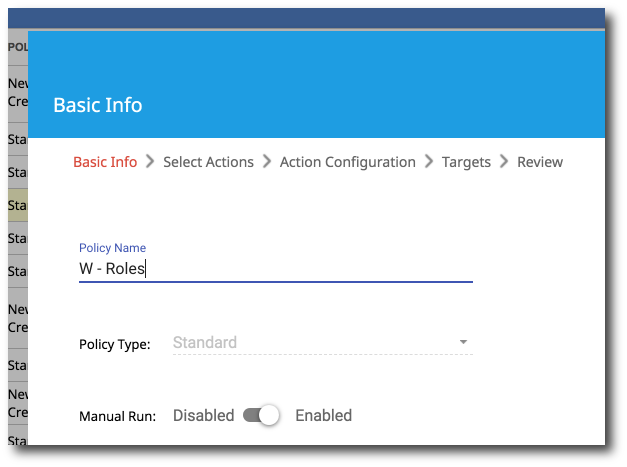
The image shows a user interface for configuring a policy, featuring a section labeled "Basic Info." It includes fields for entering a policy name ("W - Roles") and selecting a policy type (with "Standard" as an option).

3. Once you've made your desired changes, click Submit. 

The image features a blue "SUBMIT" button with white text, set against a light background.