
With gPanel, you can remove users, groups of users, users from organizational units, or users from a specific role from their group memberships.
1. In gPanel, go to Tools > Bulk Operations. Then, click Add in the right corner.
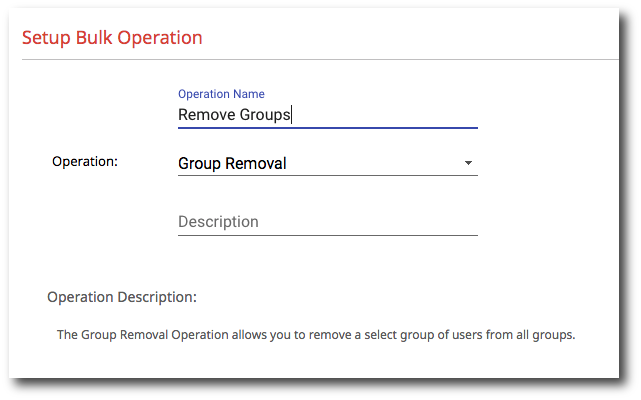
2. Enter the operation name, select Group Removal as the type, and enter a description (optional). Then, click Next.
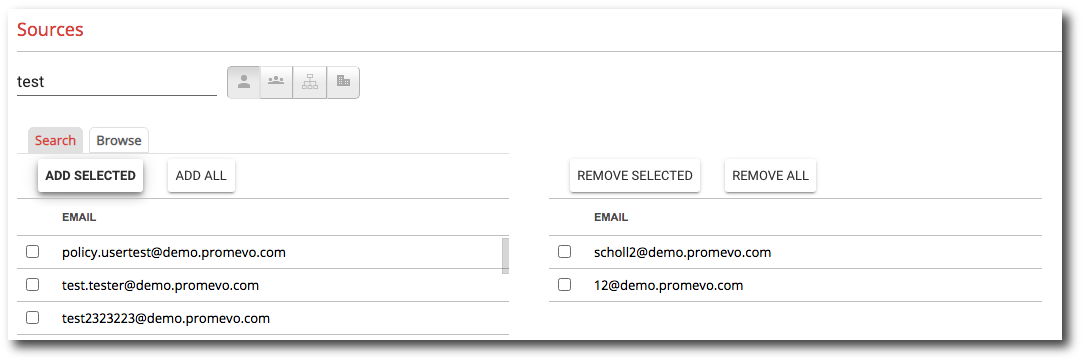
3. Select the source users, groups, or orgs as desired. As you type in the search field, potential matches will populate in the sources list. Alternatively, by selecting the Browse tab, you can select the sources from all of the options available in your domain. Note: You can only select one type of source. Meaning you can only select users or groups, not a combination of the two.
Click Next when your selection is complete.
4. The final step allows you to review your configuration choices. Select whether you'd like to send email notifications on completion. You can add users to notify by entering their name in the text box, selecting the user, and then click the + icon. If you don't want to send email notifications on completion, uncheck this checkbox.
5. After you're done reviewing click Submit to run the operation.