Contents
Decommissioning is an automated offboarding tool that allows administrators to create a standardized workflow for disabling and securing a user's account when they leave the organization.
This feature enables admins to automatically perform critical security tasks, such as resetting passwords, revoking multi-factor authentication, and wiping mobile devices, to prevent unauthorized access after an employee departs.
It streamlines data management by automatically transferring the user's Google Drive files, calendar events, and email data to a manager or a designated archive account.
Administrators can set these workflows to trigger decommissioning workflows immediately or on a schedule, ensuring that every departure follows a consistent, compliant, and thorough closing process.
Decommissioning Policies
To create or manage your offboarding blueprints, navigate to Automation > Decommissioning.
Create a Policy
- Select the Create Policy button at the top right of the table.

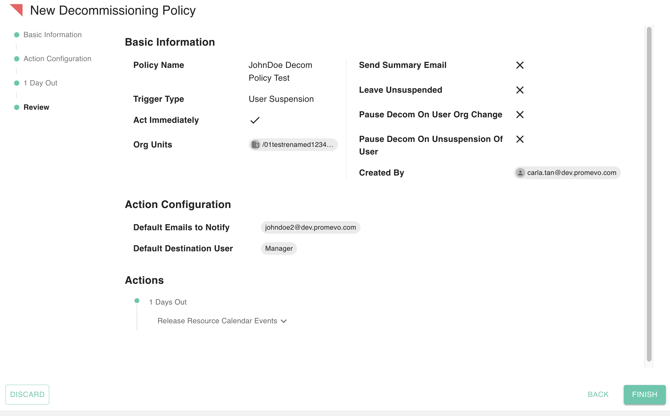
- Provide the Basic Information, including the Policy Name, the trigger type, and whether the policy should run immediately or on a nightly basis. You must also designate the Organizational Unit (OU) to which this policy applies.
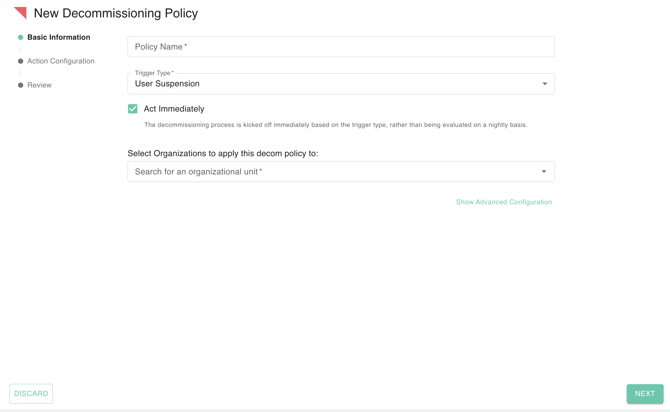
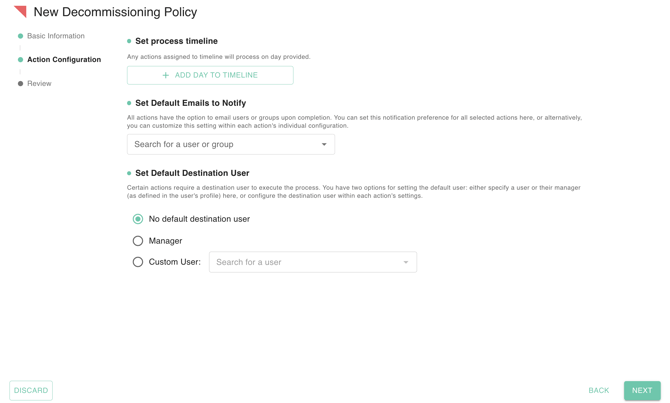
- Next, configure the Action Configuration:
-
Process Timeline: Define the specific day for the first run.
-
Default Emails to Notify: Designate the specific user email or group to receive status updates.
-
Default Destination User: Select the individual or the user’s manager (as defined in their profile) to receive transferred data.
-
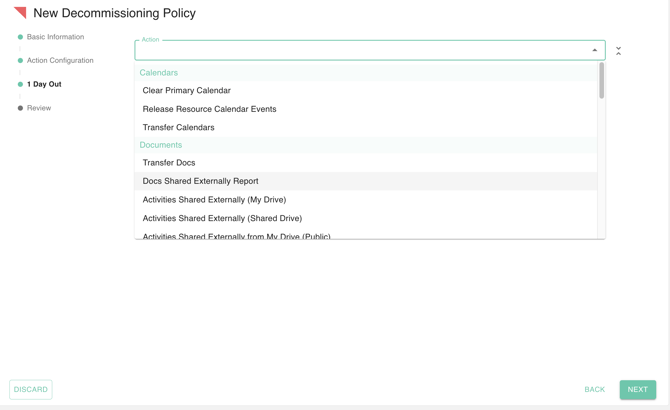
Main Action: Select the Main Action for the policy across Calendars, Documents, Gmail, Mobile Management, and User settings.
-
-
Review your configurations for accuracy and click Finish to save.
Edit a Policy
Locate the target policy and click the Pencil (Edit) icon in the Actions column. Modify the necessary fields and click Finish to apply your updates.
Clone a Policy
Locate the desired policy and click the Clone icon in the Actions column. Review the confirmation message and select Clone to create a duplicate.
Run a Policy
Select the specific Decommissioning Policy you wish to execute. Click the Play button to initiate a manual run; a notification will appear to confirm the process has started.

Enable/Disable a Policy
Select a policy from the list. By default, all new policies are enabled. Use the Check icon to enable a policy or the Cross icon to disable it.
Note: Disabling a policy prevents it from triggering for any user and immediately halts all associated automated tasks.

Delete a Policy
Select the policy you wish to remove, click the Trash icon, and confirm the deletion.
Decommissioning Suspended Users
Pause/Unpause
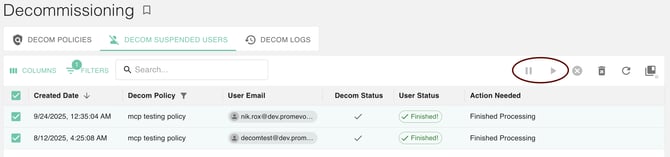
Select the user you wish to pause or resume within the decommissioning queue.
Note: These controls are only available for users whose status has not yet reached the "Finished" state.
Use the Pause button to halt progress; the policy will not resume subsequent actions until an administrator manually selects Play/Unpause.
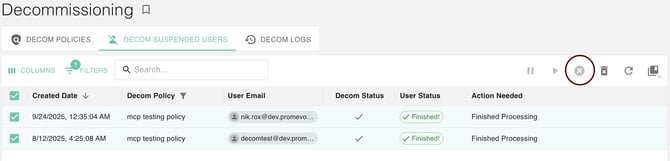
Terminate
Select the user to permanently cancel their decommissioning workflow. This is typically used when an employee is no longer leaving the organization.
Note: These controls are only available for users whose status has not yet reached the "Finished" state.
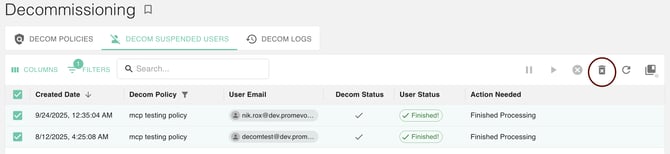
Purge
Select a user to permanently remove their decommissioning record from the active logs. Purge is used to clean the interface once the offboarding is complete and the record is no longer required. Purged records cannot be restored.
Caution: Purged records cannot be restored. This feature should only be used after offboarding is completed and you no longer need the user record.
Decommissioning Logs
The Decommissioning Logs provide a high-fidelity audit trail of of the job logs associated with your decommissioning processes.
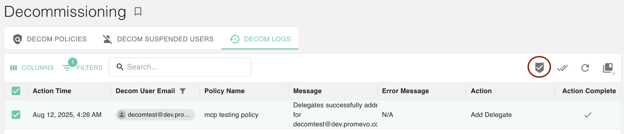
Acknowledge
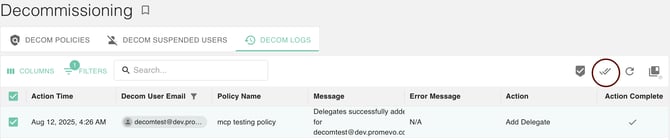
The Acknowledge button (checkmark icon) is used to flag specific log entries for organizational purposes. Clicking this moves selected logs into an "Acknowledged" category, allowing you to distinguish between unread logs and those already reviewed.
Complete
The Complete button (double checkmark icon) allows administrators to manually mark a specific decommissioning step or an entire process as finished. While gPanel typically updates these statuses automatically upon task completion, this provides an administrative override for manual tracking.