
Contents
The Rules Engine is gPanel’s most sophisticated framework, designed for Enterprise-tier organizations that require dynamic, event-driven workflows. Instead of manually monitoring logs, the Rules Engine allows you to create "If-This-Then-That" scenarios that trigger automatically.
Whether it is instantly suspending a user who deletes a high volume of sensitive documents or automatically updating a user’s email signature when their department changes in the Directory, the Rules Engine ensures your domain remains secure and organized without constant administrative oversight.
Create a new rule
-
Navigate to the Rules Engine (located in the Automation module).
-
Click the Create Rule button in the top-right corner of your screen.
-
Fill out the following information:
Trigger Information
-
Trigger Groups: Classify your automation by selecting from Drive, Admin, or Calendar events
-
Trigger Events: Select specific scenarios like Group Creation, Password Change, or User Update. You can apply "AND/OR" logic to require multiple conditions before an action initiates.
-
Occurrences & Thresholds: Define if the rule should fire every time an event occurs or only after a specific threshold (e.g., alert security only if a user shares more than 10 files externally within 5 minutes)
Trigger Sources and Filters
- Sources: Tell gPanel where to look. You can filter triggers by specific Users, Groups, Organizational Units (OUs), or Domains.
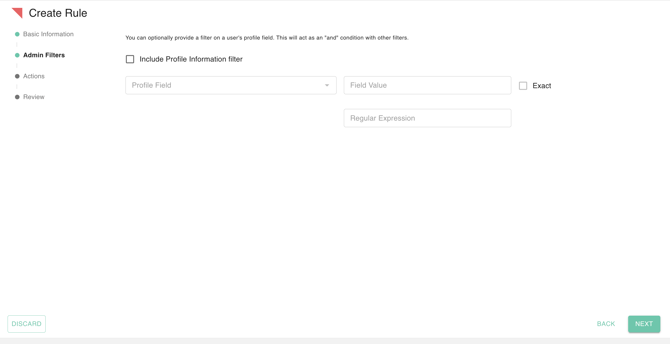
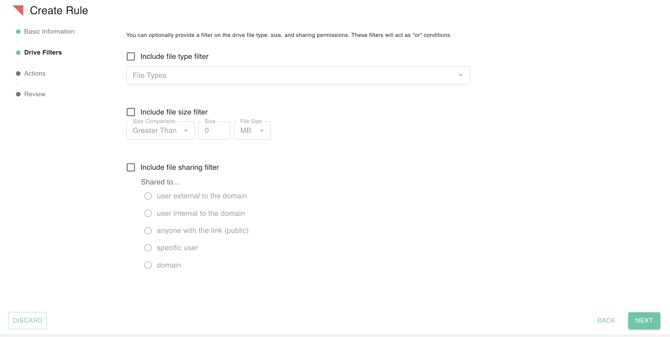
- Granular Filtering: For Drive Events, you can filter by file size, type, or even Regular Expressions (Regex). For Admin Events, you can filter based on specific profile changes, such as a Job Title update.
Actions
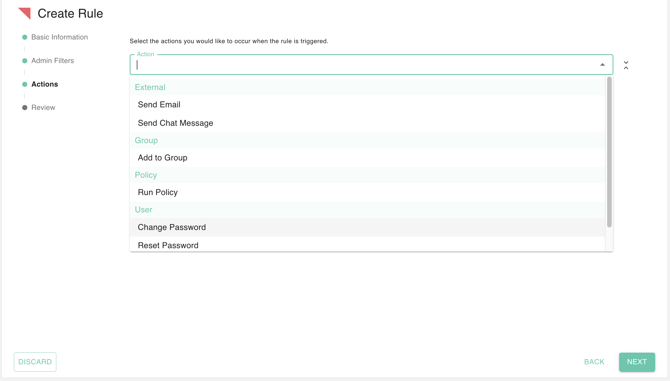
Decide what gPanel should do when the rule fires. Available actions include:- Run an existing system policy (with inline policy preview — see a preview of the policy without navigating away)
- Suspend users or reset passwords
- Send automated email notifications or Google Chat messages to your security or IT team
- Delete a group
- Execute multiple actions simultaneously for a comprehensive response
When you select Run Policy as an action and no policies exist yet, gPanel will guide you to create one inline so you never get stuck mid-rule.
Review and save
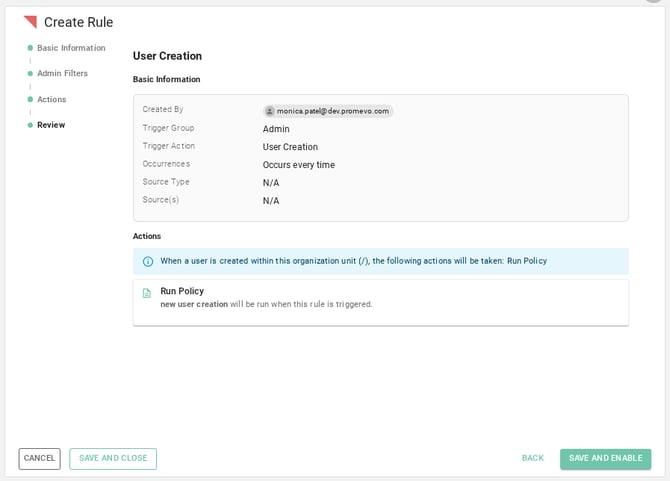
Review your configured rule to confirm accuracy. Rules are saved as a Draft by default and will not execute until you explicitly enable them. See the section below for more on the rule lifecycle.
Draft state and rule lifecycle
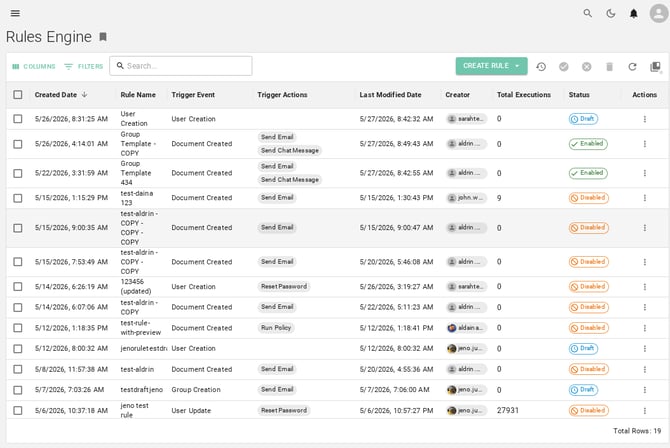
Rules in gPanel follow a three-state lifecycle: Draft, Enabled, and Disabled.
| State | What it means |
| Draft | The rule has been created or edited but will not execute. Safe to build, iterate, and step away from without risk of unintended actions. |
| Enabled | The rule is active and will execute when its trigger conditions are met. |
| Disabled | The rule exists but has been manually turned off. No actions will fire until it is re-enabled. |
Impact estimation
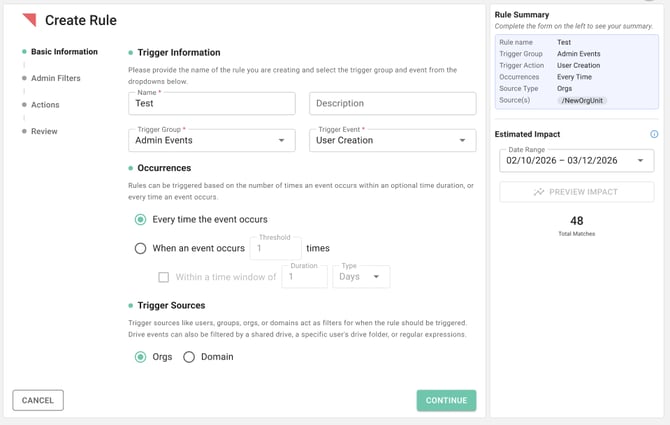
Before enabling any Draft rule, you can run an Impact Estimation. This evaluates the rule's conditions against recent historical event data and returns a count of matched records — without executing any actions.
A sidebar preview updates in real time as you build the rule. If you make changes to the rule after running an estimate, you will need to re-run the calculation to get updated results.
Impact Estimation is read-only. No actions are executed. Results are estimates based on historical data and may not reflect exact future matches.
Rule templates
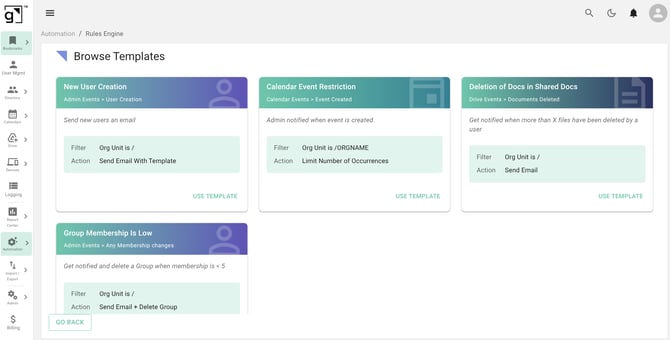
Rule templates give you a pre-configured starting point for common governance use cases. Templates are fully editable before saving or enabling.
To use a template:
-
Browse the template library and select the template that fits your use case. Templates are organized by category.
-
gPanel creates a private copy of the template for your domain.
-
You land in the Edit state of your copy and follow the standard rule creation flow from there.
-
Review, then save as a Draft or enable when ready.
Managing rule status
-
Enable: Use the check icon to activate a Draft or Disabled rule. Once enabled, the rule will execute when its trigger conditions are met.
-
Disable: Use the cross icon to deactivate an active rule. Disabling a rule immediately halts all associated automated processes.
-
Delete: Click the trash icon and confirm to permanently remove a rule.
Deleting a rule stops all automations linked to it. Use this only when a workflow is truly obsolete.
Cloning a rule
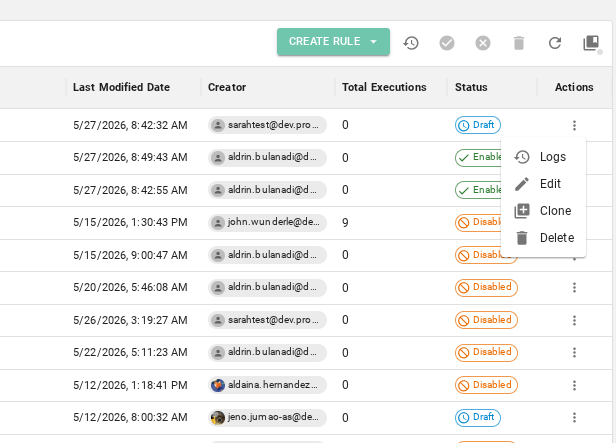
You can clone any existing rule to use it as a starting point for a new one. After cloning, you must edit at least one field (such as the rule name) before saving. Cloned rules are saved as Drafts by default.
View rule information
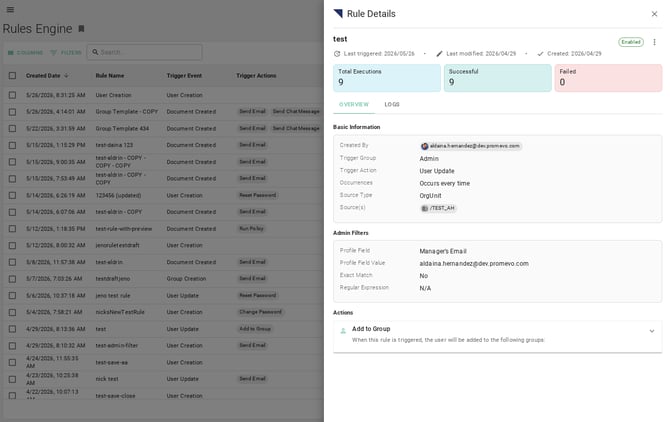
To view a rule's details, double-click the entry in the rules list. A summary panel will display the rule's configuration, status, creator details, and configured actions. Each rule's summary also includes impact summary stat cards that surface key information at a glance.
View Rules Engine logs
gPanel provides two ways to view logs:
-
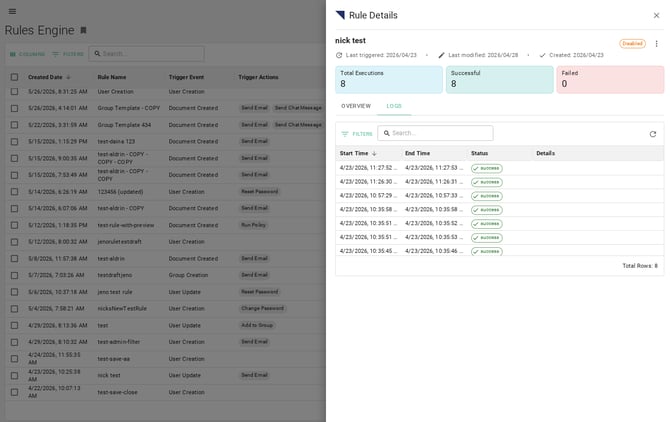
Rule-specific logs: Click the log tab within Rule Details of a specific rule to see its individual execution history.
-
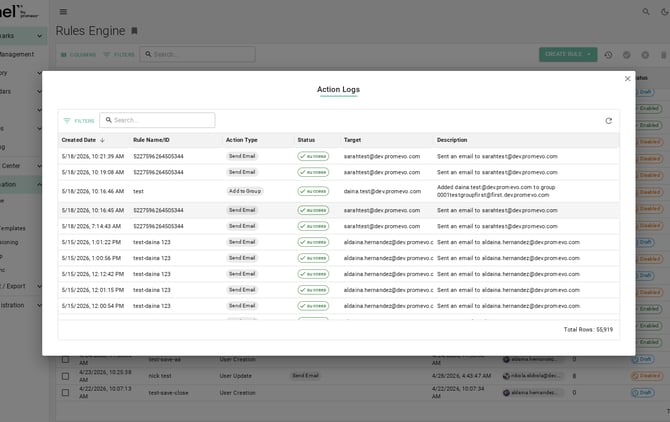
Global activity logs: Click the All Action Logs icon in the top-right of the module to view an aggregate timeline of all Rules Engine activity across your domain.
Real-world use cases
To help you get started, here are some common automated workflows:
-
Security alert: If a user is added to a "Super Admin" group, instantly notify the IT Director.
-
Lifecycle management: When a user's OU changes to "Accounting," automatically add them to the Finance Google Group and apply a new email signature.
-
Data leak prevention (DLP): If a file over 100MB is shared with an external email address, automatically revoke the share and notify the user's manager.
-
Group cleanup: When a group's member count drops to 0, automatically send a Chat message to your IT team and delete the group.
For more inspiration, explore the gPanel Rules Engine use cases blog.