
Contents
The Signature Template feature is a centralized tool that allows administrators to create and enforce a uniform email signature for everyone in the company.
Instead of asking employees to manually update their own Gmail settings — which often leads to inconsistent fonts, old logos, or broken links — you can design one "master" template and push it out to everyone automatically.
Create an Email Signature Template
- Select ‘Create Template’ Button on the top right of the table.

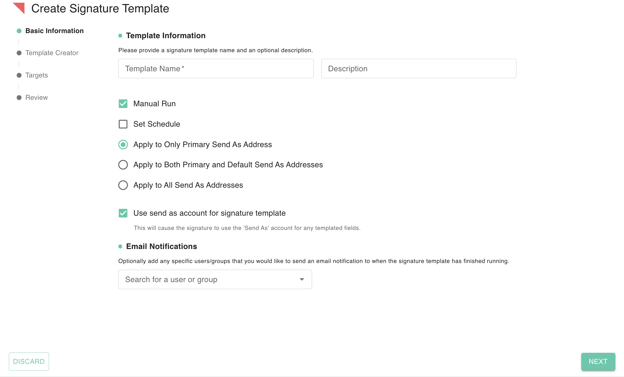
- Fill out the following information:
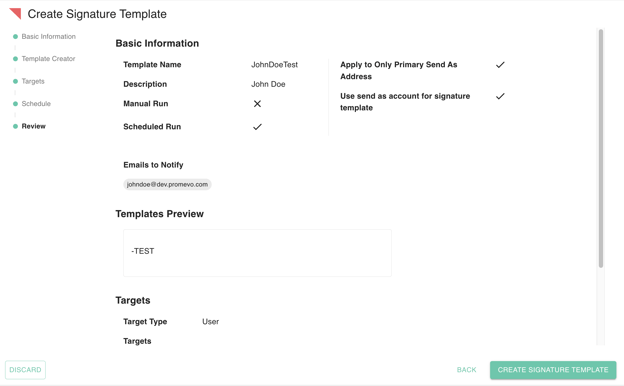
- Template Name (required): Any Policy Name applicable for the policy the user will create.
- Description (optional): Any applicable description can also be left blank
- Manual Run or Scheduled Sun (required): If set to scheduled a new stepper schedule needs to be filled out.
- Select from the following (required):
- Apply to Only Primary Send As Address
- Apply to Both Primary and Default Send As Addresses
- Apply to All Send As Addresses
- Use send as account for signature template (checkbox): Toggling this checkbox will cause the signature to use the 'Send As' account for any templated fields.
- Email Notifications (optional): Select user or user groups for send out email notifications.
- Add Template Creator
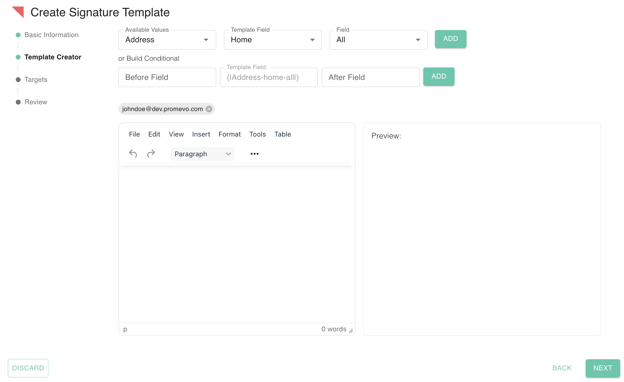
- Dynamic Variable Mapping: The top section of the creator allows you to insert "Available Values" and "Template Fields"
- The Purpose: Instead of static text, you use placeholders like {User-first name} or {Address-home-all}.
- The Result: When the signature is deployed, gPanel automatically replaces these tags with the actual information stored in each individual's Google Workspace profile.
- The Conditional Logic Builder: The "Build Conditional" area is used to prevent formatting errors caused by missing data.
- Before/After Fields: You can add specific text (like "Cell: " or "Address: ") in the Before Field box.
- The Benefit: If an employee's profile is missing a home address or phone number, gPanel will hide the entire line, including the label. This ensures no "orphaned" labels or blank spaces appear in the final signature.
- Integrated Editor & Real-Time Preview
- Rich Text/HTML Editor: You can use standard formatting tools (bold, font size, tables) or insert company logos and social media icons directly into the signature workspace.
- Preview Pane: By entering a specific user’s email (such as the johndoe example in your photo), you can see a live render of how that person's signature will look with their real data populated.
- Dynamic Variable Mapping: The top section of the creator allows you to insert "Available Values" and "Template Fields"
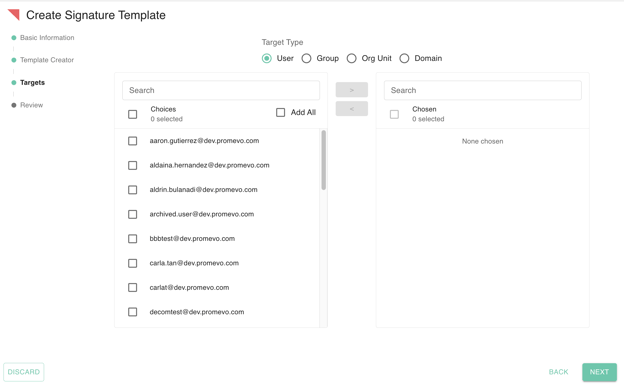
- Define the specific targets (users, groups, organizational units, or domains) that a new template will apply to. Users can move selected individuals from the "Choices" list to the "Chosen."
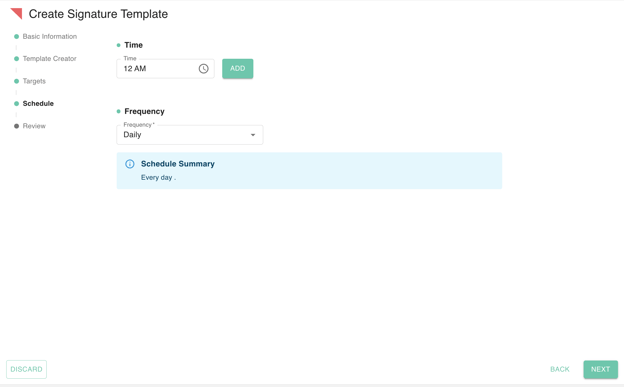
- Selecting Scheduled run will prompt this step, where you must define the specific time and frequency for the policy to execute.
- Carefully review your configured template to ensure accuracy. Once confirmed, click 'Create Signature Template' to save your settings.
Edit an Email Signature Template
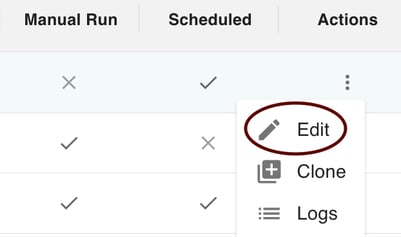
- Locate the template you wish to change and click the pencil (Edit) icon in the Actions column.
- Modify the necessary fields within the signature template configuration.
- Click the Update Signature Template button to finalize and apply your changes.
Clone an Email Signature Template
- Locate the signature template you wish to clone.
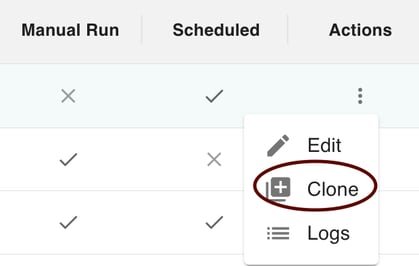
- Click the clone icon in the Actions menu.
- Read confirmation message and Select Clone Button. This will duplicate the signature template.
View Email Signature Logs
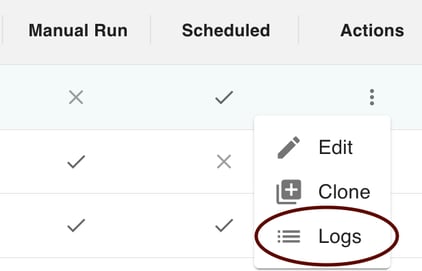
- Click the Logs icon under Actions menu.
- Run Logs will contain the following information: Start Time, End Time, Manual, Users Updated, Users Errored, Total Users Targeted.
Manually Run an Email Signature Template
- Select the Signature Template you want to run.
- Select the Play button to manually run a Template. By manually running, the action takes place immediately.

Delete an Email Signature Template
- Select the Email Signature Template you want to delete
- Select the trash icon button.
- Confirm Deletion.
