
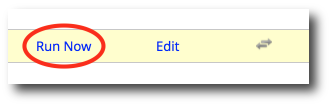
1. Select the policy from your list of policies, then click Run Now.
Please note: In order to run a policy, the policy must be enabled.
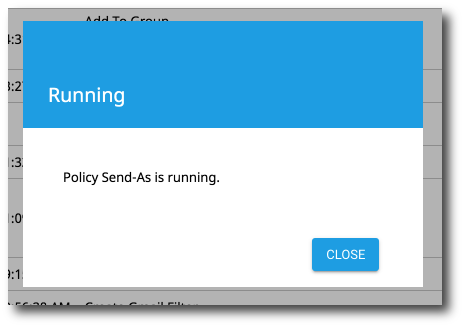
2. Next, you will see a verification popup letting you know that the selected policy is running. You can close the popup and you policy will continue running.
Why Run a Policy Manually?
While gPanel excels at automating repetitive tasks, the Run Now feature is vital for scenarios where waiting for a scheduled sync or a trigger event isn't practical.
1. Immediate Enforcement
Automation often relies on schedules. If you have just created a critical security policy—such as stripping external forwarding from all user mailboxes—you may not want to wait for the next automated cycle. Running it manually ensures the environment is compliant immediately.
2. Testing and Validation
Before letting a policy run wild on your entire domain, admins often target a specific test Organizational Unit (OU). Running the policy manually allows you to:
-
Verify the logic works as intended.
-
Confirm that the expected changes appear in the logs.
-
Ensure no "accidental" changes occur before the policy is fully enabled for the whole company.
3. One-Time Cleanup
Sometimes you don't need a policy to run forever; you just need to fix something once. For example, if a department has become cluttered with inconsistent signature formats, you can run a "Signature Enforcement" policy once to standardize everyone and then disable it.