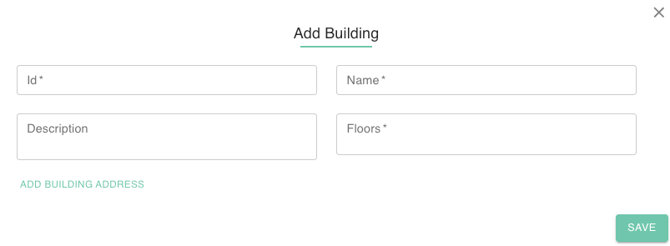
The Buildings section in gPanel allows administrators to create a digital map of their organization’s physical infrastructure. By defining these locations, you enable Google Workspace to intelligently suggest nearby meeting rooms and equipment to employees based on their primary work location, significantly improving the user experience for everyone in the domain.
Step-by-Step: Creating a Building in gPanel
-
Click Buildings underneath the Resource Calendars header.
-
Click Add Building in the top right corner.

-
Enter the following information for the building:
-
Building Name: The desired name of the building.
-
Building ID: Unique identifier for the building, to be utilized with taking actions via API's. This is permanently set and cannot be changed after creation.
-
Building Description: Desired description for the building, the building description does not appear when booking an event on the resource.
- Floors: Floors within the building. This does not necessarily have to be an number. I.E. If your Buildings floors are represented by letters you can input A,B,C instead 1,2,3.
- Building Address:
- Street Address: The street location of the building.
- Country: The country location of the building.
- State: The State location of the building.
- City: The city location of the building.
- Zip Code: The Zip Code location of the building.
-
Latitude (Optional): Latitude of the building.
-
Longitude (Optional): Longitude of the building.
-
Once you have entered all information, click Save.
-