
In a professional Google Workspace environment, calendars serve as more than just personal schedules. Administrators often need to create secondary calendars for departmental projects, holiday schedules, or shared team timelines.
By using gPanel to provision these calendars, you ensure they're correctly configured from the start, with consistent time zones and descriptive metadata that makes them easy for employees to find and use.
While users can still create their own calendars in Google Workspace, administrative creation through gPanel allows for better oversight. It ensures that critical company calendars — like a "Marketing Content Calendar" or an "IT Maintenance Schedule" — are owned and managed at the domain level. This prevents important data from being lost if an individual employee leaves the company, as the calendar remains an organizational asset.
Step-by-Step: Creating a Calendar in gPanel
To add a new managed calendar to your domain, follow these steps within the gPanel interface:
- From the main dashboard, go to Calendars and select the Calendars sub-menu.
- Use the search bar to find the specific user or service account under which the new calendar should be hosted.
- Click the Add Calendar button located in the top right corner of the screen.

-
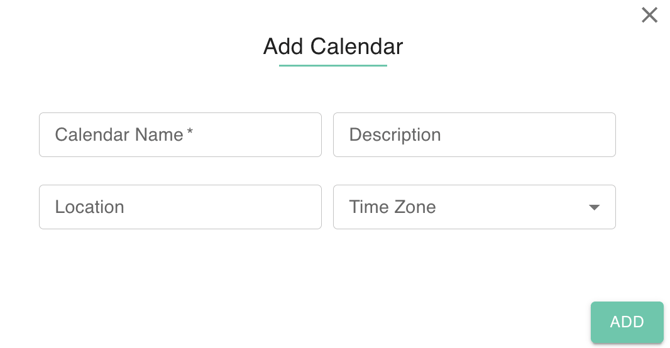
A configuration window will appear. Enter the following essential information:
-
Calendar Name: Choose a clear, descriptive name (e.g., “North America Sales Team”).
-
Location: Specify a physical office or region if the calendar is location-dependent.
-
Timezone: Set the primary timezone to ensure all event notifications and reminders are accurate for the intended audience.
-
Description: Provide context on the calendar’s purpose to help users understand what should be posted there.
-
-
Review your entries and click Add to save. The new calendar will be instantly provisioned and ready for sharing.
When creating new calendars, we recommend using a standardized naming convention (e.g., Dept - Project Name - Region). This makes it much easier for administrators to audit and manage hundreds of calendars across a large organization.
Once the calendar is created, remember to navigate to the Sharing settings to define who has viewing or editing permissions.