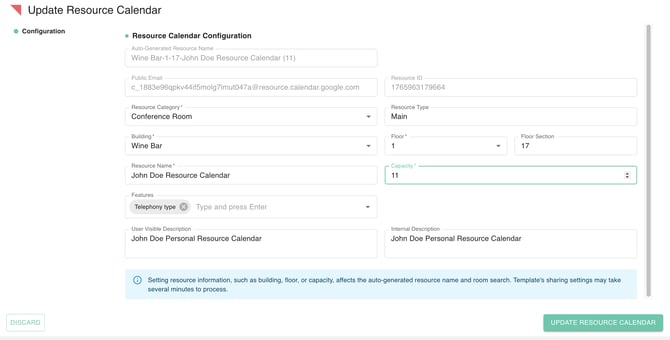
In a professional Google Workspace domain, Resource Calendars are the digital representations of your company’s physical assets, including meeting rooms, huddle spaces, and shared equipment. When these are correctly provisioned, employees can easily find and book the tools they need to stay productive.
Using gPanel to create these resources ensures that they are not only added to the directory but are also enriched with the metadata required for Google’s intelligent room-suggestions and reporting features.
Step-by-Step: Creating a Resource Calendar in gPanel
-
To begin provisioning a new asset, navigate to Calendars > Resource Calendars and click the Add Resource Calendar button in the top right corner. This launches a configuration popup where you will define the resource's identity and settings.

-
This launches a configuration popup where you will define the resource's identity and settings. Each field is defined below:
-
Auto-generated resource name: This is not actionable. It is a system created name based off of the fields set.
-
Template: The Template dropdown allows you to apply a pre-defined set of configurations to the new resource.
-
Randomize ID: This checkbox relates to the Resource ID (the unique string used by Google’s back-end to identify the calendar)
-
Resource Category: Category in which the resource belongs, there are 3 available categories.
-
Category Unknown: Used for Legacy resources, those in which you do not wish to have an Building, Floor, or features set. Equates to Google's "No category set."
-
Conference Room: Resources used for meetings or conferences that can be as small as a phone room.
-
Other: Resources that aren't used for meetings. For example, a company car.
-
-
Resource Type: This is an optional field that you can set to provide more details about what the resource is. For example, if the resource is a movable station, you could enter "Mobile cart."
-
Building: What Building you would like to associate the resource with.
-
Floor: What floor of the building does the resource reside on.
-
Floor Section: Where the resource is on the floor. For example, if the resource is in the media lab on floor 4, you could enter "Media Lab."
-
Resource Name: Name of the resource.
-
Capacity: This is an optional field in which you can list the capacity of a resource. Typically used for meeting rooms.
-
Features: Choose to list pre-defined features for the resource. These are not created here, they are instead created within the "Features" module.
-
User visible description: Description of the resource that users outside your domain can see if they are invited to an event. Think of this as an "Public" description.
-
Internal Description: Define a description that only internal users can see.
-
Once you have entered all necessary details and verified the Auto-generated Resource Name, click Create Resource Calendar. The resource will be instantly added to your domain, allowing your team to begin booking and coordinating more effectively.