Contents
Resource Templates make it easy to create multiple resources. For example, if you need to create 10 resources that all have the same category or building, you can create a template that will automatically apply those settings for you upon creation so you don't have to manually configure each resource.
Create a Resource Template
-
Navigate to Calendars > Resource Templates. Then, click Add in the top right corner.

- Go through each section and configure the Basic Information and Template Share settings as described in the next two sections.
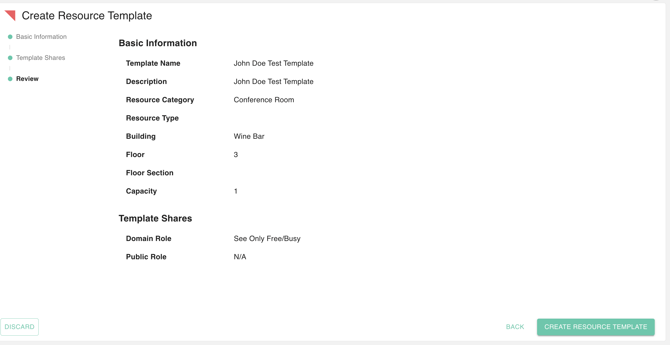
- Once you have completed configuring the settings of your resource template, click Next to review.
- Click Create Resource Template to save.
Basic Information
-
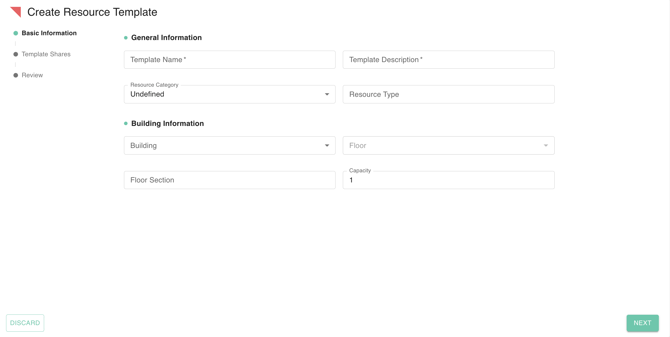
Template Name
-
Template Description
-
Resource Category: Category in which the resource belongs, there are 3 available categories.
-
Category Unknown: Used for Legacy resources, those in which you do not wish to have an Building, Floor, or features set. Equates to Google's "No category set."
-
Conference Room: Resources used for meetings or conferences that can be as small as a phone room.
-
Other: Resources that aren't used for meetings. For example, a company car.
-
-
Resource Type: This is an optional field that you can set to provide more details about what the resource is. For example, if the resource is a movable station, you could enter "Mobile cart."
-
Building Information
-
Building: What Building you would like to associate the resource with.
-
Floor: What floor of the building does the resource reside on.
-
Floor Section: Where the resource is on the floor. For example, if the resource is in the media lab on floor 4, you could enter "Media Lab."
-
Capacity: This is an optional field in which you can list the capacity of a resource. Typically used for meeting rooms.
-
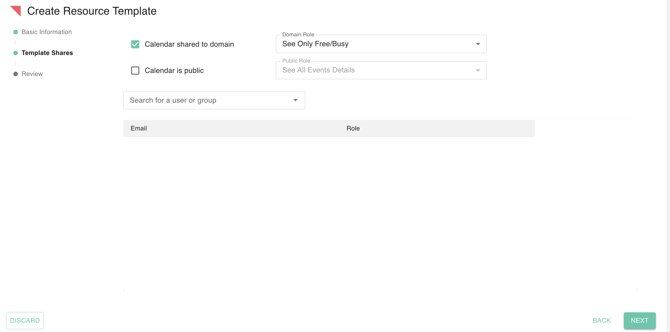
Template Shares
-
Share calendar to domain: There are two options for visibility of a resource calendar within the domain. Either it is not shared to the domain or it is not. When a resource calendar is shared to the domain, any user within the domain can see/add the resource calendar.
-
Share calendar to public: There are two options for visibility of a resource calendar to the public. Either it is not shared to the public or it is not. When a resource calendar is shared to the public, any user outside your domain can see/add the resource calendar.
-
Permissions: You can choose which permissions the calendar has.
-
See all event details: Users with the resource added can see all event details of any booked on the resource, even if they were not invited.
-
See only free/busy (hide details): Users with this resource added can see events booked but not the details of them. It simply shows as "Busy" to those without an direct share or invite to the events.
-
-
Share with specific people: This is where you can quickly share the resource calendar to a user or group.