Contents
Create feature
Setting up a library of features allows you to standardize the amenities available across your entire domain. To add a new capability to your directory:
-
Under the Resource Calendars header in the left-hand navigation, click on Features.
-
Click the Add Feature button in the top right corner.

-
Enter a clear, concise name for the feature. For example, if your huddle rooms are equipped with tablets for check-ins, enter "Tablets" or "Room Display" as the feature name.
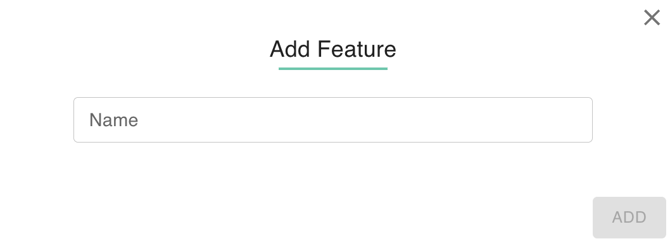
- Click Add. This feature will now appear as a selectable option whenever you create or edit an individual resource calendar.
Edit feature name
As technology evolves, you may need to update your terminology (e.g., changing "Projector" to "4K Display").
- Select the specific feature you would like to modify from your master list.
-
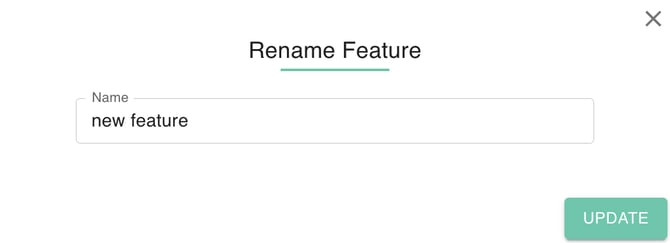
Hover over the Feature Name field and click the Edit icon.
-
Enter your desired updates and click Update. This update will instantly reflect across all resources currently tagged with that feature.
Delete feature
If a piece of equipment is phased out or no longer supported, you can remove the feature entirely to keep your directory lean:
-
Select the feature you wish to delete.
-
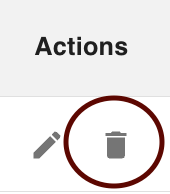
Click the Delete button in the top right corner.
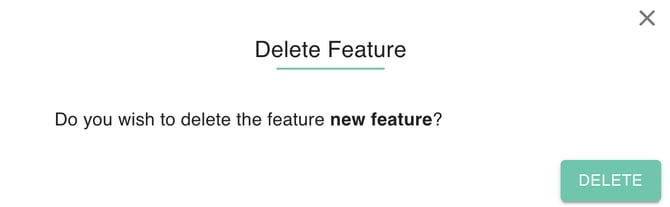
- A popup will appear to prevent accidental deletions. Verify that you want to remove the feature and click Delete.