Contents
In a growing Google Workspace environment, physical office spaces are constantly evolving. Whether your organization is consolidating offices, moving to a new headquarters, or closing a satellite branch, you will eventually need to retire a building from your gPanel directory. The Delete Building function is designed for this purpose, allowing administrators to permanently remove a physical location from the domain’s infrastructure.
However, because a "Building" serves as the parent container for all resources within it, deleting one is a high-impact action. It is critical to understand that removing a building will affect how associated meeting rooms and equipment are categorized in Google Calendar, potentially impacting "Room Insights" and user search results across your entire organization.
Pre-Deletion Checklist: Best Practices
To ensure a smooth transition and prevent data inconsistencies, we recommend performing the following audit before clicking delete:
-
Reassign or Delete Resources: Check if there are still active meeting rooms or equipment assigned to the building. We recommend either deleting those resources first or reassigning them to a different building to maintain a clean directory.
-
Verify the Building ID: Since Building IDs are permanent and often used in custom API integrations or third-party workplace management tools, ensure that removing this ID won't break any external scripts or automated workflows.
-
Notify Facilities and IT: Ensure that all stakeholders are aware the location is being digitally retired, as this will remove the building from the "Suggested Rooms" feature for all employees.
Step-by-Step: Deleting a Building in gPanel
Once you have verified that the location is ready to be retired, follow these steps:
-
Navigate to the Buildings list under the Resource Calendars header. Click on the specific building you wish to retire. You can use the search bar to quickly filter by name if you manage multiple global sites.
-
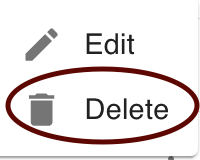
Locate and click the Delete button in the top right corner of the interface.
-
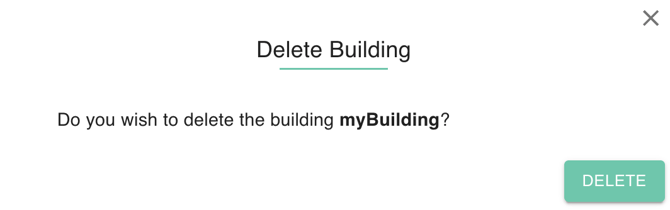
A confirmation popup will appear. Confirm that you want to delete the building and click Remove.