
Contents
In a high-velocity Google Workspace environment, administrators frequently need to perform "digital housekeeping." This often involves retiring outdated project calendars, removing duplicate schedules, or cleaning up secondary calendars created for events that have already concluded. The Delete Calendar function in gPanel is the primary tool for this task.
However, it is vital to distinguish between hiding a calendar and deleting it. While hiding a calendar simply removes it from a user's view, deleting it is a permanent administrative action that destroys the calendar and all its associated events for every user who had access to it. Once a calendar is deleted via gPanel, the data is purged from the Google Workspace domain and cannot be easily recovered.
Pre-Deletion Checklist: Best Practices
Before you proceed with the deletion of any calendar, we recommend the following safety steps to ensure no critical business data is lost:
-
Verify Ownership: Confirm that the calendar is a secondary or resource calendar and not a user's Primary Calendar, as primary calendars are tied to the user's identity and cannot be deleted individually.
-
Audit Event Data: Check if the calendar contains historical data required for compliance or auditing purposes. If the data is needed but the calendar is no longer active, consider using gPanel’s Calendar Transfer feature to move the data to an archive account instead.
-
Notify Participants: If the calendar is shared with a team or department, ensure they are aware of the deletion so they can migrate any personal reminders or attachments to a new location.
Step-by-Step: Deleting a Calendar in gPanel
Once you have verified that the data is no longer needed, follow these steps to remove the calendar:
- Navigate to the specific user or resource and select the calendar you wish to remove from their list of active calendars.
- Locate the trashcan icon in the upper right-hand corner of the gPanel dashboard.
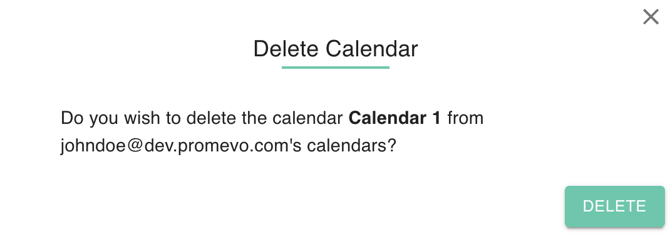
- A confirmation window will appear. This is your final safeguard to prevent accidental data loss. Review the calendar name one last time to ensure accuracy, then click Delete.
Immediately following the deletion, the calendar will disappear from the Google Workspace directory and the sidebars of all shared users. By maintaining a lean calendar environment, you reduce clutter for your employees and ensure that your organization’s scheduling infrastructure remains accurate and easy to navigate.