
Contents
In a dynamic Google Workspace environment, physical assets like meeting rooms, company vehicles, and shared hardware are frequently updated. When a resource is no longer available — due to an office renovation, a lease expiration, or a hardware upgrade — it must be retired from the domain. The Delete Resource function in gPanel allows administrators to permanently remove these calendars from the global directory.
However, because this action is irreversible, it is critical to understand that deleting a resource does more than just remove it from your dashboard. It removes the resource as a bookable location for all future meetings and can impact existing recurring events.
Pre-Deletion Checklist: Best Practices
To prevent scheduling conflicts and data loss, we recommend performing the following steps before final deletion:
-
Audit Current Bookings: Check the resource's current calendar to see if there are any active or recurring meetings.
-
Notify Impacted Users: If a room is being retired, send a notification to teams who have it booked so they can migrate their meetings to a new location.
-
Consider Hiding vs. Deleting: If you only need to take a room "offline" temporarily for maintenance, consider adjusting its Sharing & Visibility settings instead of a permanent deletion.
Step-by-Step: Deleting a Resource Calendar in gPanel
Once you have verified that the resource is ready to be retired, follow these steps within the gPanel interface:
-
Navigate to your list of Resource Calendars and click on the specific entry you wish to remove. The selected resource will be highlighted in the list.
- Click the Delete button located in the top right corner of the screen.
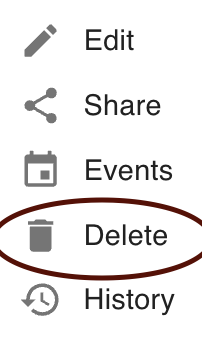
- A security confirmation popup will appear to prevent accidental clicks. This is your final opportunity to verify the resource name. To finalize the process, click Remove.
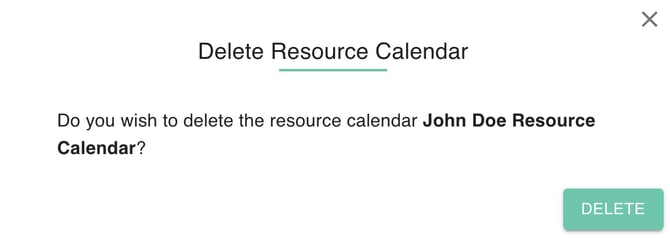
The moment you click Remove, the resource is struck from the Google Workspace directory. It will no longer appear as an option for employees when they search for a "Room" or "Asset" in Google Calendar.