
As your organization grows and your physical workspace evolves, maintaining an accurate directory of your office locations is essential. The Buildings section in gPanel is the foundation for your domain’s resource management. If a building's description changes, or if you need to update the floor mapping to reflect a new office layout, editing the building entry ensures that all associated meeting rooms and equipment remain correctly categorized.
Accurate building data doesn't just help administrators; it directly impacts the end-user experience. When building information is precise, Google Calendar can intelligently suggest the nearest available meeting rooms to employees, saving time and reducing scheduling friction.
Step-by-Step: Editing a Building in gPanel
To update an existing location in your gPanel dashboard, follow these steps:
-
Navigate to the Buildings list under the Resource Calendars header. Use the search bar to quickly find the specific location you need to modify.
- Click on the building from the list to view its details.
- Hover your cursor over the specific field you wish to change. An Edit icon or link will appear; click it to open the text field or dropdown menu.
-
Once you have entered your desired updates, click the Save button. Your changes will propagate through the Google Workspace directory, updating all resources tied to that building.
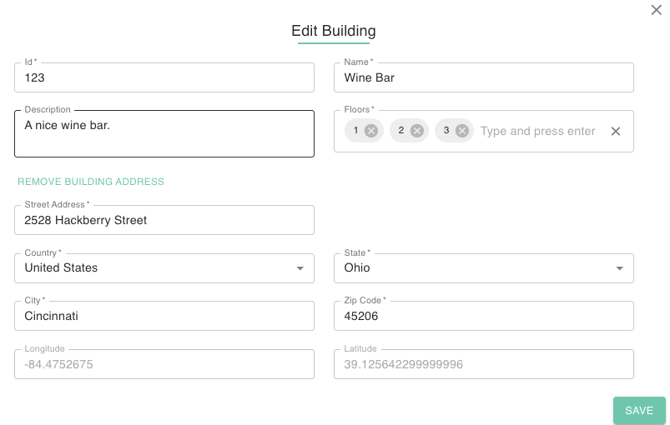
We recommend performing a quarterly audit of your building settings, especially during periods of high growth or facility renovation. Keeping this data "clean" prevents configuration errors when provisioning new resources and ensures your global office map remains a reliable source of truth for your IT team.