
In a busy Google Workspace environment, an administrator's ability to fine-tune calendar settings is essential for keeping teams organized.
Whether you are updating a departmental project calendar or helping an executive manage their schedule, the Edit Calendar feature in gPanel provides granular control over how calendars appear and function. Keeping these settings accurate ensures that meeting locations are clear, time zones are synchronized for global teams, and users' sidebars remain uncluttered.
Step-by-Step: Editing a Calendar in gPanel
To begin modifying a specific calendar, follow these steps within the gPanel interface:
- Navigate to the user's calendar that you wish to edit.
- Click the three-dot Action menu on the left-hand side of your screen.
- Select Edit icon from the dropdown menu.
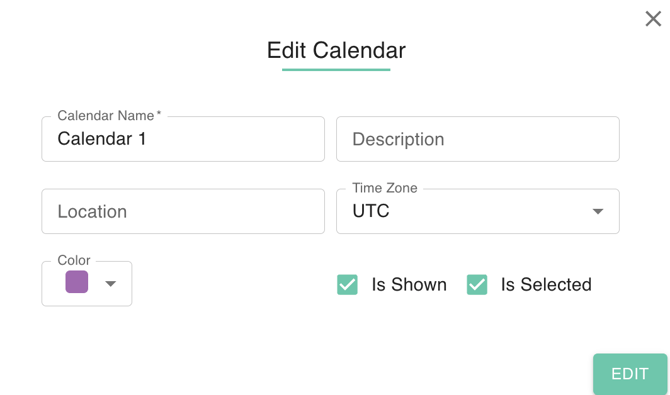
- A Edit Calendar Dialog Box will appear. Fields that can be edited are the following.
-
- Calendar Name & Description: Update these to reflect the current purpose of the calendar. A clear description helps users understand the context of the events they are viewing.
- Location: This field determines the geographic context of the calendar. You can choose from Google Presets, a Saved Global Location (established in your Building settings), or a Detected Local Location.
- Time Zone: Critical for distributed teams, updating the time zone ensures that all invited participants see the correct local time for every event.
- Color: Select a specific color for the calendar’s events. This helps users visually distinguish between different calendars (e.g., "Internal" vs. "Client-Facing") at a glance.
- Visibility Controls (Is Shown & Is Selected): These settings manage how the calendar appears in the user’s Google Calendar sidebar. Is Shown toggles whether the calendar is listed at all, while Is Selected determines if the calendar’s events are currently active and visible on the main grid.
By managing these settings through gPanel, administrators can ensure a consistent experience across the entire domain. This reduces the need for manual troubleshooting and ensures that company-wide calendars adhere to the organization's naming and color-coding standards, leading to a more professional and efficient scheduling environment.