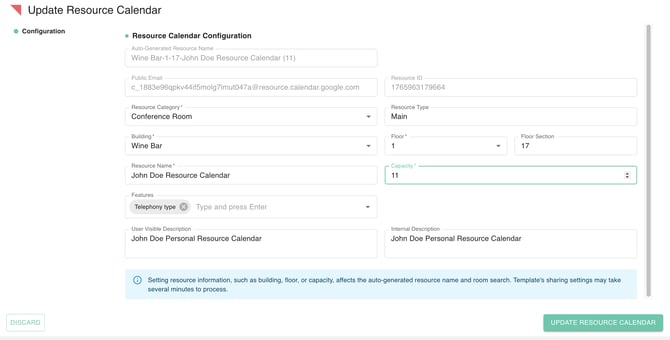
Maintaining an up-to-date directory of company resources — such as conference rooms, huddle spaces, and shared hardware — is vital for a smooth-running office. As your workspace evolves, the physical attributes of your resources may change. Perhaps a meeting room’s seating capacity has increased due to new furniture, or a room was upgraded with a new Google Meet kit.
The Edit Resource Calendar feature in gPanel allows administrators to update these details in real-time. Keeping this metadata accurate ensures that when employees search for a room in Google Calendar, they are seeing the most current information, which prevents scheduling conflicts and ensures meetings have the necessary space and tools to be successful.
Step-by-Step: Editing a Resource Calendar in gPanel
To update a specific resource within your gPanel dashboard, follow these steps:
- Navigate to your Resource Calendars list. Use the search bar to find the specific room or piece of equipment you need to modify.
-
Once you have opened the resource details, hover your cursor over the specific field you wish to change (e.g., Capacity or Description). An Edit icon or link will appear; click it to activate the text field.

-
Type in the new information. For example, if a room was expanded, change the Capacity from 4 to 8.
-
Once all desired changes are made, click the Update Resource Calendar button at the bottom of the screen. Your updates will propagate through the Google Workspace directory, ensuring the new information is visible to all users.