
Contents
Change the default visibility level
Share Calendar
- Select the calendar you'd like to Share from the list of the user's calendars.
- Click the action menu, Click on Share to open the share options.
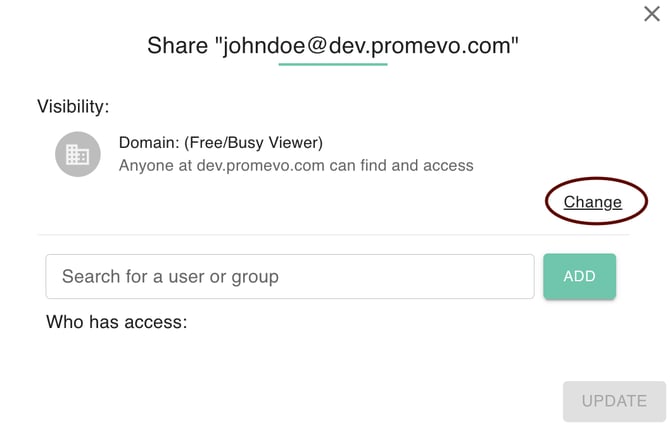
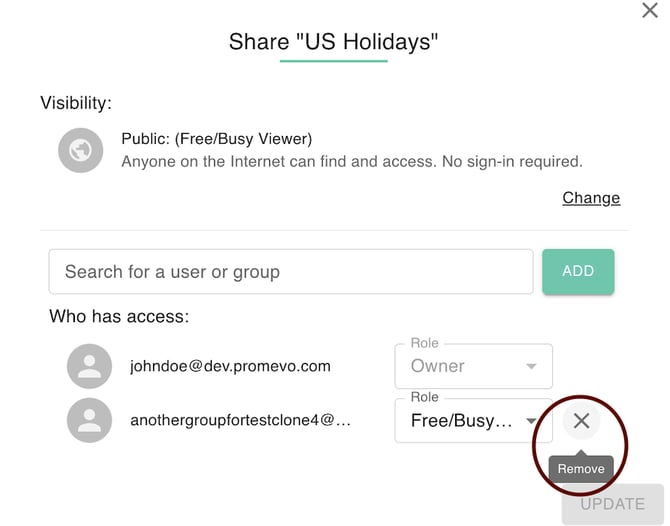
- The sharing dialog popup will appear. From here you can:
- Change the default visibility level
- Change share settings for existing shares
- Remove existing shares
- Add new shares
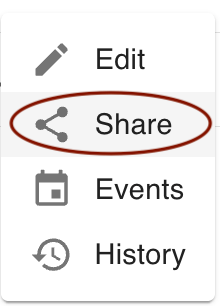
Change the default visibility level
- In the Sharing Settings menu click Change.
- Public on the web: Anyone on the Internet can find and access. No sign-in required.
- Anyone on your domain: People at your domain can find and access.
- Private: Only people explicitly granted permission can access. Sign-on required.Select the desired visibility option. There are 3 options to choose from:
- Select the access level as viewer or free busy viewer.
- Viewer: Users with the resource added can see all event details of any booked on the resource, even if they were not invited.
- Free/ busy viewer: Users with this calendar added can see events booked but not the details of them. The event simply shows as "Busy" to those without a direct share or invite to the events.
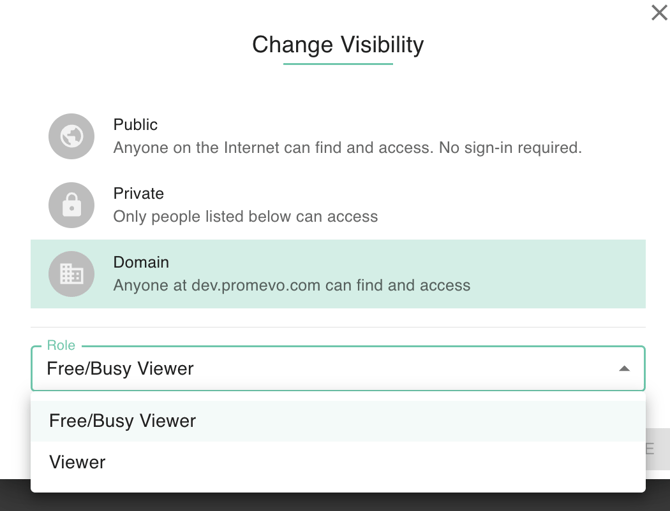
3. Click Update to save your changes.
Change the share settings for existing shares
- In the Share Dialog box of the selected user, Click on the dropdown menu to the right of their name. Select the desired option from owner, editor, viewer, or free busy viewer.
- Click Update to save your changes.
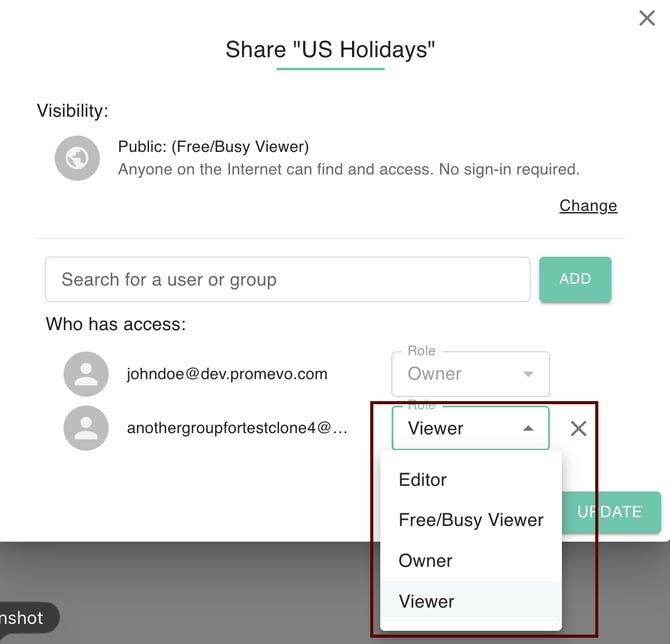
Remove existing shares
- In the Share Dialog box of the selected user, Click on the X next to their name.
- Click Save Changes to save your changes.
Add new shares
- Enter the email address(es) of the user(s) or group(s) that you would like to add to the calendar in the search of user or group field.
- Select the visibility you would like the new shares to have.
- Click Share & Save to save your changes.
