
Contents
In a professional Google Workspace environment, calendars often host vital organizational data, including recurring project syncs, client-facing appointments, and internal departmental schedules. When a team member changes roles or leaves the organization, their scheduled events do not automatically migrate. Without an administrative intervention, these "orphaned" events can become impossible to modify or delete, leading to scheduling conflicts and lost data.
The Transfer Calendar feature in gPanel is the primary solution for maintaining data continuity. By moving ownership from one user to another, you ensure that the new owner has full administrative control over all future events, attendee lists, and video conferencing links associated with that calendar.
Pre-Transfer Checklist: Best Practices
Before initiating a transfer, we recommend a few quick steps to ensure a seamless transition for both the source and destination users:
-
Verify the Destination: Ensure the new owner has the appropriate storage capacity and permissions to manage the incoming calendar data.
-
Audit Recurring Events: Large calendars with hundreds of recurring events may take a few moments to process. It is best to perform these transfers during off-peak hours if possible.
-
Monitor the Logs: After the transfer is initiated, you can track its progress in the Calendar Transfer Logs to ensure the migration is completed without errors.
Step-by-Step: Transferring a Calendar in gPanel
To move ownership of a specific calendar within the gPanel dashboard, follow these instructions:
-
Navigate to the current owner’s list of calendars. Select the specific calendar you wish to move.
-
Click the Transfer (arrows) icon located in the upper right-hand corner of the screen.

-
In the configuration window, use the dropdown menus to select the Source User (the person currently owning the data) and the Destination User (the person receiving the data).
-
Review your selections to ensure the email addresses are correct, then click Transfer.
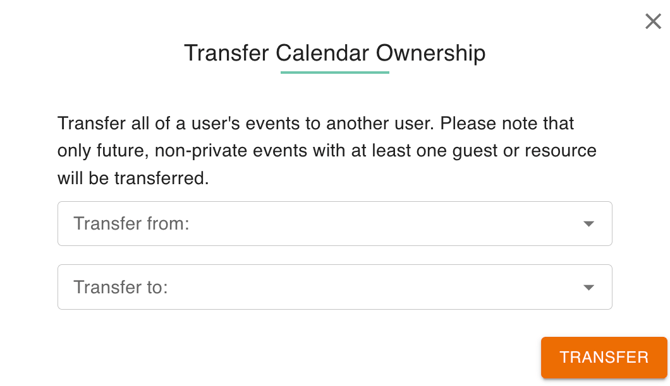
Once the process is initiated, gPanel works in the background to reassign event ownership. The destination user will see the new calendar appear in their "My Calendars" list, granting them full rights to edit, share, or delete events as needed. This centralized management keeps your organization’s schedule intact and ensures that your internal workflows remain uninterrupted during staffing transitions.