
In a collaborative organization, calendars are the heartbeat of daily operations. Administrators often need to view a specific user’s calendar to troubleshoot "ghost meetings" (meetings where no one shows up), verify that a departing employee has transferred their essential syncs, or simply assist a manager in navigating a complex schedule.
The View Calendar feature in gPanel provides a centralized portal to access any calendar in the domain without needing to log in as the user or request individual sharing permissions.
The process begins with identifying the specific account you wish to audit. gPanel’s intelligent search makes this efficient even in large organizations with thousands of users.
Step-by-Step: Viewing a Calendar in gPanel
-
In the Search Users field, begin typing the name or email address of the target user.
-
As you type, a dropdown list will populate with potential matches from your directory. Click the correct user profile.
-
Click the Search button to pull the associated calendar data into the dashboard.

-
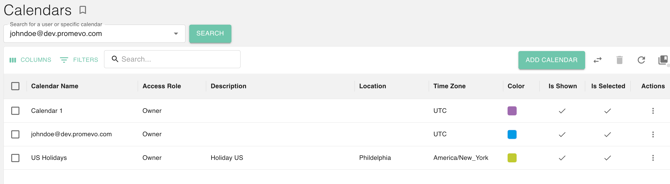
Once the user is identified, gPanel displays all calendars associated with that account, including their primary calendar and any secondary or shared calendars they have access to.
-
Select for Viewing: Click on the specific calendar you would like to open. The interface will refresh to display the event grid for that selection.
-
Optimize Your Workspace: To maximize your visibility of the event grid, you can collapse the user list sidebar. This is particularly helpful when viewing detailed day-views or managing multiple overlapping schedules.
-
For administrators managing massive datasets, gPanel provides robust filtering tools to narrow down the user list. You can filter by specific columns (such as Department or Org Unit), use operators (like "contains" or "equals"), and input the specific value needed.
If your search criteria become too complex, the Remove All function allows you to clear all filters instantly and return to the default directory view.

By using gPanel instead of the native Google Calendar interface, administrators maintain a clear audit trail of their actions. It ensures that visibility is granted through secure, permission-based administrative access, maintaining the balance between operational efficiency and user privacy.