
Contents
In an enterprise environment, scalability is the key to efficient management. The Bulk Operations feature, located within the Import/Export module, serves as a high-capacity engine for domain-wide changes.
Whether you are onboarding 2,000 new employees at once or updating the department fields for your entire global directory, Bulk Operations allows you to execute these tasks simultaneously using a single Google Sheet.
By automating these "behind the scenes" jobs, gPanel reduces manual labor, eliminates the risk of repetitive entry errors, and provides a clear system of record for every mass update performed on your domain.
Creating Bulk Operations in gPanel
- Select the ‘Create Bulk Op’ Button on the top Right of the table.

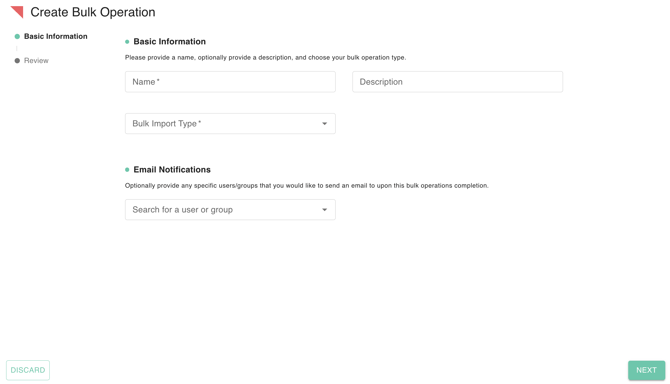
- Fill out the basic information and email notification sections. These are used to define the administrative details and the type of bulk task being performed:
- Identification: You must provide a Name for the operation and have the option to add a Description for internal tracking.
- Bulk Import Type: A mandatory dropdown menu where you select the specific category of the operation (such as updating user profiles or group memberships). View the available bulk import types here.
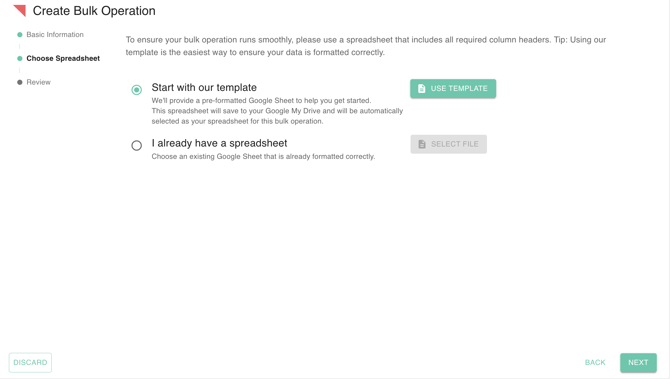
- Next, provide the data for your bulk operation by uploading a spreadsheet of your choice. You have the option to download and use a pre-formatted template to ensure data accuracy before re-uploading, or you may simply upload your own custom spreadsheet.
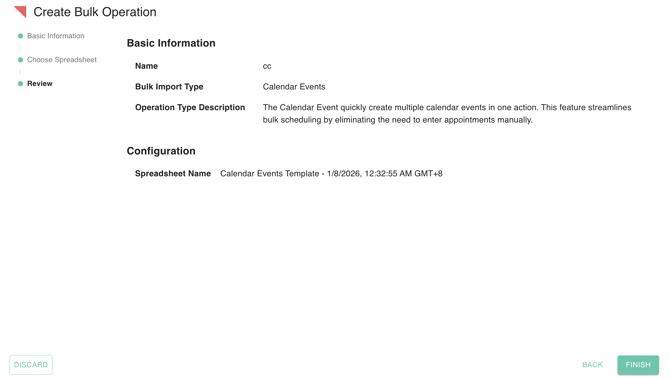
- Carefully review your configured Bulk Operation to ensure accuracy. Once confirmed, click 'Finish' to save your settings.
Running a Bulk Operation
Once a policy is created, it resides in your dashboard until you are ready to trigger it.
-
Find your saved Bulk Operation in the list.
-
Click the Play button under the Action Menu.
-
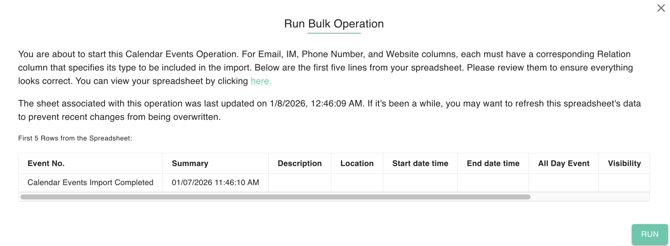
A modal will appear displaying the timestamp and the specific spreadsheet attached to the job. Confirm the run to start the background process. You can monitor the progress via the real-time status logs.
Deleting a Bulk Operation
To maintain administrative hygiene, you should retire bulk operations that are no longer needed.
To Delete, simply select the operation and click the Trash icon.

Warning: Deleting a bulk operation will immediately stop all current and scheduled automations linked to it. Always ensure a job has reached a "Finished" status before removal to avoid incomplete data updates.