
Contents
View enrolled devices
The Device Management module in gPanel displays a list of your organization's ChromeOS devices with the following information:
-
Serial Number: The serial number of the device.
-
Status: Enrollment status of the device.
-
Asset ID: Custom field set, if an Asset Id was entered then it will appear here.
-
Enrollment Date: The date and time the device was last enrolled.
-
Last Sync: The last time the device fetched it's policy or "Synced" with the Admin Console.
-
User: Shows the user in which enrolled the device.
-
Location: Custom field set, if a location was entered for the device it will appear here.
-
Notes: Custom field set, custom field for any device notes to be entered.
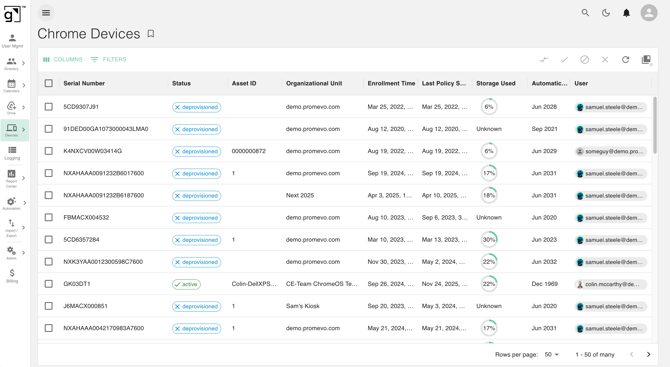
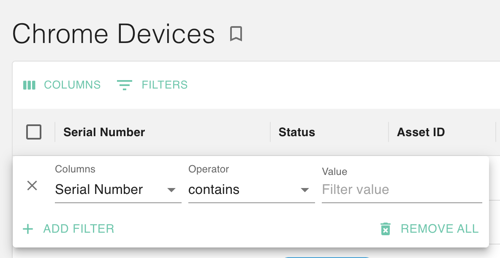
In the upper left-hand corner, you can click the Filter icon to filter the view.
-
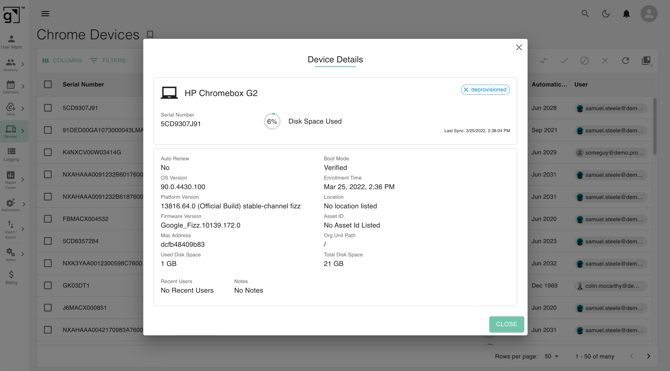
Model: Displays the Model number of the device.
-
Device ID: Displays the Directory API ID of the device.
-
Serial Number: Displays the Serial number of the device.
-
Status: Displays the current provisionment status, Active, Deprovisioned.
-
Last Sync: The date and time of the last device sync to the policies set within the Admin Console.
-
Will Auto Renew: Whether the device will auto renew its support after the end support date.
-
OS Version: Displays the version of Chrome that the Chrome OS version is based on.
-
Platform Version: Displays the actual current Chrome OS version.
-
Firmware Version: Displays the version of the devices Firmware.
-
Mac Address: Displays the Mac Address of the device.
-
Boot Mode: Displays whether or not the device is in Developer mode or verified mode on start up.
-
Last Enrollment Time: Displays the date and time of last enrollment of the device.
-
Org Unit Path: The Organizational unit path the device is placed in.
-
User: Displays the User in which enrolled the device to your domain.
-
Location: If a location was given to the device within the custom field present in the Admin Console, then it will display here.
-
Asset ID: If an Asset ID was given to the device within the custom field present in the Admin Console, then it will display here.
-
Notes: If any Notes were entered in for the device within the custom field present in the Admin Console, then they will display here.
-
Recent: Displays the most recent Organizational unit path the device was placed in.
-
Recent Users: Displays recent users that have signed into the device.
Take action on a device
-
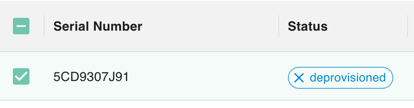
Select the device(s) you would like to take action on by checking the box to the left of the serial number.
-
The following icons will become active in the top-right corner of the gPanel interface. Each icon represents a specific command sent to the Google domain.
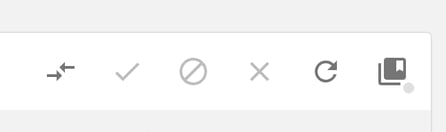
- Move Device (Transfer Icon): Represented by the horizontal arrows, this allows you to move selected devices between different Organizational Units (OUs). This is essential for applying new policy settings or reassigning hardware to a different department.
- Enable Device (Checkmark Icon): Use this to restore a previously disabled device to an active state. Once enabled, the device can be used by employees to sign in and access domain resources.
- Disable Device (Prohibited/Circle-Backslash Icon): This is a vital security measure for lost or stolen hardware. Disabling a device prevents any user from signing in, though the device remains enrolled in your domain for tracking purposes.
- Deprovision Device (X Icon): This action permanently removes the device from your active management. This should only be used when a device is being retired, sold, or returned to a manufacturer.
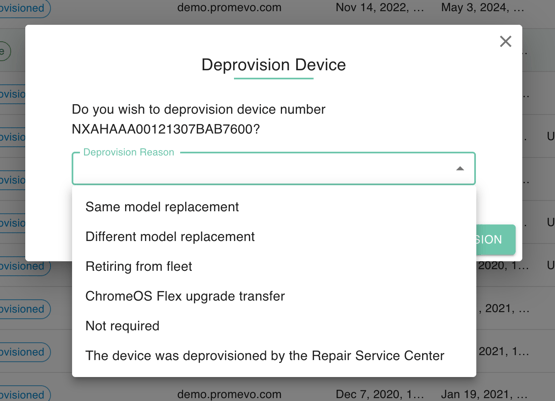
Because deprovisioning is an irreversible step in the device lifecycle, gPanel requires you to select a Deprovision Reason. This categorization is vital for accurate inventory reporting and license management within your Google Workspace domain.
When you initiate a deprovisioning request, you must select one of the following reasons from the dropdown menu:
-
Same Model / Different Model Replacement: Select these options if the device is being replaced under warranty or as part of a hardware refresh. This often allows for the transfer of the associated Chrome Upgrade license to the new unit.
-
Retiring from Fleet: Use this when a device has reached its Auto Update Expiration (AUE) or is being permanently taken out of service.
-
ChromeOS Flex Upgrade Transfer: Specifically for scenarios where you are moving a license to a device running ChromeOS Flex.
-
The device was deprovisioned by the Repair Service Center: Select this if a third-party repair facility has already handled the hardware disposal or replacement.
-
Not Required: A general category for devices that no longer need to be managed by the organization for unspecified reasons.
-
Interface & view tools
In addition to direct device actions, gPanel offers tools to help you manage how you view your data.
-
Refresh (Circular Arrow): Use this to pull the most recent data from Google. This is helpful after performing bulk updates to verify that the status changes have propagated.
-
Save Grid View (Book/Spreadsheet Icon): This allows you to save your current column configuration and filters. By saving your view, you can quickly return to specific reports—such as "All Disabled Devices"—without having to re-apply filters manually.