
Managing a large-scale directory often involves creating multiple groups with nearly identical configurations. Whether you are setting up a new regional sales team (e.g., "Sales-West" based on "Sales-East") or creating a restricted version of an existing distribution list, the Clone Group feature in gPanel is an essential time-saving tool.
Instead of manually re-entering descriptions, selecting templates, and toggling security settings, cloning allows you to use an existing group as a blueprint for a new one.
When you clone a group, you ensure structural consistency. This prevents "configuration drift," where two similar groups accidentally have different security protocols. By starting with a proven "Source Group," you maintain your organization’s security posture while rapidly scaling your directory to meet new project or departmental needs.
Step-by-Step: Using the Clone Group Dialog
- Locate your target group in the Directory > Groups list.
- Go to the Action menu in the top right, and choose Clone.

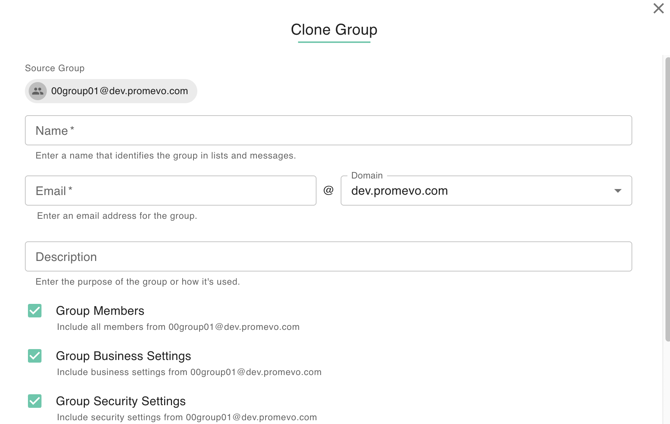
- Update the following fields as needed:
-
Source Group Name: This field is non-editable and confirms which group you are using as your template.
-
Group Name (Required): Enter the display name for your new group.
-
Email Address (Required): Provide a unique email prefix for the new group.
-
Description: Use this to clarify the purpose of the new group (e.g., "Regional mirror of the Global Marketing group").
-
Template (Optional): You may apply a specific template to further refine the new group's settings.
-
-
-
Mailing: Toggles whether the group functions as a standard distribution list.
-
Security: Identifies the group as a security group, often used for assigning permissions to Google Cloud or sensitive Shared Drives.
-
Locked: Prevents unauthorized changes to the group's core settings.
-
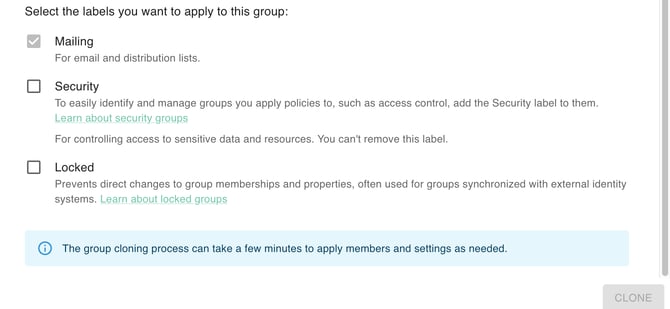
Once you have reviewed the setup and labels, click Clone to finalize the process. The new group will appear in your directory instantly, inheriting the architectural "DNA" of the source while remaining a standalone entity for your domain.