Contents
In a high-growth organization, ensuring that every team member has access to the same client, vendor, or partner information is a significant challenge.
Contact Sync in gPanel is a powerful automation tool designed to eliminate manual data entry and departmental silos. By synchronizing contact labels across multiple users, groups, or organizational units (OUs), administrators can ensure that the "master list" of professional contacts stays updated across the entire organization in real-time. It also allows administrators to map specific contact fields and manage permissions at scale, ensuring that only the right people have access to sensitive contact details.
Whether you are pushing a new "Preferred Vendors" list to the procurement team or syncing a "Key Clients" folder to the sales department, gPanel provides the administrative oversight needed to manage contact data as a centralized corporate asset.
Add a Contact Sync
- Navigate to Automation > Contact Sync.
- Select the ‘Add Contact Sync’ button near the top-right corner of your screen.
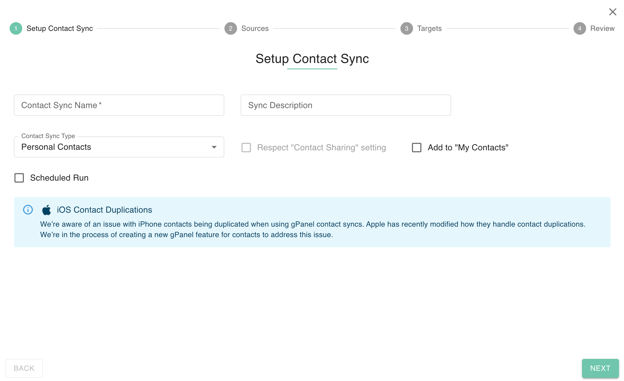
- Fill out the following fields:
- Identification: Provide a Contact Sync Name and a detailed Description for internal auditing.
- Sync Type: Select the category of contacts to be synchronized (e.g., Personal Contacts).
- Behavioral Settings: Administrators can choose to Respect "Contact Sharing" settings or enable Add to "My Contacts" for the recipients. Enabling this pushes the synced data directly into the target user’s primary "My Contacts" view.
- Automation: Check the Scheduled Run box if you want gPanel to maintain this sync automatically without further intervention.
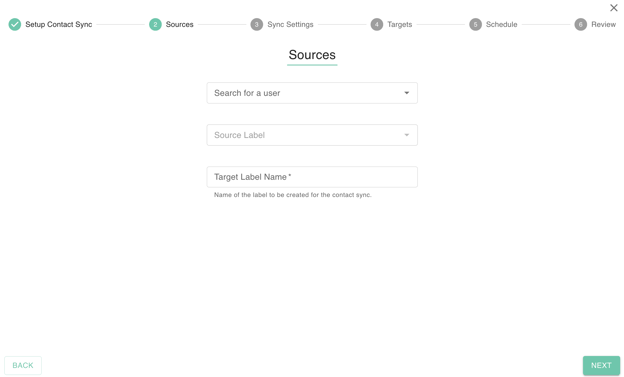
- Next, select the define the sources and target labels.
- Search for a User: Select the specific user account whose contact list will serve as the Master List.
- Source Label: Choose the specific label (folder) from that user’s account to sync. This ensures you only share relevant categories (like "Project Phoenix Leads") rather than the user's entire private directory.
- Target Label Name: Type the name of the folder that will be created in the recipients' contact lists. This keeps synced data organized and prevents it from mixing with the target users' existing personal contacts.
- Automated Organization: By defining a Target Label Name, gPanel ensures that the synced contacts stay organized in their own dedicated folder for the target users, preventing them from mixing with the users' existing personal contacts.
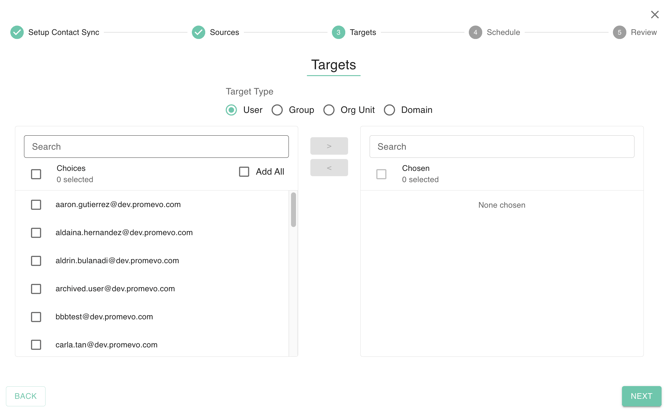
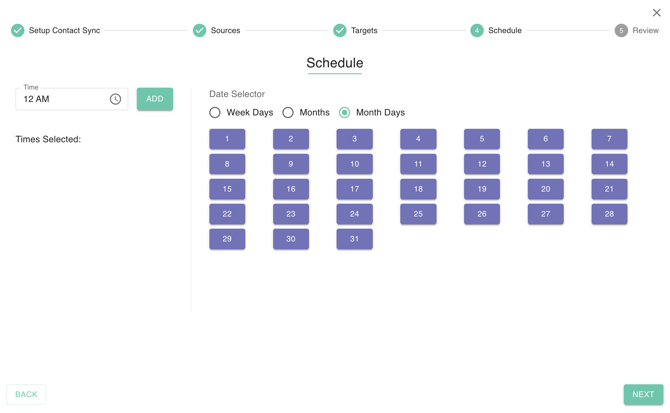
- Now, select your targets and define a schedule.
-
Target Selection: Move the desired Users, Groups, OUs, or Domains from the "Choices" list to the "Chosen" column. Use the Exclusion feature to prevent specific users from receiving the sync.
-
Define Frequency: If a schedule was enabled, specify the time and frequency (Daily, Weekly, etc.) to keep the data evergreen.
-
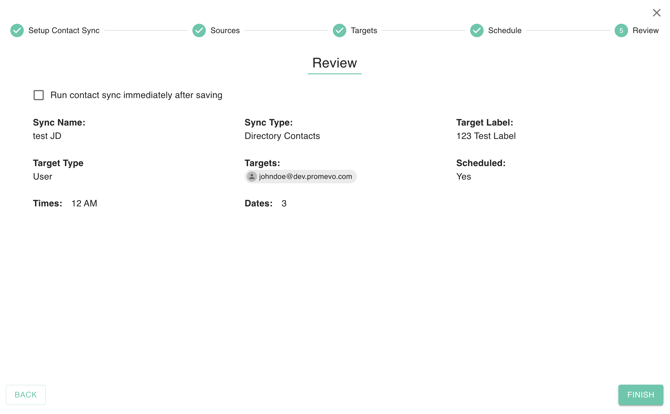
- Carefully review your configured contact sync to ensure accuracy. Once confirmed, click 'Finish' to save your settings.
Managing & Monitoring Your Syncs
Once your policies are active, gPanel provides several tools for ongoing maintenance:
-
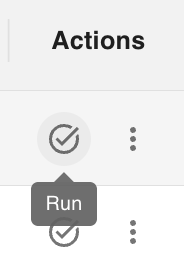
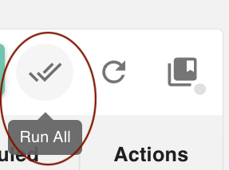
Manual Run / Run All: You can trigger a specific sync manually or use Run All to bulk execute every visible sync on your list simultaneously. This is ideal for pushing immediate updates during a major organizational shift.
-
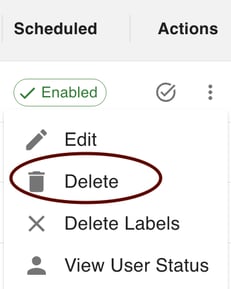
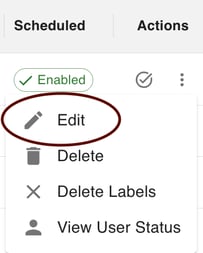
Edit & Update: Click the Pencil (Edit) icon to modify sources or targets. Be sure to click Update Finish to apply your changes.
-
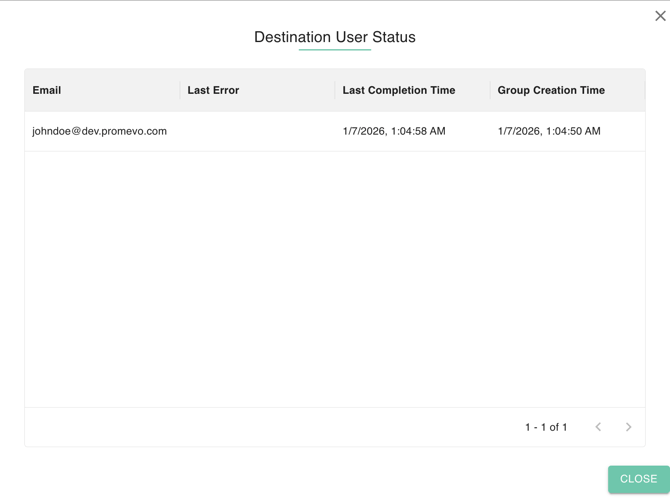
View User Status: To ensure data integrity, select View User Status from the action menu. This allows you to monitor the Last Completion Time and troubleshoot any synchronization errors for specific users.
-
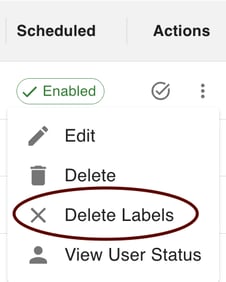
Delete Labels: Unique to this module, the Delete Labels (X icon) allows you to remove the synced labels and the associated contacts from target users' accounts—essential for "cleaning" a directory after a project ends.
-
Permanent Deletion: Use the Trash icon to remove the sync policy entirely.