
As your organization grows and evolves, your Google Workspace structure must adapt. Whether you are undergoing a corporate restructuring, renaming a department, or moving a team to a new regional division, the ability to Edit Organizational Units (OUs) in gPanel ensures your directory stays aligned with your real-world business needs.
Properly maintained OUs are essential for effective policy management. Since OUs dictate which apps, security settings, and Chrome policies are applied to specific users, keeping their metadata (like names and descriptions) accurate helps prevent administrative confusion and ensure that the right rules are applied to the right people.
Step-by-Step: Modifying an Organizational Unit
To update an existing OU within your gPanel dashboard, follow these instructions:
- Navigate to Directory > Organizational Units. Browse your directory tree or use the search function to find the unit you wish to modify.
- Select the desired Organizational Unit from the list. Once selected, click the Pencil (Edit) Icon in the action menu.
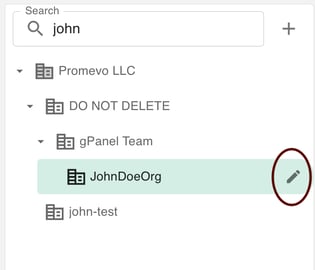
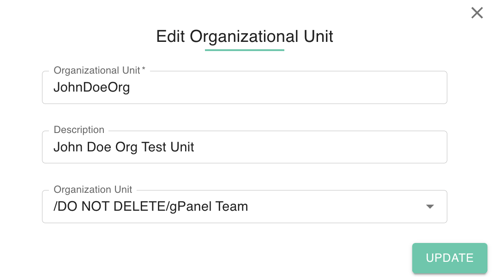
- In the dialog box that appears, modify the Name, Description, or Parent Organization as needed.
- Review your updates to ensure the hierarchy remains logical, then click Update.
 We recommend reviewing your OU descriptions annually to ensure they still align with your IT security policies. By using gPanel’s centralized editing tools, you can manage your domain's architecture with precision, ensuring a secure and well-organized environment for all users.