
The Edit Contact Sync function allows you to modify the parameters of an existing contact synchronization policy without having to delete it and start from scratch.
-
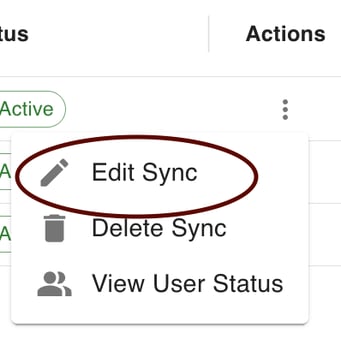
Click the contact sync you wish to edit from the list of all contact syncs. Then click Actions > Edit Sync.
-
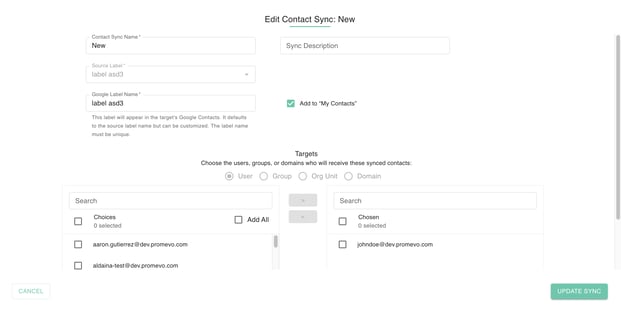
Make any changes on the first screen. Once you've made your desired changes, click Next.
-
Contact Sync Name: This name is what you will see listed in the contact sync menu of gPanel.
-
(Optional) Sync Description: This is an optional field that allows you to add notes or description of the sync.
-
(Dropdown) Source Label: The label source from the contact labels created.
-
Google Label Name: This label will appear in the target's Google Contacts. It defaults to the source label name but can be customized. The label name must be unique.
-
(Optional) Add to "My Contacts": This will add the contacts to both the target contact group and the target user's "My Contacts." (Note: If you are creating this sync for users that are using Outlook Sync with Google Workspace, you will need to enable this option.)
-
-
Now you need to select the target users. These are the users who will be receiving the contacts from the sync. They will not be able to edit or change the contacts. Destination users can be added based on the following sources:
-
Email address
-
Group membership
-
Organization unit
-
Domain
-
-
Type the desired user, group, org unit, or domain in the search box and a list will appear. Click either Add All to add the entire list or Add Selected to pick and choose specific line items.
-
Once you've entered all the information, click UPDATE SYNC.