Contents
Edit a group
-
Click on the group you wish to edit.
-
Next, select from one of the following sections by clicking on it from the sidebar menu. An explanation of each section is below.

-
Make your desired changes, and click Save to save the changes.

General Information
This section is where you can edit general information about the group using the following fields:
-
Group Name: The name of the group
-
Group Email Address: The email address of the group
-
Group Description: A description of the group
Business Group Settings
-
Group's Primary Language: This is the language emails from the Google groups service will be sent in.
-
Posting Options: Checking the box allows users to post to the group on the web.
-
Global Address List: Include this group in Global Address Lists. This option includes the group in your Google Workspace Global Address List. When included in the list, the group becomes available to Google Workspace Sync for Microsoft Outlook users.
-
Archive Options: Archive messages to the group. When this option is unchecked, messages sent to the group will not be archived. Previously received messages will remain archived. Only archived messages are visible through the web interface.
-
Can Post as Group: Check this box to allow members to post as the group
-
Moderate Messages: Select whether or not to moderate group messages by members or non-members
-
Rejected Author Notification: Check this box to notify authors when moderators reject their posts.
-
If this box is checked, enter a default message to send to authors of rejected posts
-
-
Spam Messages: Select how spam messages should be handled
-
Send them to the moderation queue and send notification to moderators
-
Send them to the moderation queue, but do not send notification to moderators
-
Immediately reject them
-
Skip the moderation queue and send to the group
-
-
Post Replies: Select how replies to posts can be sent
-
To the entire group
-
To the author of the message only
-
To the owners of the group
-
To the managers of the group
-
Users decide where their replies are sent
-
Use a custom email address to send replies to. If you choose this option, you need to enter in the email address in the field below the drop down list
-
- Permissions: This section is where you can change the various permissions for the group.
-
View Topics: Select which users can view topics in this group
-
-
-
Post: Select which users can post messages to the forum
-
-
-
View Members: Select which users can view the forum membership list
-
Invite Members: Select which users can invite other users to become a member
-
Anyone in the organization - Anyone in the organization can add themselves to the group directly
-
Anyone in the organization can ask - Anyone in the organization must ask and then be approved before they can join the group
-
Only invited users - People can join the group only if they're invited
-
-
Join the Group: Check this box to allow users not in the organization to join.
-
Who Can Moderate Members: Select which users can add and remove group members
-
Who Can Moderate Content: Select which users can approve, delete, and lock messages and/or conversations
-
Who Can Assist Content
-
- Advanced: This section allows you to disable the group. To disable the group, click Disable Group. Next, confirm your selection and click Disable.
Note: If you disable the group, all new posts to the group will be rejected. Existing messages are viewable and searchable online by anyone that already has the permission to view the group's content. If the group is re-enabled, the setting for "Who can post messages" will automatically be set to "Managers" and "Owners" only.
Security Settings
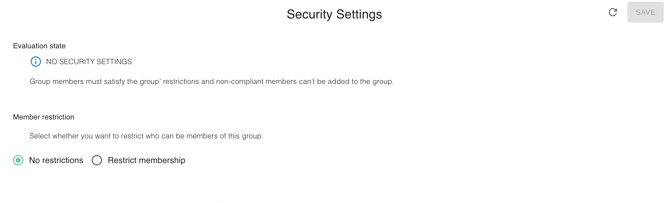
The Security Settings section in gPanel is designed to enforce strict Member Restrictions on a group, allowing administrators to define specific criteria for who can be a member.
Its core function is to maintain the group's security integrity by preventing the addition of unauthorized or non-compliant users or groups, which is critical since groups often control access to sensitive organizational resources.
The system continuously evaluates the group's membership against the established criteria and provides an Evaluation state to flag any non-compliance.
Group Members
This section allows you to add, remove, and edit group membership.
Add members
-
Select the Add Member button and then a Add Member Dialog Box will prompt.

-
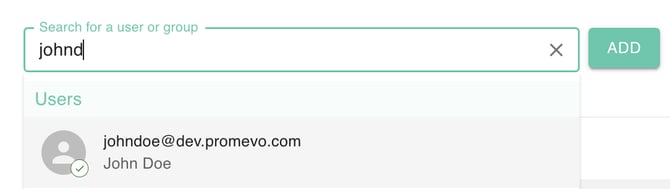
Select what you will be searching for (i.e. Users or Groups). Type In the name or email. Select one then click Add Button.
-
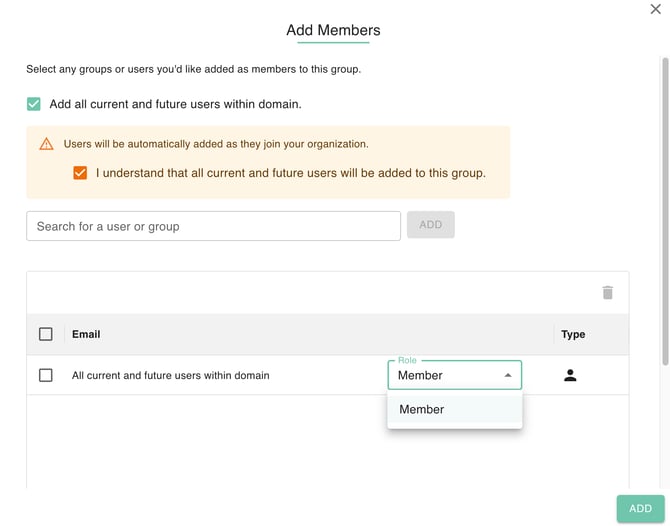
You must select a role for the newly added user. If the option to "Add all current and future users within the domain" is chosen, then all resulting members must also be assigned a role. The default role pre-selected is Member.
-
Click Add to Add Member.
Edit member roles
-
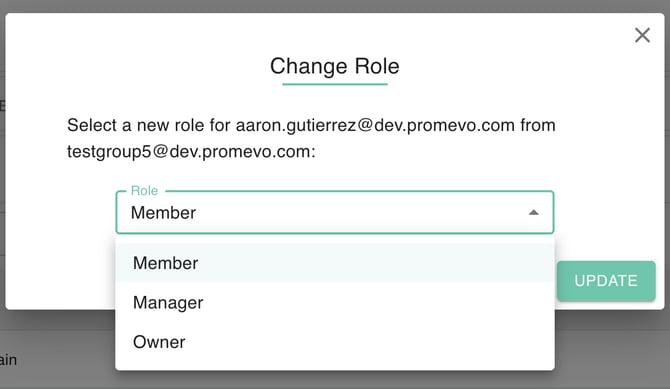
You can change the role of existing Group Members by selecting the member and clicking the pencil or edit icon.
-
The Change Role Dialog box will appear. You must select the new role for the member. Options are Member, Manager and Owner
-
Click Update to Save the Changes.
Remove members
-
Select the member to remove. The row will be highlighted once you have selected the member.
-
Click on the trash can icon.
-
Confirm the removal of the group member by clicking Remove.
Aliases
This section allows you to add and remove aliases for the group.
Add an alias
-
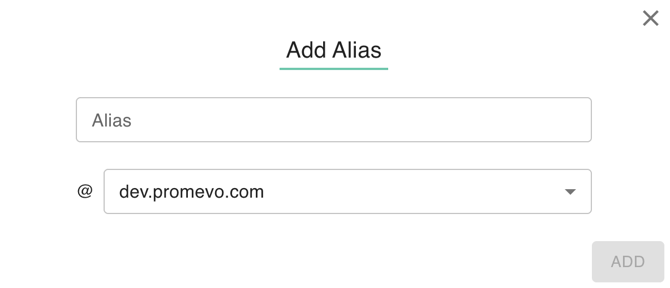
Click the Add Alias Button.
-
Type the alias into the Alias Address field.
-
Select the domain in the dropdown.
-
Click the Add Button.
Remove an alias
-
Select the alias(es) you would like to delete by checking the box next to it. They will be highlighted when selected.Note that only Editable Aliases can be deleted.
-
Click the Delete icon.
-
A confirmation popup will appear. Confirm that you want to delete the alias(es) and click Remove.

Logs
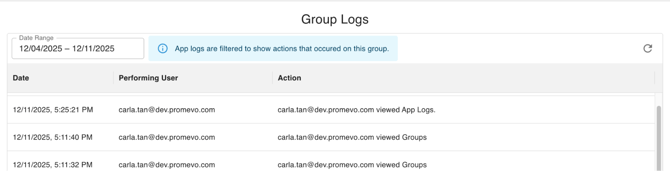
This feature enables you to see and filter a user's action within group directory in gPanel. You can narrow the results by setting a date range to view actions taken during a specific period.
The log table displays the Date, the Performer (who took the action), and the specific Action taken.
Filter Group Logs
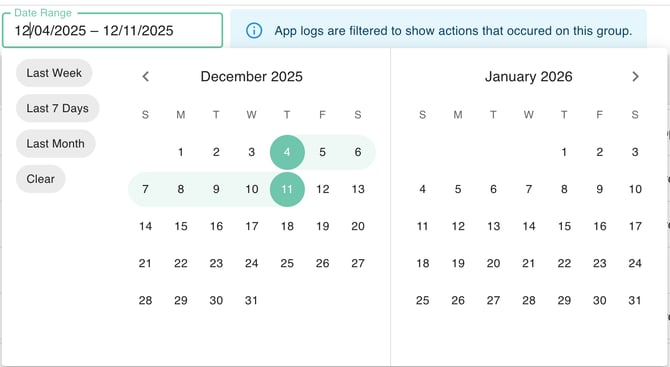
This feature is a Date Range Selector designed to filter an activity log table that specifically tracks actions taken on a selected user within the application.
Users can quickly narrow the visible log entries by choosing convenient presets like "Last Hour" or "Last 30 Days," or by manually selecting a custom start and end date using the integrated calendar (which currently shows December 2025 and January 2026).
The log is currently filtered for December 4, 2025. Once a new range is selected, the underlying table updates to display only the actions that occurred during that specific time frame, and the filter can be removed using the "Clear" option.