
Contents
What Are Labels in gPanel Contacts?
Edit Labels in gPanel Contacts
Create a New Label in gPanel Contacts
In gPanel, labels function exactly like tags or "Contact Groups" to help you organize and manage contacts at scale.
Because gPanel is designed for administrators, labels allow you to perform actions on specific sets of people rather than managing one contact at a time.
What Are Labels in gPanel Contacts?
Labels act as virtual folders or tags for your directory. It enhances:
- Shared Visibility: Unlike personal Gmail labels, these can be managed by admins and synced across the domain.
- Organized View: Clicking a label on the left sidebar filters the main list to show only contacts tagged with that specific label.
- Sync Status: The circular arrow icon next to a label indicates that the label is currently set to sync with other users or services.
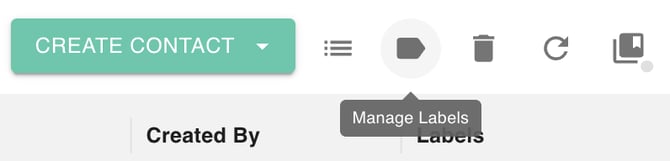
Select the Label Icon. This will lead to the three actions Edit, Trash and Create Labels.
Edit Labels in gPanel Contacts
- Navigate to Directory > gPanel Contacts.
-
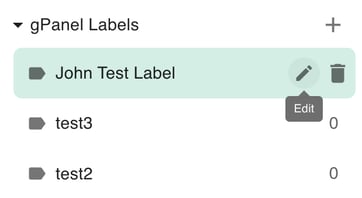
Find the label you want to edit in the left-hand sidebar. Hover over the item and select the pencil icon.
-
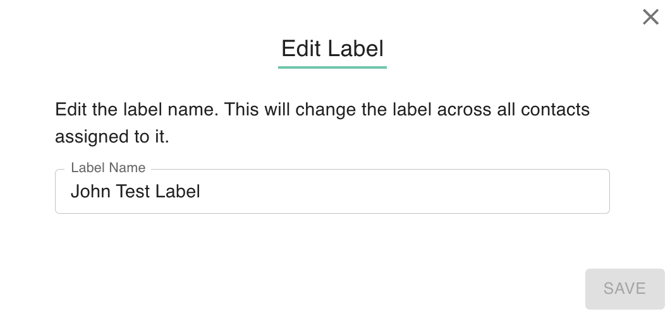
Replace or update the name, you can update to any label name needed and click Save.
Create New Labels in gPanel Contacts
- Navigate to Directory > gPanel Contacts.
-
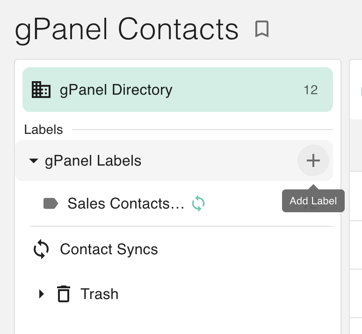
Select the plus (+) sign next to gPanel Labels.
-
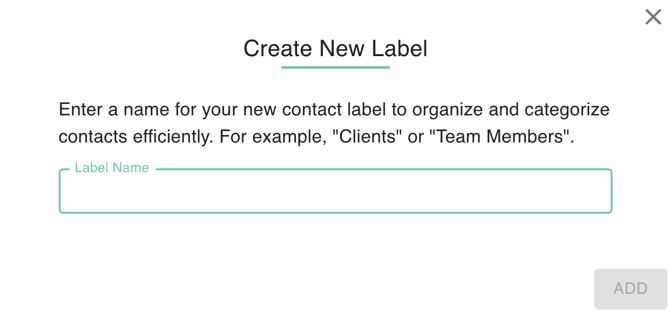
A create new label dialog box will be prompted. Add a label name and then click Add.
Trash Labels in gPanel Contacts
- Navigate to Directory > gPanel Contacts.
-
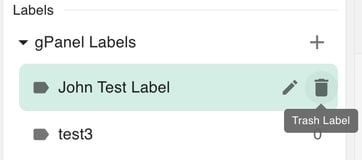
Find the label you want to edit in the left-hand sidebar. Hover over the item and select the trashcan icon.
-
A confirmation box will be prompted. Click trash to confirm.
Navigating the Trash Section
The Trash section is divided into two categories to help you distinguish between what was deleted:
- Deleted Contacts: This shows individual contact "cards" that were deleted from either the main directory or a specific group.
- Deleted Labels: This shows the "folders" or group tags that were removed.
- Note: If you deleted a label but chose to "Keep Contacts," only the label name appears here. If you chose "Delete Label and Contacts," both will appear in their
- respective trash views.
Retention & Compliance
Labels in the Trash are kept for 30 days.
- Before 30 Days: You can fully restore them to their original location.
- After 30 Days: gPanel permanently purges these items to stay compliant with Google’s data storage policies, and they cannot be recovered.
Managing Trashed Labels
Once you click on the Trash label in the sidebar, you have two main options for the labels listed:
-
Restore: Moves the contact or label back to the active Directory. Any previous tags/labels are usually reapplied automatically.
-
Delete Forever: Skips the 30-day waiting period and permanently erases the data from the domain immediately.