
Contents
In a high-velocity IT environment, accidental deletions are a common operational risk.
gPanel Contacts mitigates this risk by providing a robust, 30-day recovery window for all deleted contact data. Located under Directory > gPanel Contacts, this feature acts as an organizational "System of Record," ensuring that even when a contact or label is removed from the active directory, it remains recoverable for a full month.
This provides administrators with peace of mind when performing large-scale directory cleanups or managing complex offboarding tasks.
How to Trash a Contact
- Navigate to Directory > gPanel Contacts.
-
Select the contact(s) or labels you wish to remove and click the Trash icon.

-
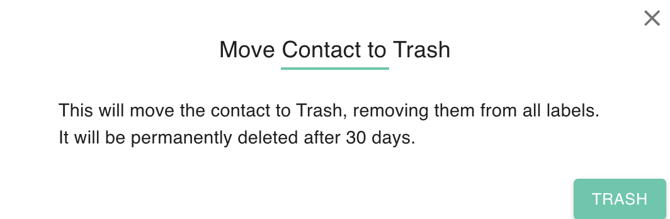
Confirm the action in the popup dialog. Trashed contacts will be permanently deleted after 30 days.
How to Restore Trashed Contacts
- Navigate to Directory > gPanel Contacts.
- Navigate to the Trash section in the sidebar.
- Select the items you wish to bring back and click Restore. This will move the data back to the active Directory, and previous tags or labels are typically reapplied automatically.
Understanding Permanent vs. Trash Deletion
When you initiate a deletion within gPanel Contacts, the system distinguishes between two types of removal:
-
Move to Trash (Standard Deletion): Standard deletions move contacts to a "Trash" folder, accessible at the bottom of the left-hand sidebar. This is the default action for individual or bulk cleanups.
-
Delete Forever (Permanent Purge): If you need to immediately remove data for compliance or security reasons, you can bypass the 30-day window. By navigating to the Trash label, selecting the items, and clicking Delete Forever, the data is erased from the domain instantly.
Navigating the Trash Section
To help administrators quickly identify what needs to be recovered, the Trash section is divided into two distinct categories:
-
Deleted Contacts: This view displays individual contact records that were removed from either the master directory or specific labels.
-
Deleted Labels: This view tracks the removal of organizational "folders" or tags.
- Note: If you deleted a label but chose to "Keep Contacts," only the label name appears here. If you chose "Delete Label and Contacts," both entities will appear in their respective trash views for restoration.
Retention & Compliance
All items in the Trash are subject to a 30-day retention period. During this time, data is fully recoverable. However, once the 30-day threshold is reached, gPanel permanently purges these items to maintain compliance with data storage policies.
After this purge, the data is no longer recoverable, ensuring your domain remains lean and compliant with global data privacy standards.