
In a managed Google Workspace domain, the Organizational Unit (OU) acts as a container for policies. When you move a user from one OU to another, you are doing much more than just reorganizing a list; you are fundamentally changing that user’s digital environment.
Because settings for Google services (like YouTube, Google Drive, and Gmail) are often toggled at the OU level, moving a member ensures they instantly "inherit" the correct security protocols and application access for their specific role or department.
Common scenarios for moving members include:
-
Departmental Transfers: Moving an employee from "Sales" to "Marketing" so they gain access to the appropriate internal tools.
-
Onboarding/Offboarding: Shifting new hires from a "Provisioning" OU to their final team OU.
-
Security Adjustments: Moving users into a more "Restricted" OU during an audit or after a security incident.
Step-by-Step: Moving OU Members in gPanel
The gPanel interface allows for both individual and bulk moves, making it easy to manage large-scale departmental shifts.
-
Navigate to the user list within your desired directory view. Select the user(s) you wish to reassign by checking the box next to their name. To move a large group, you can use the "Select All" function.
-
Locate and click the Move Members button in the top right-hand corner of the screen.

-
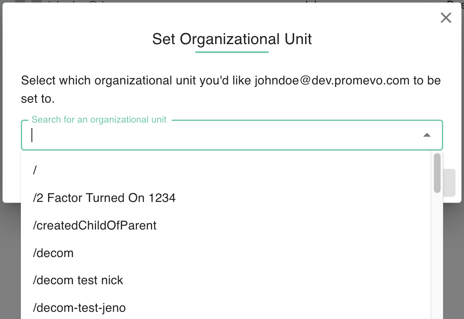
A dialog box will appear. You can begin typing the name of the target Organizational Unit or click Browse Organizations to view your domain’s entire hierarchical tree. Selecting the correct sub-OU ensures that the user receives the most granular policies intended for their role.
-
Once the destination is selected, click Process.
Once the process is complete, the users will immediately fall under the governance of the new OU.
It is important to remember that Google Workspace uses Policy Inheritance; if the new OU has a setting configured as "Inherited," the user will follow the rules of the parent OU. If the setting is "Overridden," the user will follow the specific rules of that sub-unit.
By using gPanel to manage these transitions, you ensure a smooth, secure, and well-documented move for all domain members.