Contents
Navigating the Explorer Interface
The Drive Explorer is divided into two primary views to help you manage data based on its ownership type:
-
My Drive: This view allows you to browse a specific user's private storage. You can navigate through their folders, view Starred items, and access the Trash to restore accidentally deleted files.

-
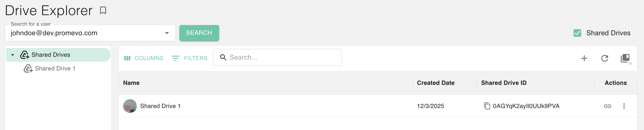
Shared Drive: This section delineates organizationally-owned collaborative spaces. Authorized admins can perform core actions here, such as creating a New Shared Drive, refreshing views, or deleting entire drive structures to maintain directory hygiene
Performing Administrative Actions
From the Drive Explorer, you can execute a variety of high-level management tasks to ensure your organization’s data is secure and properly categorized.
Modifying Drive Structure
-
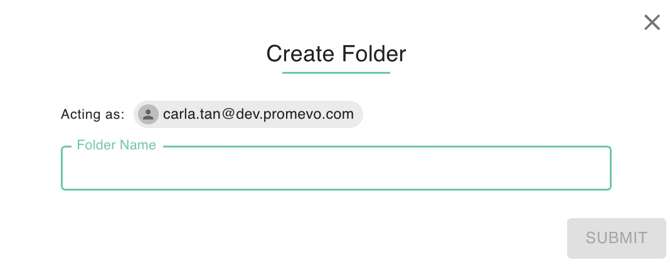
Create Folders: Click the Add New Folder icon, enter a descriptive name, and click Submit to provision new organizational spaces.
-
Move Files/Folders: Use the Move icon to relocate items. You can move files between different folders within a user's My Drive or even transfer items from a private My Drive to a collaborative Shared Drive.
.png?width=500&height=342&name=Drive_Move-Documents(myDrive).png)
-
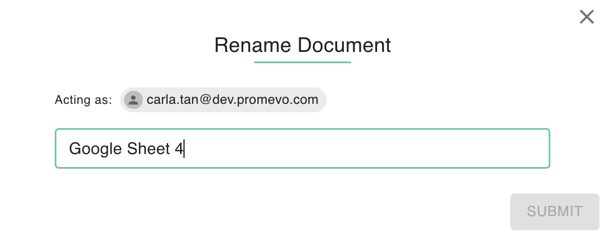
Rename Items: Whether it is a Drive, Folder, or Document, you can select Rename under the action menu to update titles for better searchability.
Ownership and Security
-
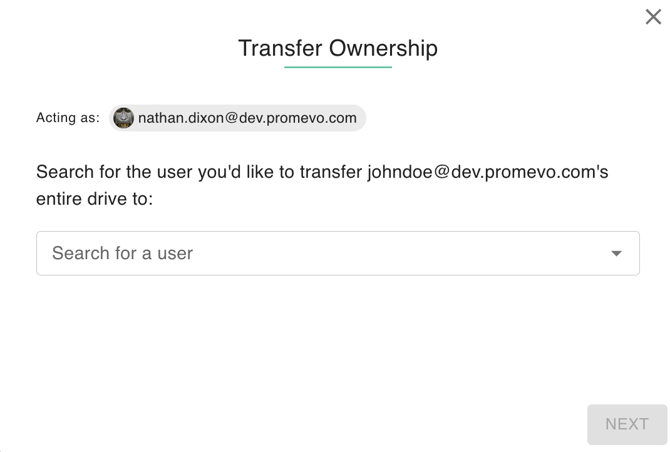
Transfer Ownership (⇄): This is a critical tool for offboarding. Search for a destination user and click save to reassign document ownership, ensuring no data is lost when a user leaves the company.
-
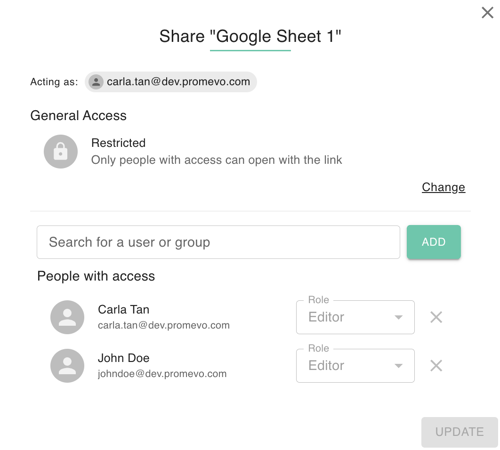
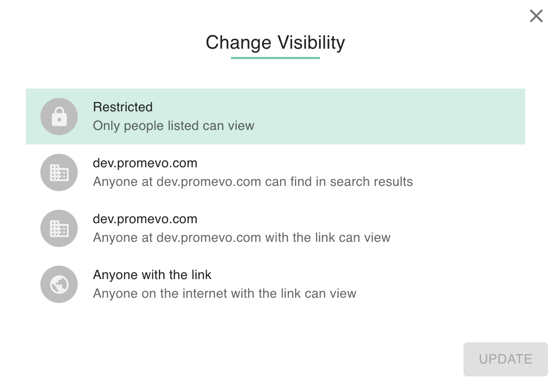
Manage Shares: Click the Add Share icon to grant access to users or groups. You can set specific roles, such as Can View or Can Edit, or use the Visibility settings to toggle between Private, Anyone with the link, or Domain-wide access.
Shared Drive Governance
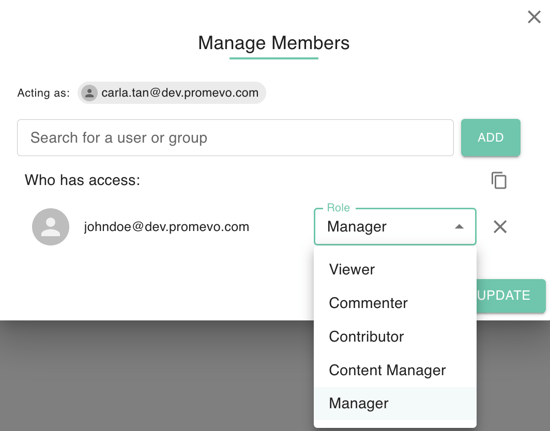
For Shared Drives, the actions menu allows you to manage the lifecycle of collaborative spaces. You can access the Manage Members dialog to add or remove users and adjust their roles.
Additionally, the Settings menu allows you to toggle advanced permissions, such as restricting members from downloading or copying files within that specific drive.
Viewing & Restoring Data
If you need to review the content of a file, selecting View will open the document in a new browser tab. For data recovery, gPanel provides an Untrash feature within the Trashed folder, allowing administrators to rescue deleted items before they are permanently purged by Google’s 30-day retention policy.