
In a collaborative digital workspace, document ownership is the primary factor determining how data is stored, shared, and retained. When an employee transitions out of a role or leaves the organization, their Google Drive files must be reassigned to ensure that the "chain of custody" for critical business documents is never broken.
The Ownership Transfer Logs in gPanel provide a high-fidelity audit trail of these transitions. By maintaining a clear record of every document migration, administrators can ensure data continuity, satisfy internal compliance audits, and quickly troubleshoot any access issues that may arise during complex organizational restructures.
How to Access & Use the Ownership Transfer Logs
Navigate to the Drive module and locate the Ownership Transfer Logs section. You can browse the master list to review historical transfers or use the filtering tools to isolate moves between specific users.
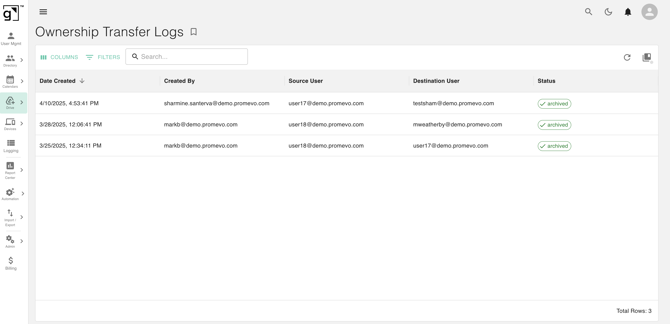
Each entry in the Ownership Transfer Log provides specific data points to help you reconstruct the migration event:
-
Date & Time Created: The exact moment the transfer request was initiated within gPanel.
-
Created By: The specific administrator who authorized the move, ensuring accountability for domain-wide data shifts.
-
Source User: The individual who originally owned the documents.
-
Destination User: The new "Owner" who now holds administrative control over the files and folders.
-
Status: Provides real-time feedback on the transfer (e.g., Pending, Completed, or Failed). This is vital for verifying that large-scale bulk transfers were processed successfully by the Google Drive API.