
Contents
In a managed Google Workspace environment, data is often spread across thousands of individual user Drives, making it difficult for administrators to locate specific files for security audits or legal discovery.
The Drive Search feature in gPanel provides a powerful "Top-Down" view of your domain’s entire storage infrastructure.
By bypassing the limitations of standard user-level searching, gPanel allows administrators to find, audit, and manage any file within the organization, regardless of who owns it or where it is stored.
Methods for Locating Documents
gPanel offers two distinct ways to access these search features: through the Drive section in the side navigation or under User Management. This ensures you can manage file discovery from whichever workflow best suits your current task.
Basic Keyword Search
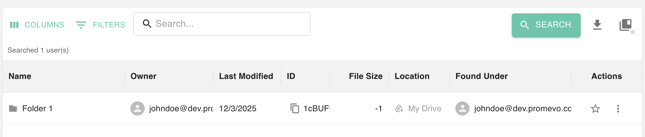
For a broad inquiry, you can search an Entire Drive by entering keywords into the primary search bar. This is ideal for quick discovery when you have a general idea of the document's subject matter. Simply enter your terms and click the Search button to populate a list of matching results from across the domain.
Advanced Search by Filtering
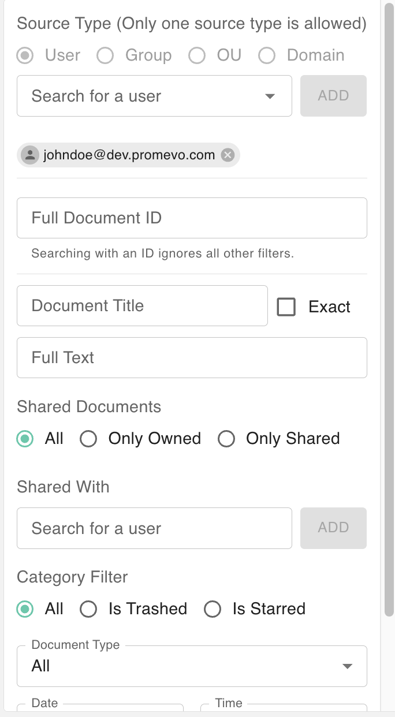
For more granular investigations, use the advanced filter suite to narrow your results. You can filter by:
-
Identification: Search by Document ID or Document Title (supporting both Exact and Non-Exact matches).
-
Content: Use Full Text search to scan the internal contents of documents.
-
Ownership & Sharing: Filter by Shared Documents (All, Only Owned, or Only Shared) or see files specifically Shared with a Search User.
-
Category & Status: Filter for items that are Trashed or Starred.
-
Document Type: Isolate results to specific formats, such as Google Docs, Spreadsheets, Presentations, PDFs, Audio, Video, and even legacy types like Fusion Tables.
Exporting and Auditing Search Results
Once you have identified the necessary files, you may need to share the findings with stakeholders or legal teams.
-
Click Export icon in the top right-hand corner.

-
An export window will appear with a direct link. Clicking this will open a Google Sheet in your Drive containing the full metadata of your search results.
This export is a vital tool for creating "Source of Truth" reports during internal audits or for maintaining records of sensitive data exposure. By leveraging these advanced search and export capabilities, you ensure that your organization’s data remains transparent, secure, and easy to manage.