
Contents
Grant Marketplace Access
When installing for the first time and when new scopes are added for gPanel, you may need to grant the appropriate data access.
-
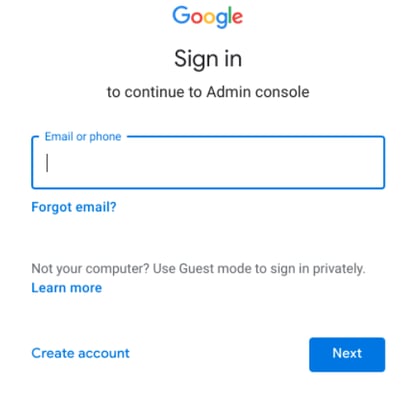
Login to your Google Admin Console at admin.google.com. You may be prompted to enter your username and password.
-
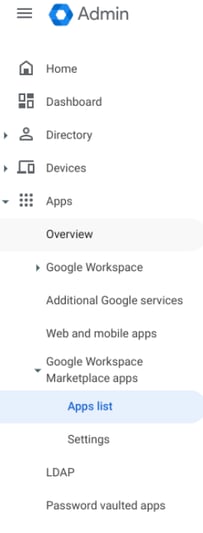
You will arrive at your Control Panel Dashboard tab by default. On the left click Menu > Apps > Google Workspace Marketplace Apps > Apps List.
-
Find the gPanel application in the list of apps. It will look like this:

-
Click the application to enter the Data Access configuration page for gPanel.
-
Under the Data Access section, select both the OAuth Clients and OAuth Scopes tab to verify the status of each. Each entry will be green and labeled Granted if all scopes have been granted or will be orange if it is revoked or partially revoked.
-
If any entries have been revoked or Partially revoked, you will need to grant access. To do so please click the Grant Access button to the right to grant full access for gPanel.

-
The status should have changed to Granted.
-
Now that you are done you may need to refresh or sign out then back into your Google account to see the changes.
Add secondary domains to gPanel
Any secondary domains that you wish to administrate with gPanel must be added in the Administration module.
Step 1: Add the Domain in Google Admin (Required First)
- Log in to admin.google.com.
- Go to Account > Domains > Manage domains.
- Click Add a domain.
- Enter your new domain name and select Secondary domain (not "Domain alias").
- Follow the prompts to Verify ownership (usually by adding a TXT record to your DNS).
- Once verified, click Activate Gmail to set up your MX records if you plan to use email on this domain.
Step 2: Add the Secondary Domain to gPanel
Once Google recognizes the domain, you must tell gPanel to index it:
- Open gPanel.
- In the left-hand navigation, hover over Administration and select Settings.
- Click on the Secondary Domains tab.
- Type the name of the secondary domain you just verified in Google.
- Click the + (Plus) icon to add it to the list.