
In a secure Google Workspace environment, protecting exported data is just as critical as the export process itself. gPanel Contacts and Gmail Export tools utilize asymmetric encryption (PGP) to ensure that even if a exported file is intercepted, it remains unreadable without the corresponding private credentials.
By generating a Public Key to encrypt the data within gPanel and keeping a Private Key on your local machine to decrypt it, you create a "zero-trust" environment where sensitive email data is never exposed in plaintext while in transit or in the cloud.
Note: Generating an encryption key requires third-party software. For this guide, we use pgpkeygen.com as a free, accessible tool. Please note that Promevo is not affiliated with this product and cannot provide direct technical support for third-party software issues.
Step-by-Step: Creating an Encryption Key
-
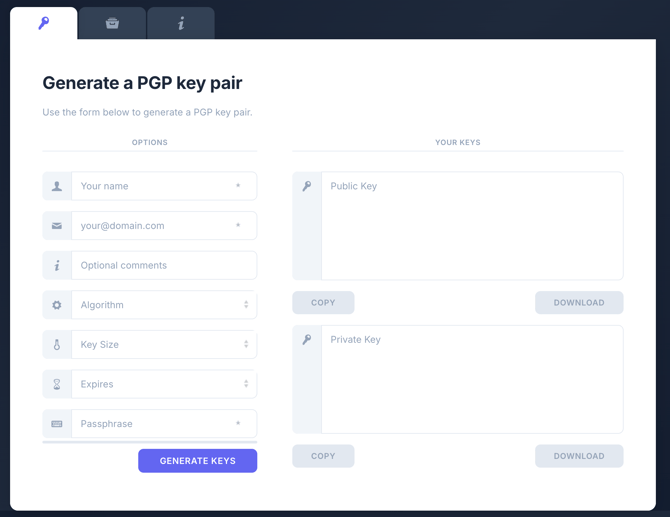
Navigate to pgpkeygen.com and populate the following fields to define your security standards:
-
Identity Details: Enter the Name and Email Address of the administrator responsible for the key.
-
Algorithm (RSA): We recommend selecting the RSA algorithm, as it is the industry standard for secure communication.
-
Key Size: We recommend a minimum of 2048-bit. While higher bit rates (like 4096-bit) offer superior security, they will increase the processing time required for encryption and decryption.
-
Expiration: Set a reasonable time frame for the key to expire based on your internal security policies.
-
Passphrase: Create a robust pass-code. It is vital to store this in a secure password manager, as it is required to unlock the key during the decryption phase.
-
-
Click Generate Keys. You will see two distinct blocks of text appear:
-
Public Key: This is the key you will share with gPanel.
- Private Key: Download and save your Private Key immediately. Do not close the window until you have secured this file, as it cannot be recovered if lost.
-
- To capture your Public Key, you can either click Download Public Key and open it with a text editor (like Notepad or TextEdit) or copy it directly from the site. Ensure you include the entire block, including the header and footer:
-----BEGIN PGP PUBLIC KEY BLOCK-----" and "-----END PGP PUBLIC KEY BLOCK-----
-
Click the Update Key at the top of the Gmail Export module.
-
Once you have copied your Public Key, return to the Gmail Export module in gPanel.
-
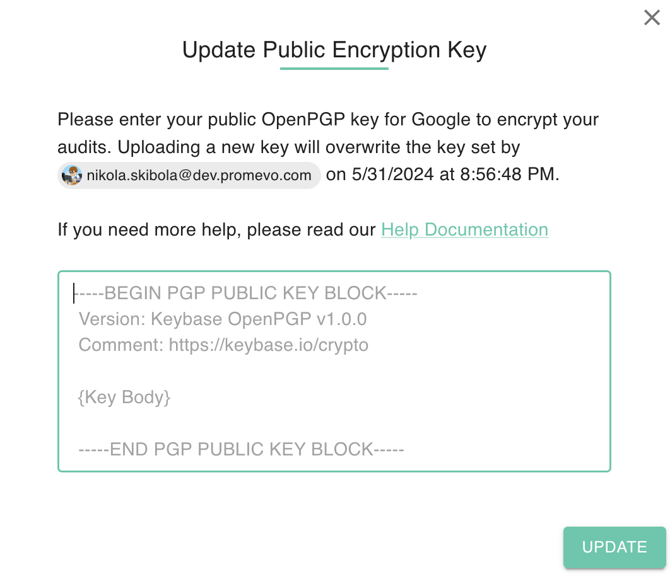
Click the Update Key button located at the top of the page.
-
Paste your Public Key into the popup window.
-
Click Save.
By following this process, gPanel is now equipped with the "lock" (the Public Key) for your future exports. Only you, the holder of the "key" (the Private Key and Passphrase), will be able to view the contents of the exported Gmail data, ensuring total administrative confidentiality.