
In an enterprise environment, Bulk Operations are powerful tools that can modify thousands of records in a single execution.
Because these operations rely on external data — specifically Google Sheets — it is critical for administrators to have a seamless way to verify the information before and after a run. The View Spreadsheet feature in gPanel provides an immediate link to the specific data source tied to a bulk job, ensuring total transparency and reducing the risk of accidental data corruption.
By viewing the spreadsheet directly from the gPanel interface, you can audit your system of record to ensure that user emails, group permissions, or gPanel Contacts fields are accurately formatted and up-to-date.
Step-by-Step: Accessing a Bulk Operation Spreadsheet
To review the data attached to a specific bulk task, follow these instructions:
-
Go to Import/Export > Bulk Operations.
-
Browse your list of saved bulk tasks and select the specific operation you wish to audit. The row will be highlighted to confirm your selection.
-
Locate the Action Menu on the right side of the row and click the View Spreadsheet button.
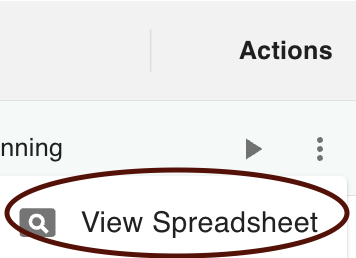
-
gPanel will automatically open a new browser tab containing the associated Google Sheet. To help you maintain a clear audit trail, gPanel automatically renames the spreadsheet using the following convention:
-
Format:
[Bulk Operation Name] - [Date] [Time] -
Example:
Calendar Events Template - 01/07/2026 11:32:45 AM EST
-
If a bulk operation returns an error or a "Partial Success" status, the View Spreadsheet tool is your first step in troubleshooting. By opening the sheet, you can:
-
Verify Headers: Ensure that the columns match the required gPanel template.
-
Identify Syntax Errors: Look for malformed email addresses or invalid Organizational Unit (OU) paths.
-
Audit Completed Rows: Check for any "Status" or "Result" columns that gPanel may have appended to the sheet during the run.
Maintaining a clean and verifiable link between your administrative actions and your source data is a cornerstone of domain governance. Always use the View Spreadsheet feature as a "Pre-Flight Check" to ensure your bulk updates are executed with precision.