In a modern Google Workspace domain, the ability to surgically remove specific messages is a critical security and compliance requirement.
Whether you are responding to a phishing attempt, recalling an accidental "Reply All" containing sensitive payroll data, or purging outdated information for regulatory reasons, gPanel’s Gmail Deletion tool provides a domain-wide solution that exceeds the native capabilities of the Google Admin Console.
By creating a deletion process, you are essentially launching a domain-wide "Search and Purge" operation that ensures your system of record is clean and secure.
Step-by-Step: Creating a Gmail Deletion Process in gPanel
-
Navigate to Tools > Gmail Deletion and click the Plus (+) icon in the top right corner. This opens the main configuration wizard where you will define your search "net."

-
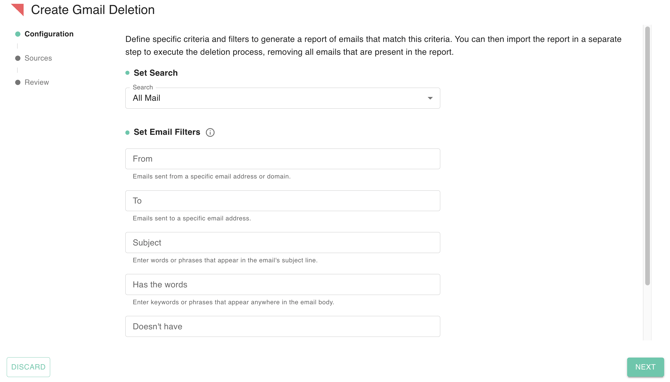
This section is the heart of the operation. You must be precise to ensure only the target messages are caught.
-
Set Search Scope: This defines the "depth" of the scan. While the default is All Mail, you can narrow this to specific folders like Sent or Spam to speed up processing.
-
Set Email Filters: These mimic Gmail’s Advanced Search logic:
-
From/To: Isolate by sender or recipient (e.g., an external malicious domain).
-
Subject: Target specific keywords like "Urgent Action Required."
-
Has the words/Doesn't have: Use these for body content searches. The "Doesn't have" field is a vital safety filter—use it to exclude emails containing words like "Confidential" or "Approved" to prevent accidental data loss.
-
-
Set Deletion Type (Critical Choice):
-
By Message: Only individual emails matching your filters are deleted. Use this for precise "scalpel" removals.
-
By Thread: If a single message in a conversation matches, the entire thread is deleted. Use this with caution, as it can remove safe replies within a chain.
-
-
-
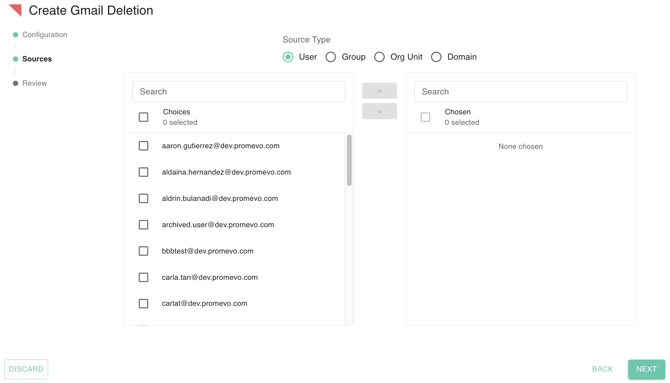
After setting your filters, click Sources to define whose mailboxes will be scanned. gPanel allows for massive scale. Use the Type Ahead search field to quickly identify and add your target sources:
-
User/Group: Targeted removal for individuals or specific teams.
-
Organizational Unit (OU): Broad removal for entire departments.
-
Domain: Scans every single user account on your domain.
-
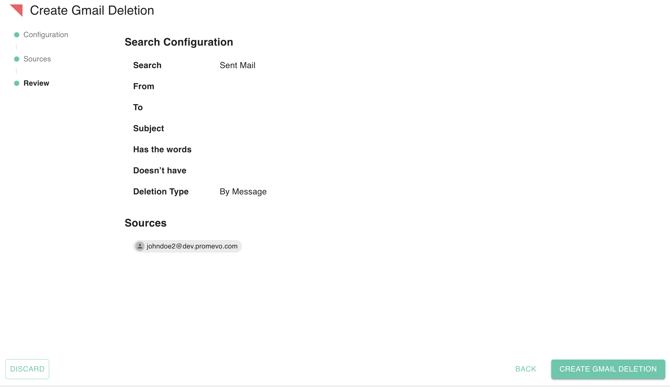
- Before finalizing, navigate to the Review and Save screen. Double-check your filters. Because this process is permanent, accuracy is paramount. Once you have verified the configuration, click Create Gmail Deletion to save the settings and initiate the scan.