Contents
The Gmail Deletion tool is one of the most powerful administrative features in gPanel, often used to recall sensitive emails sent in error or to purge data for legal and compliance reasons. However, once a deletion task has successfully reached its "Finished" state, the configuration remains in your dashboard as a historical record.
Retiring or deleting these processes is a critical best practice for administrative housekeeping. By removing outdated deletion tasks, you prevent dashboard clutter and minimize the risk of another administrator accidentally re-running a process that is no longer required.
What Happens When You Delete a Process?
It is important to understand the distinction between deleting the process and the effect it had on the data:
-
The Record is Removed: Deleting the process permanently removes the configuration and the associated log from your gPanel view.
-
The Emails are NOT Restored: Deleting a "Gmail Deletion Process" does not undo the deletion of the emails themselves. Any messages that were successfully purged from user mailboxes will remain deleted (subject to your Google Workspace trash and vault retention policies).
-
Audit Trail Considerations: Before deleting a process, ensure you have documented the results if required for compliance, as the specific record of "who was purged" will be removed from this specific module.
Step-by-Step: Deleting a Gmail Deletion Record
To remove a deletion process from your gPanel dashboard, follow these instructions:
- Navigate to Import/ Export > Gmail Deletion.
-
Browse the list of active and historical deletion tasks. Click on the process you wish to remove. The row will be highlighted yellow to confirm your selection.
- Click the Delete button located in the top right corner of the interface.

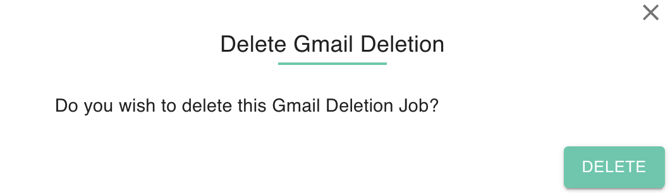
- A confirmation prompt will appear to prevent accidental removals. Review the details and click Yes to permanently delete the process.