
Contents
The Gmail Deletion tool in gPanel is frequently utilized for "Search and Recall" operations—scenarios where an administrator must identify and purge specific messages across the entire domain. Often, the initial search parameters for a deletion might be too broad or too narrow. The ability to Edit an existing process allows you to fine-tune your criteria without having to rebuild the entire workflow.
Whether you need to adjust the date range, add more specific keywords to a subject line filter, or expand the list of target users, editing provides a streamlined way to reach your data governance goals with surgical precision.
When to Edit a Deletion Process
Common use cases for modifying an active or saved deletion process include:
-
Refining Phishing Defense: If a phishing campaign evolves, you can edit your deletion process to include new malicious URLs or sender addresses discovered during the investigation.
-
Compliance Corrections: If a legal hold requires you to exclude certain users who were originally included in a purge, you can edit the process to remove those specific accounts.
-
Scope Adjustments: If an accidental email was sent to more departments than originally reported, you can quickly add the additional Organizational Units (OUs) to the existing process.
Step-by-Step: Modifying a Gmail Deletion Configuration
To update a deletion task, follow these instructions:- Navigate to Import/ Export > Gmail Deletion. Browse your list of configured processes.
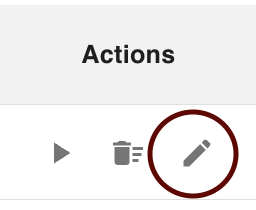
- Hover over the specific process you wish to modify. Under the Action Menu on the right side of the row, click the Edit (Pencil) icon.
-
The configuration window will reappear, allowing you to modify any necessary fields, including:
-
Search Query: Update the keywords, senders, or attachment filters.
-
Target Users: Add or remove specific users, groups, or Organizational Units.
-
Date Parameters: Adjust the time window the system is scanning.
-
- Once your adjustments are complete, click the Update Gmail Deletion button. This applies your changes immediately and ensures the next time the process runs, it uses the most accurate criteria.