
Contents
Technical Prerequisites
To ensure a successful export in gPanel, your domain must meet the following criteria:
- Google Workspace Tier: This feature requires a paid version of Google Workspace. Free editions do not support the underlying protocols.
- Frontline Standard and Frontline Plus
- Business Plus
- Enterprise Standard and Enterprise Plus
- All Education editions
- Enterprise Essentials and Enterprise Essentials Plus (domain-verified only)
- G Suite Business
- Google Vault License: Your user account needs a Google Vault license (either included in your Google Workspace edition or added as an add-on).
- Vault Privileges: An administrator must assign you the specific Vault privileges (such as Manage Matters, Manage Holds, or Manage Exports) in the Google Admin console.
Limitations
- Expiration Window: You have 15 days from the time the export starts to download your data.
- Deletion: After 15 days, the export files are deleted, and you must re-create the export if you still need the data.
- Processing Limits: Large exports can take a few hours. If an export runs past 24 hours without finishing, Vault stops it with partial results, requiring you to continue or re-create it.
What is a Vault Matter?
A Vault Matter is a dedicated digital workspace or container used to organize all search queries, legal holds, and data exports related to a specific legal case, HR investigation, or compliance audit.
Matters isolate data processing for individual cases to ensure strict access controls, maintain chain of custody, and provide a legally defensible audit trail without compromising sensitive details or cluttering general IT operations.
Creating a Matter is the required first step before you can place legal holds on user accounts, execute targeted eDiscovery searches across Google Workspace, or export preserved records for legal counsel.
Step-by-Step: Manually Creating a Matter in gPanel
-
Go to Import/Export > Vault and and click the Create Matter button on the upper right hand side of the screen.

- On the details window that pops up, enter the required Matter Name and an optional Description information, and click the Create Matter button.
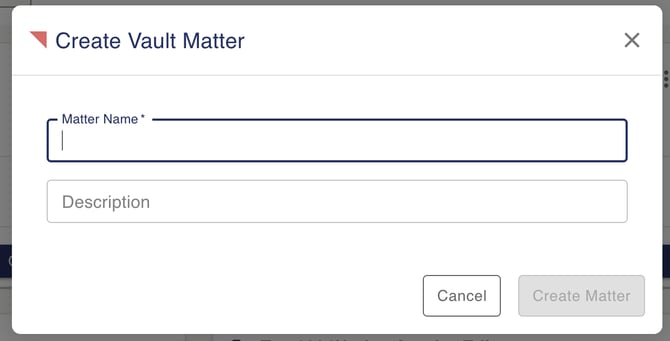
- Click the "Create Matter" button on the lower right corner of the window. The Matter will be created and the screen should refresh on its own.
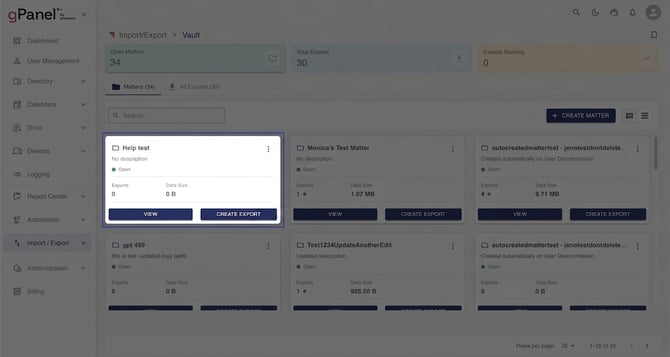
- Once the screen refreshes, the matter you created should be displayed as the first Matter tile on the screen.
What Is a Corpus/Service?
gPanel’s standalone Vault feature provides centralized eDiscovery, legal hold enforcement, and data preservation across your entire Google Workspace environment, including Gmail, Calendar, Groups, Drive, Gemini, and Chat. In Google Vault, these categories are known as a Corpus or Service.
gPanel enables IT administrators to seamlessly export critical communications, files, schedules, and AI interaction histories across multiple Google Workspace services from a single unified interface.
Step-by-Step: Creating a Corpus Export in gPanel
-
Determine the Matter you want to use as the container of your export by manually scrolling through the tiles or via the search function.
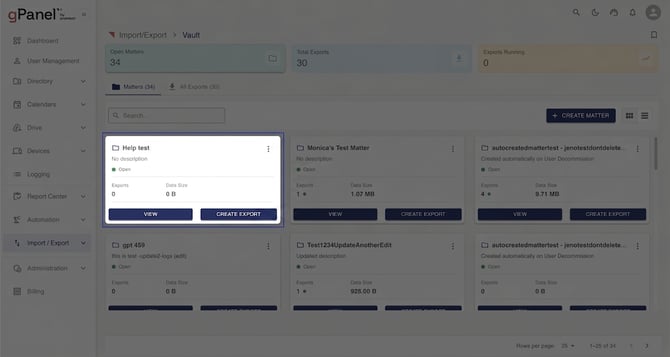
- Once the desired Matter has been determined, click the "Create Export" button on the lower right corner of the Matter tile.
- When the configuration window appears, select the Google Workspace application you'd like to export from the Service dropdown. Selecting a Corpus will show the form for that specific Corpus. For example, in the screenshot below, selecting "Gmail" changes the context of the form to the selected application.
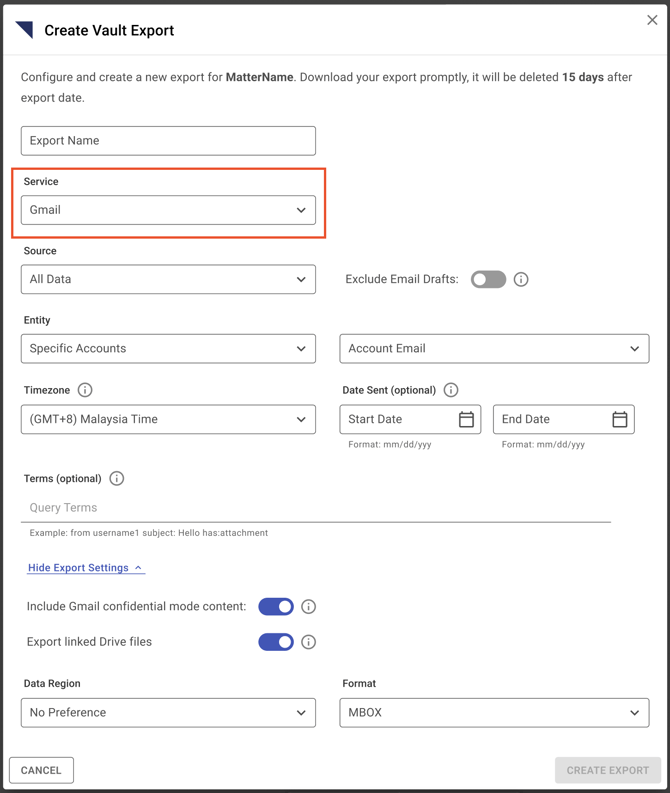
- Fill in the required and desired fields. Once complete press the "Create Export" button on the lower right corner of the window. This will close the window and the export process will start in the background.
Note: The export process is the same for all of the Vault Corpora. The difference is with the form that needs to be filled in, which is dictated by the selected Corpus.