
Contents
Note: You must be a gPanel Enterprise subscriber in order to access the gPanel API. Please contact us to discuss upgrading your account.
Make an API call
-
Navigate to the gPanel API developer portal
-
Click on the APIs box to view the API documentation

-
Click on the API you wish to call

-
Capture the URL of the API you wish to call.
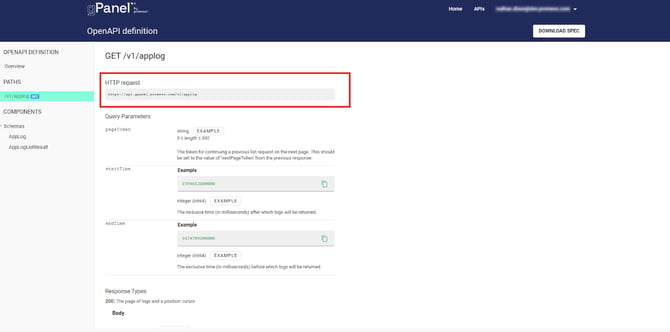
-
Now form your API endpoint by concatenating your api as a query parameter at the end of your endpoint, like so:
https://api.gpanel.promevo.com/v1/applog?apikey=INSERT INFO HERE
Now, use our endpoint to make an API request via HTTP GET. The easiest way is to paste it into a browser, like so:
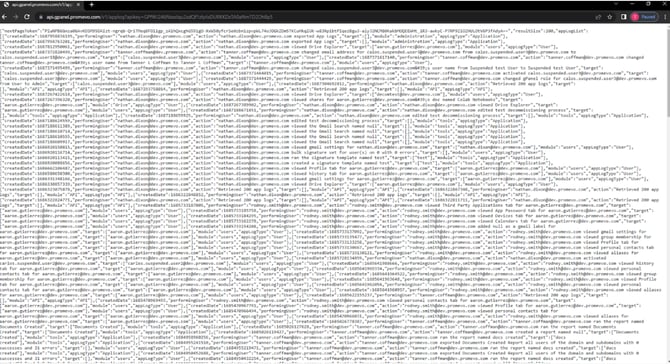
Summary
Let’s examine our request and point out a few things. First, if we visit our API documentation on the developer portal, we’ll see that our API request can take parameters.
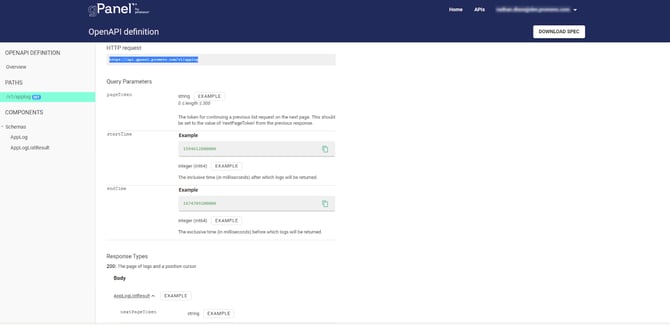
Specifically, we could pass a cursor, a startTime, or endTime. We didn’t pass either startTime or endTime in our request, which means we want all logs.
Let’s examine this json response, and take note of a few things.
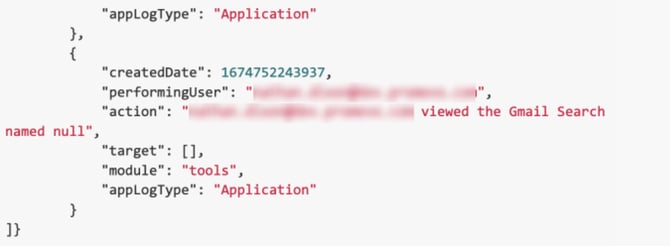
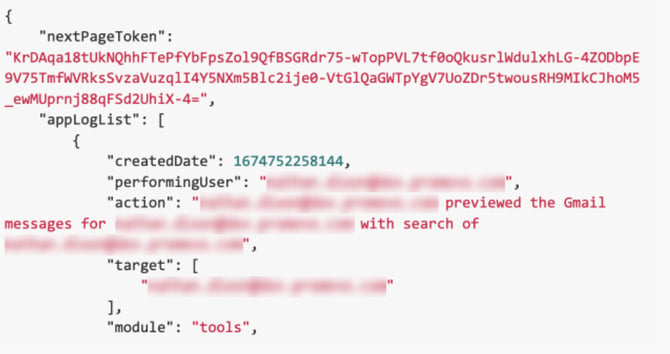
The response contains a nextPageToken element. Because our request could potentially return thousands of logs, they do not all get returned in a single response. This API returns a paged response. This means that we get a subset of the response (200 items in this instance). In order to get the rest, we use the nextPageToken to make subsequent calls.
If our next response contains a nextPageToken, then we use that one to make another call. We continue making requests until the response no longer contains a nextPageToken.