
Contents
Before you begin
Manage Google Workspace subscription settings
-
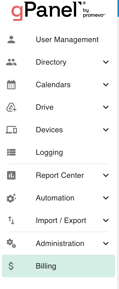
On the left side navigation, hover over the dollar sign/Billing and click Billing.
-
If you do not see a menu like the one below, you may be currently set as a "User" within gPanel. If that's the case, you'll need to ask your domain administrator for access to gPanel.
-
-
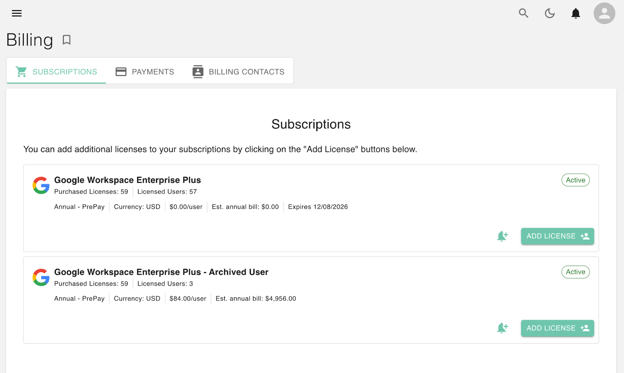
Find your Google Workspace subscription tab, in here you can see Enterprise Plus and Enterprise Plus - Archived users.
-
Enterprise Plus is a license designed for active employees who require full access to the organization's tools. It provides complete access to all Google Workspace services, including Gmail, Drive, Meet, and advanced security and compliance features.
-
-
-
Enterprise Plus - Archived user is a specialized, cost-effective license used for former employees who have left the company. It restricts live access (the user cannot log in or send/receive mail) but preserves all data for administrative, legal, or discovery purposes through tools like Google Vault.
-
-
Click Add License
-
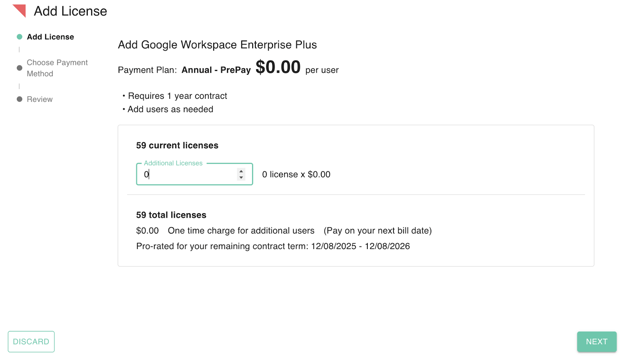
Fill out Number/Count of Additional License. It will be multiplied by the Amount of the Payment plan.
- Choose the method of payment. Invoice will be selected by default.
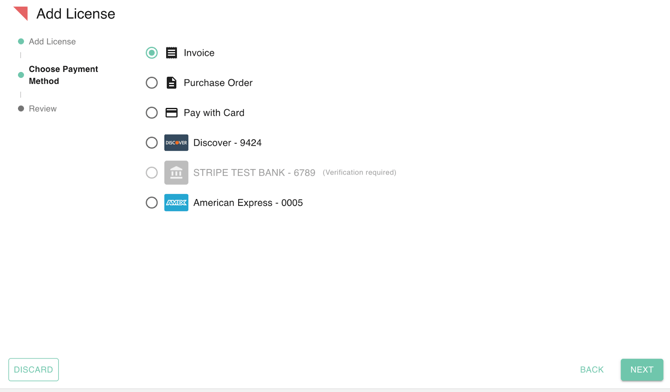
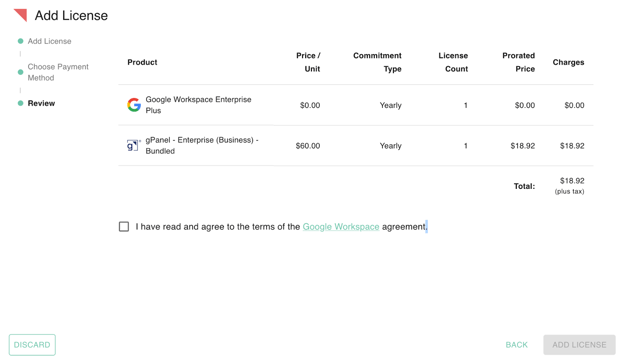
- Click Review. You will be presented with the product and its charges. Click the agreement and terms.
Notifications
In the gPanel Update Notifications window, administrators can configure automated alerts regarding their organization's Google Workspace license usage. This tool helps manage costs and ensure that the organization does not run out of available licenses for new employees.
-
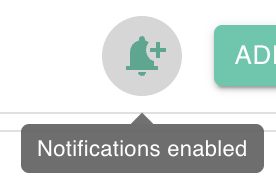
Click the Notification button.
-
You will be greeted with Update Notifications module, where you can choose when you'd like to be notified:
-
Active: This checkbox enables or disables the specific notification rule. When checked, gPanel will monitor the subscription and send alerts based on your criteria.
-
Ignore Threshold: When this is enabled, the system will bypass the standard "License Threshold" percentage and instead send notifications based on a specific timeframe or set of conditions, regardless of how many licenses are left.
-
License Threshold: This is the minimum percentage of assigned licenses that triggers a warning. For example, if you set this to 90, you will receive an alert when 90% of your purchased licenses have been assigned to users.
-
Number of Days: This field specifies how far in advance of a subscription's renewal or expiration date an alert should be sent. Setting this to 30 would trigger a notification 30 days before the contract expires.
-
Emails to Notify: This allows you to specify which administrators or stakeholders should receive these alerts. You can search for and add specific user email addresses to the notification list.
-
These notifications are critical because they can help you:
-
Avoid Overages: They alert you to purchase more licenses before a bulk onboarding event.
-
Identify Waste: They can help you identify if you have too many "Archived User" licenses that are no longer needed, allowing you to reduce your total annual bill.
-
Renewal Readiness: They ensure IT and finance teams are prepared for the annual pre-pay renewal date (e.g., the 12/08/2026 date shown in your billing screen).