Contents
Manage payment methods
-
On the left side navigation, hover over the dollar sign and click "Billing."
-
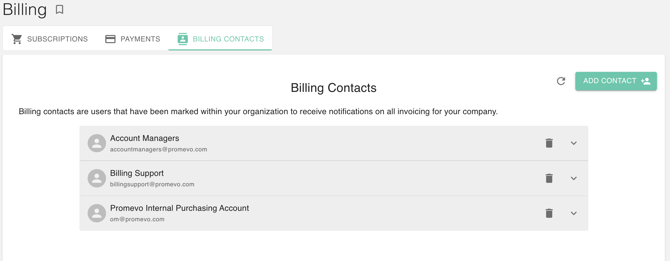
Click the Payments Tab, In here you will be greeted with the List of Payment Methods for the account.
Important: If you do not see the Billing icons in your list of options, you may be currently set as a "User" within gPanel. Ask your domain administrator for administrator access.
Set up auto pay
-
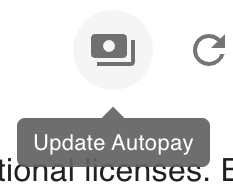
Select this Update Auto Pay Button on the upper right of the table.
-
Enable on left-hand corner that says "Auto Pay Enabled"
-
Select the payment method you want to use.
-
The Terms & Conditions will pop up. Click the "Agree" checkbox and click "Confirm." You will also get an email that contains a PDF copy of this agreement.
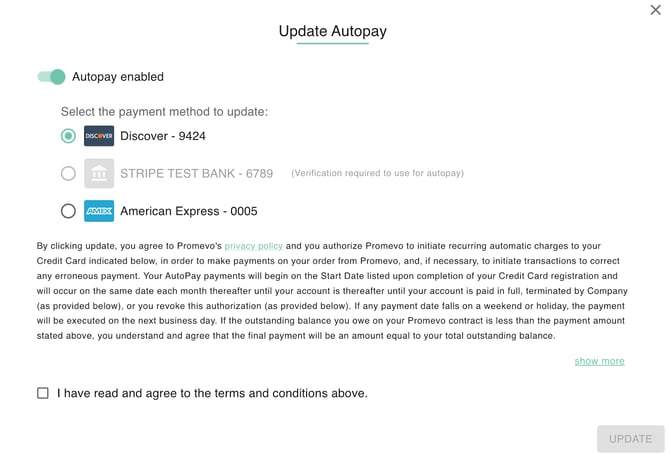
Now this payment method is set up for auto pay for Google Workspace in gPanel.
You'll get two notification emails each month. First, you'll receive an email on your bill date notifying you that you have a new invoice and that this invoice will be paid via your auto pay method within three business days.
Secondly, you'll receive an email upon successful charge of your payment method with a receipt for your records. You'll also receive an email if the charge was unsuccessful. Our billing team will then reach out to your primary billing contact.
Add Payment
-
Click the box on the right that says "Add Payment"
-
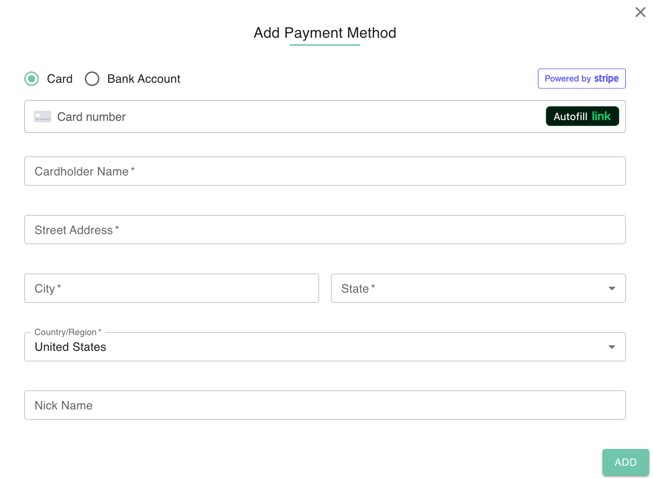
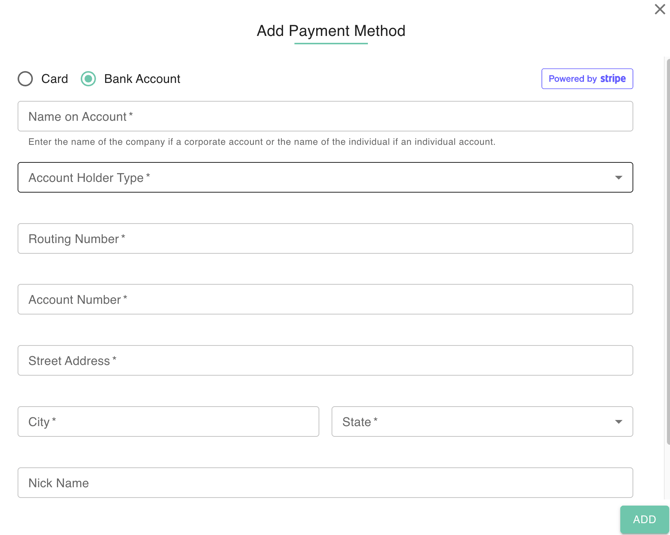
Select the type of payment method you want to add. Either Card or Bank Account.
Warning: Promevo is transitioning away from credit card payments as a way to improve transaction processing for our clients. We encourage you to add a bank account in order to set up ACH or EFT payments.
Delete Payment Method
-
Select this trash icon.
-
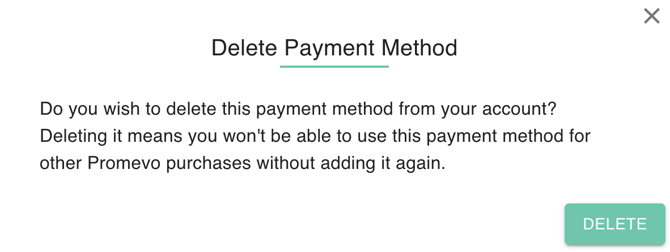
Confirm Deletion. This will also mean that auto pay transaction will be halted and will not push through.
Verification
-
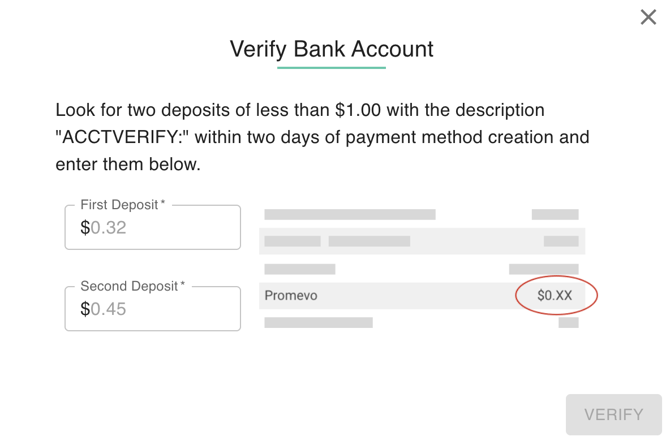
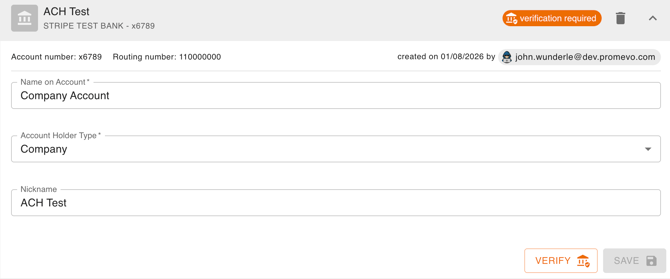
Card and Bank Accounts sometimes need verification in order to link as a new payment method. Add your information into the provided form.
-
Click the orange button that says Verify.
-
Check your Bank Account and add the first and second deposits you received. You will need to complete this step within two days of payment method creation.
-
Click Verify to proceed.