The Reports module in gPanel is designed to bridge the gap between complex domain metadata and practical administrative action. By generating reports directly into Google Sheets, gPanel allows administrators to leverage the power of spreadsheet tools for auditing, compliance, and resource management.
Whether you need a one-time snapshot of user storage or a recurring weekly audit of external file sharing, the reporting engine provides a customizable, automated solution to keep your team informed.
Step-by-Step: Creating a Report in gPanel
- Navigate to the Report Center using the left-hand navigation menu.
- Click Create Report in the top right corner.

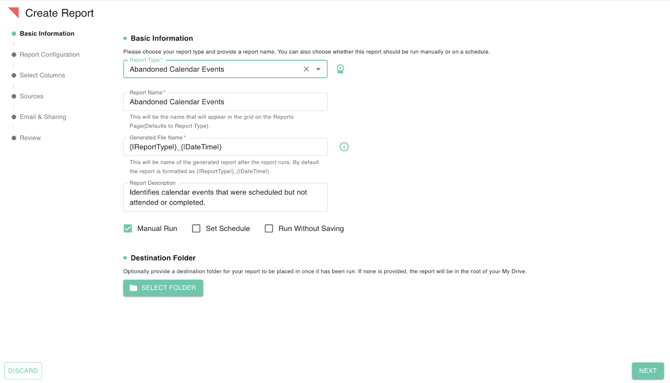
- Enter the following information about the report:
- Report Name: Desired name of the configured report.
- Report Type: Select among the available report types.
- Generated File Name: Customize how the final Google Sheet will be named. By default, it uses the format {|ReportType|}_{|DateTime|}.
- Report Description: Provide an optional description as to what the policy is configured for.
- Execution Method
- Manual Run: Enable manual run if you want to manually decide when to run the report.
- Set Schedule: Enable set schedule if you want to set a schedule for the report to run automatically.
- Run without Saving: Enable Run without saving if you only wish to generate a report one time
- Destination Folder (Optional): provide a destination folder for your report to be placed in once it has been run. If none is provided, the report will be in the root folder of your My Drive.
- Once you have configured the basic information, click Next to proceed.
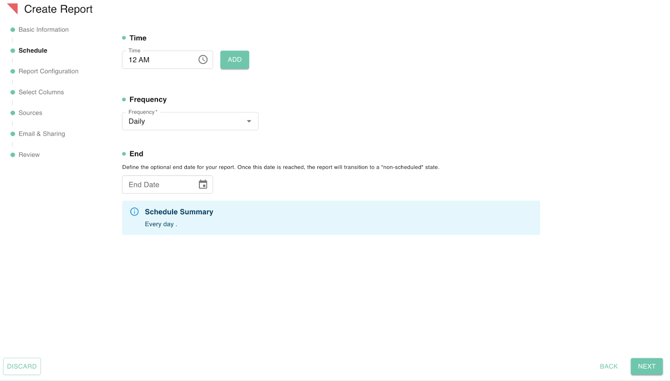
- If you enabled a schedule, define the frequency (Daily, Weekly, Monthly), the specific time of day, and the end date for the automation.
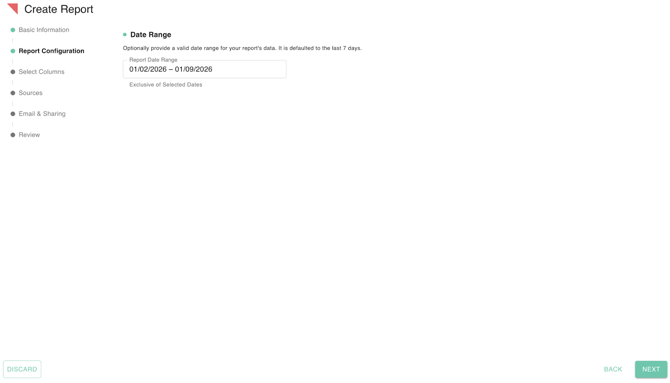
- Based on your selected Report Type, you may be asked to define a specific Date Range to include in the data pull.
- Next, you'll have the option to tailor your report by choosing only the data points you need. You can include all available headers or pick specific columns to keep the Google Sheet clean and focused.
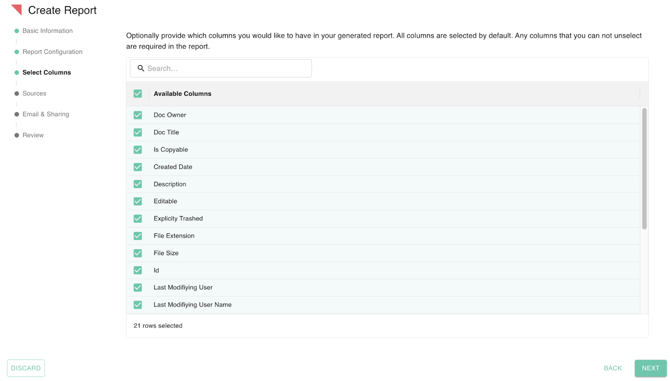
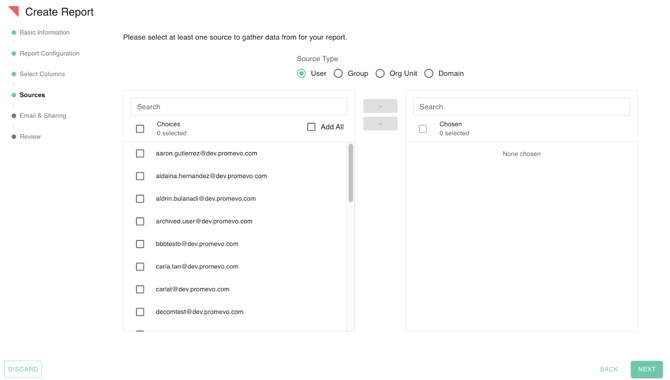
- Once you've selected your columns, you'll be asked to choose specific Sources (such as specific OUs or Groups) to include in the data pull.
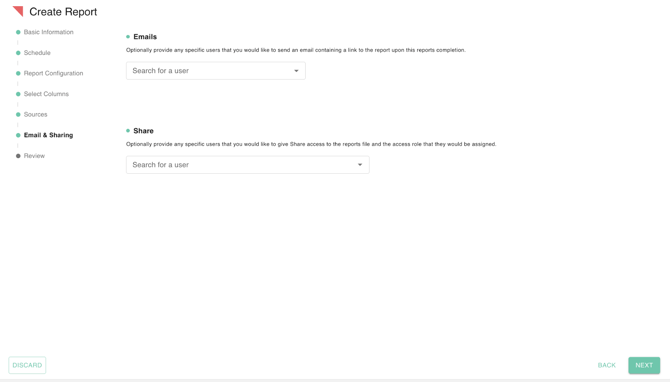
- Your report is almost ready! On the next page, you'll be asked if you want to alert specific stakeholders once the report is ready for review. You can also grant other users access to the generated report automatically, ensuring the right team members have immediate visibility into the data.
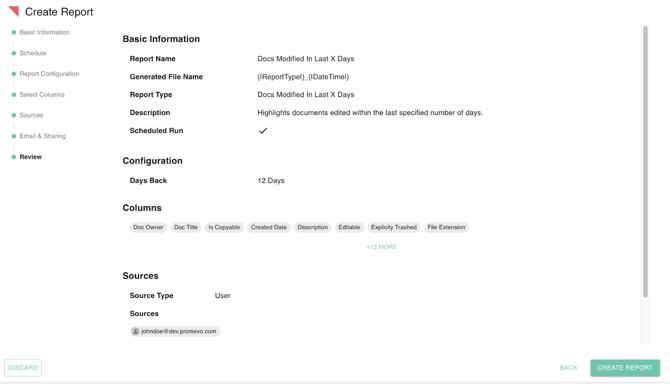
- The final Review screen summarizes your configuration. If you need the data immediately, toggle the Run immediately after saving switch to Yes. Once confirmed, click Create Report to initiate the process and save your settings.