
Contents
In the User Management section of gPanel, you can take single user or bulk user actions, without the need to import CSV’s or visit an individual user's page.
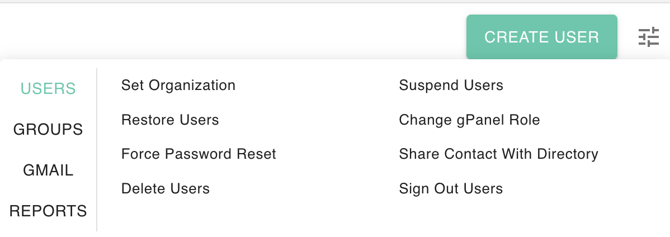
Available actions
Groups
-
Add To Group
-
Remove From Group
-
Add Alias To Group
Users
-
Set Organization
-
Suspend Users
-
Restore Users
-
Change gPanel Role
-
Force Password Reset
-
Share Contact With Directory
-
Add To User
-
Delete Users
Gmail
-
Add Label
-
Enable/Disable IMAP
-
Enable/Disable POP
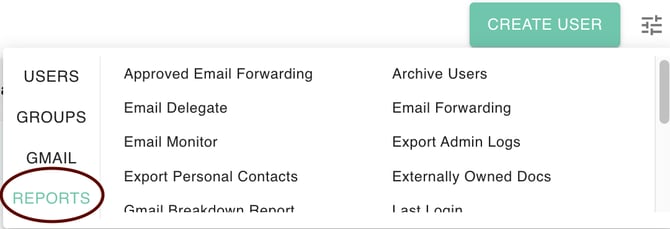
Reports
-
Approved Email Forwarding
-
Email Delegate
-
Email Forwarding
-
Email Monitor
-
Export Admin Logs
-
Export Personal Contacts
-
Externally Owned Docs
-
Gmail Breakdown Report
-
Last Login
-
License Types
-
Send As Addresses
-
Site Ownership
-
Storage Report
-
Super Admin
-
Suspended User
-
Two Factor Enrolled
-
User Profile
-
Select the user or users in the list under user management by clicking the box next to their name.

-
Click the action button.

- Choose an available action from the list.
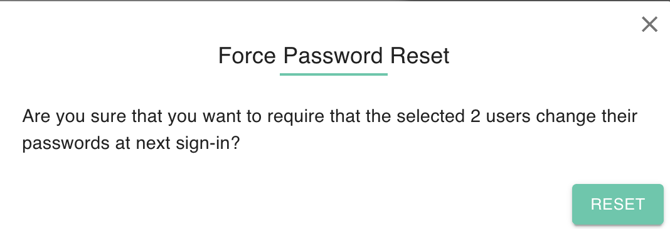
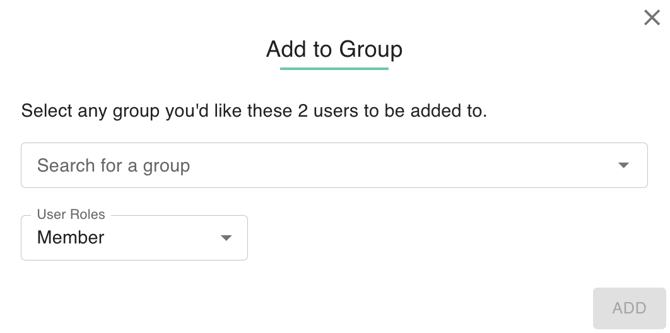
- Depending on the action you select, you need to hit a confirmation button or enter a value before you can proceed.
- Once done, your action will be processed.