Content
Step 1: Set Up User
Basic Information
Organizational Unit and Roles
Step 2: Groups
Step 3: Employee Information
Step 4: Profile Information
Step 5: Welcome Recipients
Step 6: Policies
Step 7: Review
Step 1: Set Up User
On the Landing Page of User Management Click the Create User Button

Users will be greeted with the Create User Stepper. The user needs to accomplish the Basic Information and the Organizational Unit Roles. All fields with ‘*’ are required while others are optional. Here’s the quick guide on filling out the information.
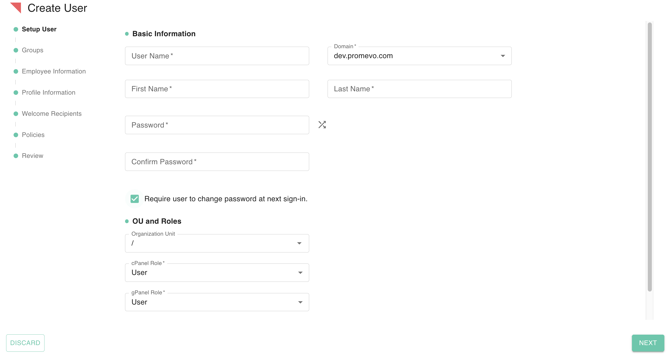
Basic Information
| Field Name | Description |
| User Name | This is the unique identifier the user will use to log in to the system. |
| Domain | The user's primary email domain, which defaults to the system's configured domain (e.g., dev.promeve.com). |
| First Name | The user's given name. |
| Last Name | The user's surname or family name. |
| Password | The initial password assigned to the new user account. |
| Confirm Password | Used to verify that the initial password was typed correctly. |
| Require the user to change password at next sign-in. | A setting that forces the user to create a new, private password immediately after their first successful login. |
Organizational Unit & Roles
| Field Name/Check Box | Description |
| Organization Unit | A location within the company's organizational hierarchy that determines the user's groupings and departmental access. |
| cPanel Role | Defines the user's overall access level and permissions within the main control panel. |
| sPanel Role | Defines the user's specific access level and permissions within a sub-panel or secondary system. |
| Automatically share user's contact information. | A setting that makes the user's basic contact details visible to other users within the system's directory. |
-
After completion , Click ‘Next’ for the next step. Step 1 Complete.
Step 2: Groups
Groups’ step allows you to assign the new user to relevant security groups or mailing lists.Users must select the group that the user belongs to or should be involved in.
Crucially, for each group selected, users can also define the new user's assigned role, whether they are a Member, a Manager, or an Owner, which dictates their permissions within that specific group.
| Field Name | Description |
| Search | An input field used to filter and quickly locate specific groups within the list. |
| Groups List (Checkboxes) | A list of all available security or mailing groups. You can select one or more groups to add the new user to. |
After completion , Click ‘Next’ for the next step. Step 2 Complete.
Step 3: Employee Information
The Employee Information consists of Employee Related and Primary Organization, which helps users to simply where you enter the new user's core professional details: their unique Employee ID, the Manager's Email for who they report to, and their overall employment status and category (Type of Employee) within the company.
For Primary Organization, it defines the user's structural context, such as their formal Job Title, Department, and the exact category of employment they fall under (Type of Employee). This section also links the employee to the financial tracking unit (Cost Center) and their physical work location.
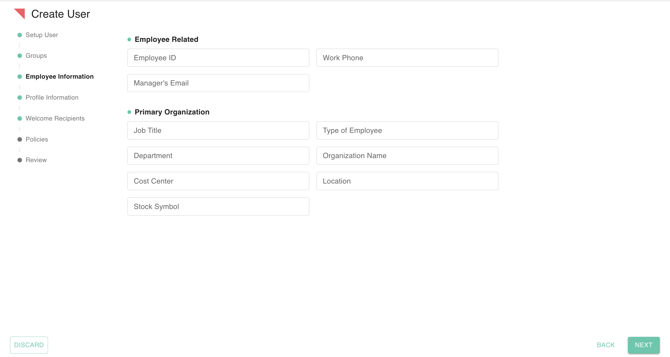
| Field Name | Description |
| Employee ID | A unique, alphanumeric identifier assigned internally by the organization to the employee upon hiring. |
| Manager's Email | The official email address of the individual who manages and supervises this employee. |
| Work Phone | The official telephone number assigned to the employee for work-related communication. |
| Job Title | The official designation of the employee's role (e.g., "Senior Software Engineer"). |
| Type of Employee | A classification indicating the employee's employment status (e.g., "Full-Time," "Part-Time," "Contractor"). |
| Department | The functional unit or operational area the employee belongs to (e.g., "Finance," "Engineering"). |
| Organization Name | The specific name of the parent company, subsidiary, or business unit the user is being onboarded into. |
| Cost Center | A specific financial tracking unit (department or function) that incurs expenses but does not directly produce revenue. |
| Location | The physical office, city, or site where the employee is primarily based. |
| Stock Symbol | The ticker symbol of the company or a parent company, relevant for equity compensation and compliance. |
After completion , Click ‘Next’ for the next step. Step 3 Complete.
Step 4: Profile Information
The Profile Information section in the user creation process allows administrators to define and record a comprehensive set of contact and identity details for the new user.
It organizes data into expandable categories, such as Addresses, Phones, Emails, and IDs, enabling the input of multiple pieces of information per field as needed.
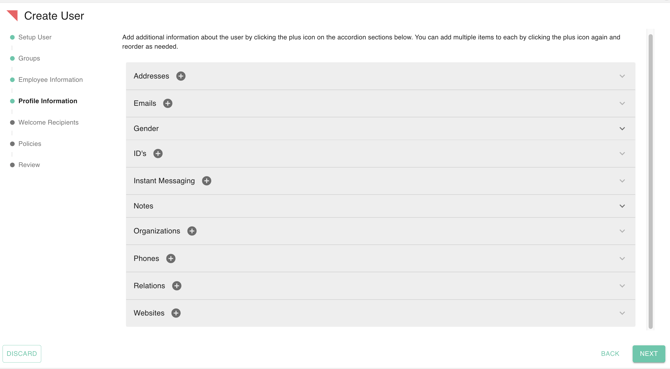
| Addresses | Used to record all physical addresses associated with the user, such as work, home, or mailing addresses. |
| Emails | Allows the administrator to input secondary or recovery email addresses for the user, separate from their primary account email. |
| Gender | Records the user's specified gender identity for administrative and directory purposes. |
| ID's | Used to store various official or internal identification numbers for the user (e.g., employee ID, government ID number). |
| Instant Messaging | Records the user's handles or addresses for various instant messaging platforms. |
| Notes | Provides a free-form field for administrators to record any important unstructured text or internal memos related to the user's profile. |
| Organizations | Used to list the user's professional organizations, including details like job title, department, or company they belong to. |
| Phones | Records all phone numbers associated with the user, such as work, mobile, home, or fax numbers. |
| Relations | Allows the recording of relationships the user has with other people, such as emergency contacts or direct reports. |
| Websites | Used to list personal or professional websites or URLs associated with the user. |
Step 5: Welcome Recipients
The Welcome Recipients step in the user creation process functions as the final communication interface, ensuring the new user and designated parties receive the necessary account credentials.
This step allows the administrator to send a customizable email that automatically includes the user's new email address, a temporary password, and essential sign-in links for Google services and gPanel. The content is editable and includes fields for To, Cc, and Bcc to control who receives the notification, streamlining the user onboarding process.
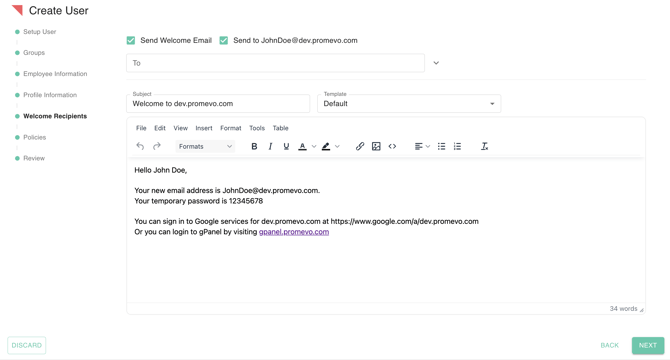
Set up the recipient cc and bcc and click Save. Step 5 is complete.
Step 6: Policies
The Policies step in the user creation process requires the administrator to select which pre-configured, domain-defined policies should be applied to the new account.
The administrator should review the list of policies — which may include automated settings, security rules, or account delegation rules, as indicated by the "Add Delegate To Account" button — and then check the box next to each policy they intend for the new user to inherit.
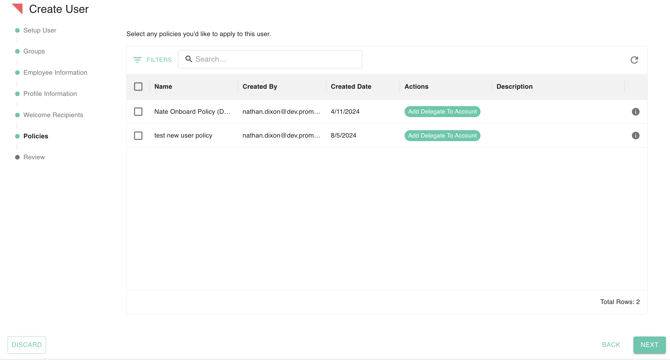
After making all necessary selections, the administrator must click NEXT to save the changes and proceed to the final step of the user creation process.
Step 7: Review
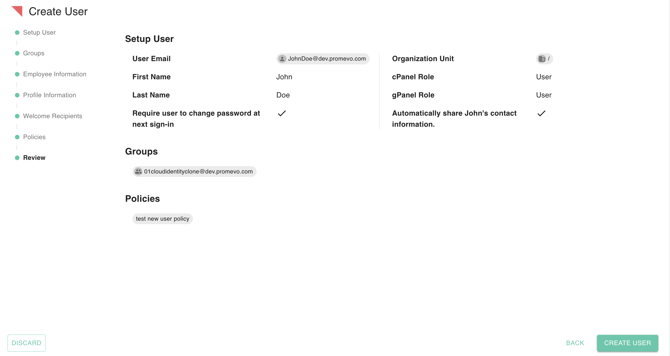
The Review step in the "Create User" process serves as the final confirmation screen, allowing the administrator to verify all configured account details before creation. It displays a concise summary of the new user's User Email, names, assigned Organization Unit and gPanel Role, and confirms important settings like the password change requirement and group memberships.
The administrator must review this summary before clicking CREATE USER to finalize the process.